How to Add Comments in Word (Reply, Resolve and Delete)
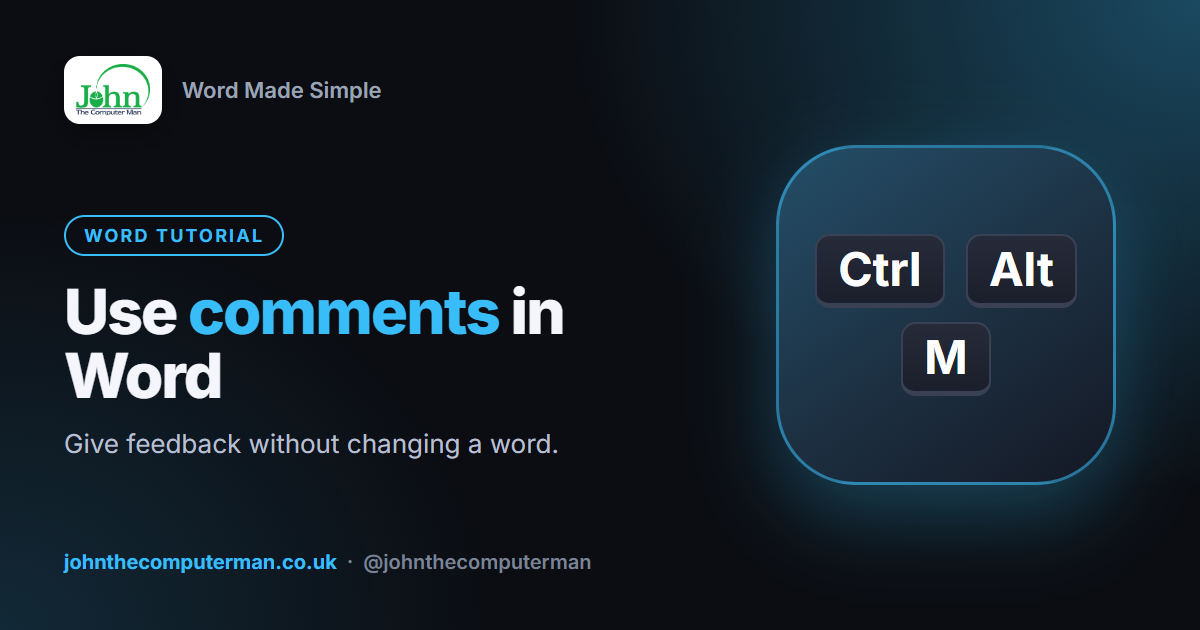
Comments let you give feedback on a document without changing the text itself. They appear in the margin, so the author can read them, reply and decide what to do.
Quick reference
| What you want | How |
|---|---|
| New comment | Ctrl + Alt + M or Review → New Comment |
| Tag a colleague | Type @ and their name |
| Move between comments | Review → Previous / Next |
| Delete all comments | Review → Delete → Delete All Comments in Document |
1. Add a comment
1. Select the word, sentence or paragraph you want to comment on.
2. Press Ctrl + Alt + M, or go to Review → New Comment.
3. Type your comment and click the Post arrow (or press Ctrl + Enter).
2. Press Ctrl + Alt + M, or go to Review → New Comment.
3. Type your comment and click the Post arrow (or press Ctrl + Enter).
The text you selected is highlighted and your comment appears in the right margin.
2. Tag someone with @
In a document saved to OneDrive or SharePoint, type @ followed by a colleague's name in your comment. They'll get an email with a link straight to it, and the comment can be assigned to them as a task.
3. Reply to a comment
Click Reply under the comment and type. Replies stay together in one thread, so the conversation is easy to follow.
4. Resolve a comment
Once something's been dealt with, click the ⋯ on the comment and choose Resolve thread. It fades out but is still there if you need to reopen it.
5. Move through every comment
Use Review → Previous and Next in the Comments group. Or click Show Comments → List to see them all in a pane.
6. Delete comments
• One comment: click ⋯ → Delete thread.
• All comments: Review → Delete (arrow) → Delete All Comments in Document.
• All comments: Review → Delete (arrow) → Delete All Comments in Document.
Before you send a document
Comments travel with the file. Before sending to a client, run File → Info → Check for Issues → Inspect Document to find and remove comments, tracked changes and hidden text.
Troubleshooting
I can't see any comments. Go to Review → Show Comments, and check Review → Tracking is set to Simple Markup or All Markup, not No Markup.
My name is wrong on comments. Change it in File → Options → General → User name.
Wrapping up
Select text, Ctrl + Alt + M, type. Resolve threads as you go, and always inspect the document before it leaves your hands.
