How to Forward an Email as an Attachment in Outlook
A normal forward copies the email's text into your message. That's fine for passing on a joke, but not when IT asks you to send them a suspicious email, when a colleague needs the original with its hidden headers, or when you want to send three emails at once without a wall of quoted text. For those, forward as an attachment.
Quick reference
| Version | How |
|---|---|
| New Outlook / web | ⋯ → Forward as attachment |
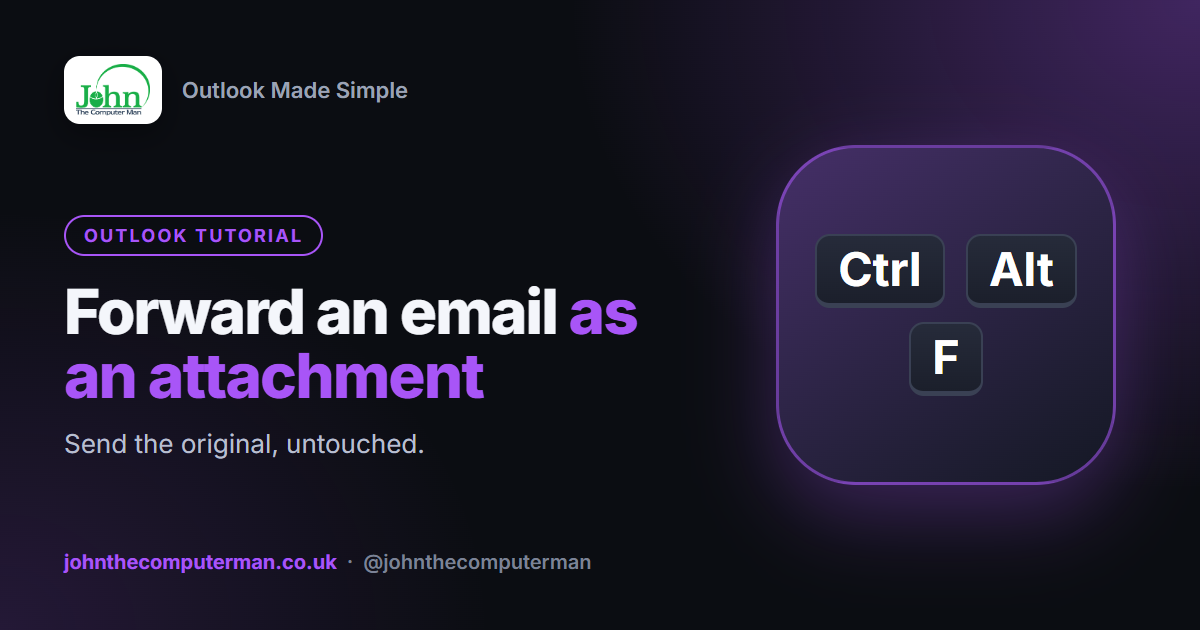
| Classic Outlook | Home → More → Forward as Attachment or Ctrl + Alt + F |
| Several emails at once | Select them all first, then forward as attachment |
| Any version | Drag the email into a new message |
1. New Outlook and Outlook on the web
1. Click the email in your message list.
2. Click ⋯ (More actions) at the top right of the message.
3. Choose Forward as attachment (it may be under Forward → Forward as attachment).
4. A new message opens with the original attached as an .eml file. Add the recipient and a note, then Send.
2. Click ⋯ (More actions) at the top right of the message.
3. Choose Forward as attachment (it may be under Forward → Forward as attachment).
4. A new message opens with the original attached as an .eml file. Add the recipient and a note, then Send.
2. Classic Outlook
1. Click the email.
2. On the Home tab, click More (next to Forward) → Forward as Attachment. Or press Ctrl + Alt + F.
3. The original is attached as an .msg file. Add the recipient and send.
2. On the Home tab, click More (next to Forward) → Forward as Attachment. Or press Ctrl + Alt + F.
3. The original is attached as an .msg file. Add the recipient and send.
3. Forward several emails in one go
Select the emails first — click the first, hold Ctrl and click the others — then use Forward as attachment. All of them are attached to one new message. Much tidier than forwarding five separate emails.
4. The drag-and-drop method
Works in every version: open a New mail window, then drag an email from your inbox into the body (or attachment area) of the new message. It attaches as a file. Handy when you've already started writing.
5. Why attach rather than forward?
• Reporting phishing — IT and security teams need the original headers to trace where it came from. (Outlook's Report button does this automatically for Microsoft's filters.)
• Legal or HR matters — the attached original shows exactly who sent what, when.
• Attachments inside — the original's attachments come with it, untouched.
• Several emails — one message, several attachments, no quoted sprawl.
• Legal or HR matters — the attached original shows exactly who sent what, when.
• Attachments inside — the original's attachments come with it, untouched.
• Several emails — one message, several attachments, no quoted sprawl.
6. Opening an attached email
The recipient double-clicks the attached email and it opens in Outlook like any other message, complete with its own attachments. On a phone, tap it to preview. Gmail and Apple Mail open .eml files directly too.
Troubleshooting
The recipient gets a blank attachment or "winmail.dat". They're using an email program that doesn't understand Outlook's rich format. In classic Outlook, send the email in HTML format (Format Text → HTML), or save the original as .eml/.msg and attach that file instead.
Forward as attachment isn't in the menu. In new Outlook, click Forward first — the drop-down arrow next to it offers Forward as attachment. Or drag the email into a new message.
I want to send just the attachment from an email, not the email. Open the email, right-click the attachment and choose Save as, then attach that file to a new message. Or right-click it and pick Forward if your version offers it.
Wrapping up
Forward as attachment keeps the original exactly as it arrived. Use it for anything IT or HR needs to see, and for sending a batch of emails without the clutter.
