How to Mute and Unmute in Teams (Yourself and Everyone Else)
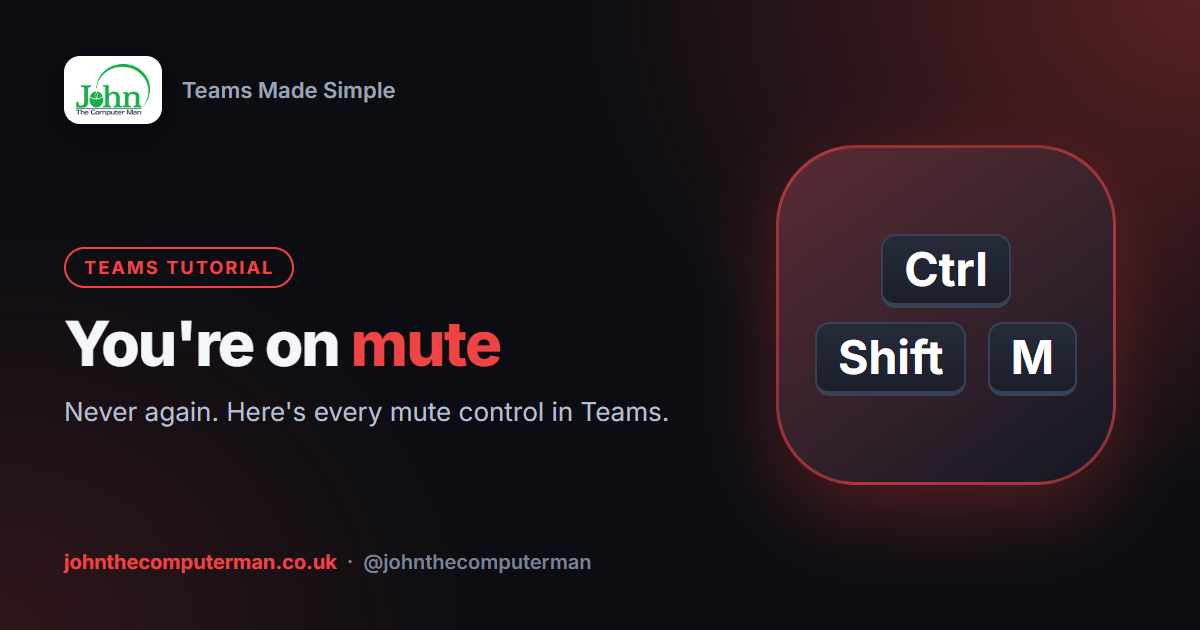
"You're on mute" is the most-heard sentence of the decade. Here's how to stay in control of your microphone, and how to quieten a whole meeting when you're the one running it.
Mute and unmute yourself
Click the Mic button in the meeting toolbar. A line through the icon means you're muted.
Keyboard shortcut: Ctrl + Shift + M (Command + Shift + M on a Mac). Learn this one — it saves fumbling for the button.
Push to talk
If you're mostly listening, hold Ctrl + Space to unmute while you speak, then let go to mute again. Turn it on under Settings > Privacy > Keyboard shortcut to unmute if it isn't working.
Join muted every time
On the preview screen before you join, switch the Mic toggle off. Teams remembers your choice for the next meeting, so you'll never burst in mid-sentence.
Mute someone else
Anyone in a meeting can mute another person (but not unmute them):
1. Click People in the toolbar.
2. Hover over the person and click ⋯.
3. Choose Mute participant.
2. Hover over the person and click ⋯.
3. Choose Mute participant.
They'll see a note that they've been muted and can unmute themselves.
Mute everyone at once
Running a big meeting? Click People, then Mute all at the top of the list. Everyone except you is muted and can unmute themselves if they need to speak.
Stop attendees unmuting themselves
For webinars, training or a classroom, you can take away the unmute button entirely:
1. Click ⋯ More > Settings > Meeting options.
2. Switch off Allow mic for attendees.
3. Click Save.
2. Switch off Allow mic for attendees.
3. Click Save.
Attendees can still raise a hand. When you want someone to speak, hover over them in People and choose Allow mic.
Troubleshooting
People can't hear me and I'm not muted. Click ⋯ More > Settings > Device settings and check the right microphone is selected. Also look for a physical mute switch on your headset.
Teams says my mic is muted by the system. Windows has turned off microphone access. Go to Settings > Privacy & security > Microphone and allow desktop apps.
My mic unmutes when I join. Check the toggle on the preview screen before you click Join now, and turn off Keyboard shortcut to unmute if you keep pressing it by accident.
Wrapping up
Ctrl + Shift + M mutes and unmutes you, Ctrl + Space is push to talk, and People > Mute all calms a noisy room. For complete control, turn off Allow mic for attendees in the meeting options.
