How to Show Formulas in Excel Instead of Results
Normally Excel shows the result of each formula and only reveals the formula itself when you click on a cell. When you're checking someone else's spreadsheet, or trying to find a mistake in your own, it's much easier to see every formula at once.
Show all formulas: the shortcut
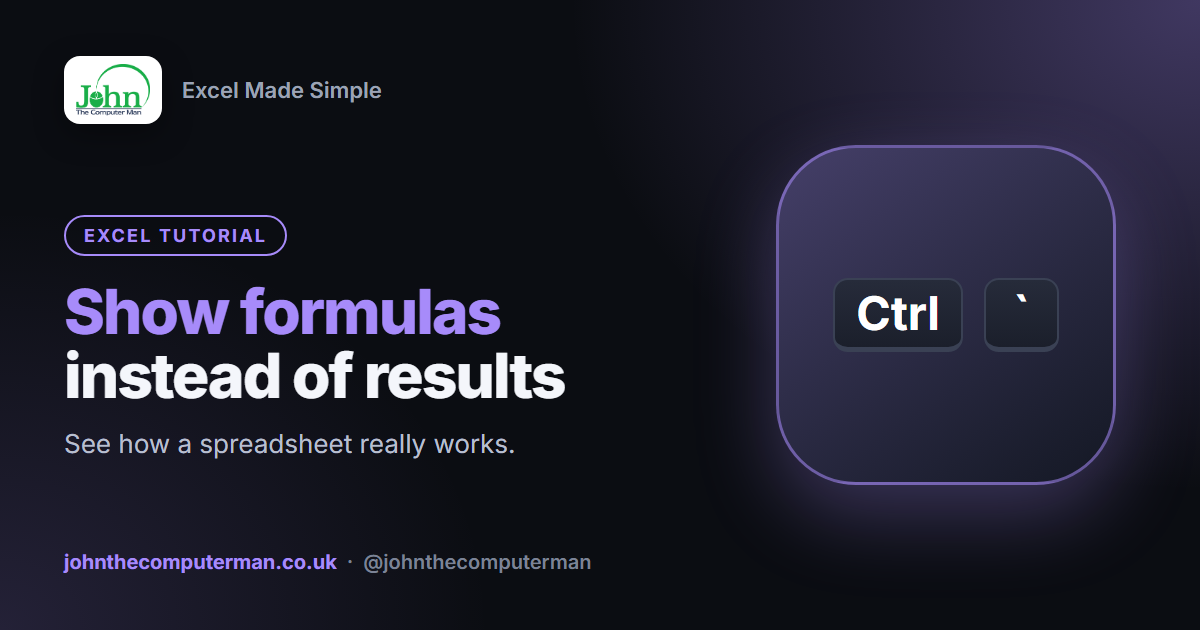
Press Ctrl + ` (the key above Tab, to the left of 1, sometimes called the grave accent or backtick).
Every cell with a formula now shows the formula instead of the result, and the columns widen to make room. Press the same shortcut again to switch back.
On a Mac, press Control + `.
Show all formulas: the ribbon
Go to Formulas > Show Formulas (in the Formula Auditing group). Click it again to switch back.
This only affects the current sheet.
Show one formula next to its result
=FORMULATEXT(C2)
This shows C2's formula, e.g. =SUM(A2:B2), while C2 still shows its result. Available in Excel 2013 and later.
See where a formula gets its numbers
On the Formulas tab:
• Trace Precedents draws blue arrows from the cells a formula uses.
• Trace Dependents draws arrows to the cells that use the current cell.
• Remove Arrows clears them.
• Trace Dependents draws arrows to the cells that use the current cell.
• Remove Arrows clears them.
A quicker option: double-click a formula cell (or press F2). Excel colour-codes each reference in the formula and draws a matching coloured box around each cell on the sheet.
Select every formula at once
Go to Home > Find & Select > Formulas. Every cell containing a formula is selected. Give them a fill colour so they stand out from typed values.
Print your formulas
1. Press Ctrl + ` to show the formulas.
2. Go to Page Layout and tick Print under Headings, so row numbers and column letters appear on the printout.
3. Print as normal.
2. Go to Page Layout and tick Print under Headings, so row numbers and column letters appear on the printout.
3. Print as normal.
A cell shows the formula instead of the answer
If a single cell shows =SUM(A2:A10) as text, even with Show Formulas off, there are three common causes:
1. The cell is formatted as Text. Change the number format on the Home tab from Text to General, then click in the cell, press F2 and Enter.
2. There's a space or apostrophe before the equals sign. Edit the cell and delete anything before the =.
3. Show Formulas is switched on. Press Ctrl + ` to turn it off.
Formulas don't update
If formulas show old results that don't change when you edit numbers, calculation has been set to manual. Go to Formulas > Calculation Options > Automatic. Pressing F9 recalculates manually.
Hide formulas from other people
Select the cells, press Ctrl + 1, tick Hidden on the Protection tab, then protect the sheet with Review > Protect Sheet. See our guide on locking cells.
Wrapping up
Press Ctrl + ` to flip between formulas and results. Use Trace Precedents to follow the logic, and if a single cell is stuck showing its formula, change it from Text to General and press F2, Enter.
