8 Best Free Online Tools in 2026 (That Are Actually Free)
Free trials that ask for a card, then start charging you, are everywhere. This list is different. Every tool below is genuinely useful on its free plan, most don't need an account, and several are fully open source.
I've grouped them by what they replace, and each one links to a full guide with setup steps, tips and honest pros and cons.
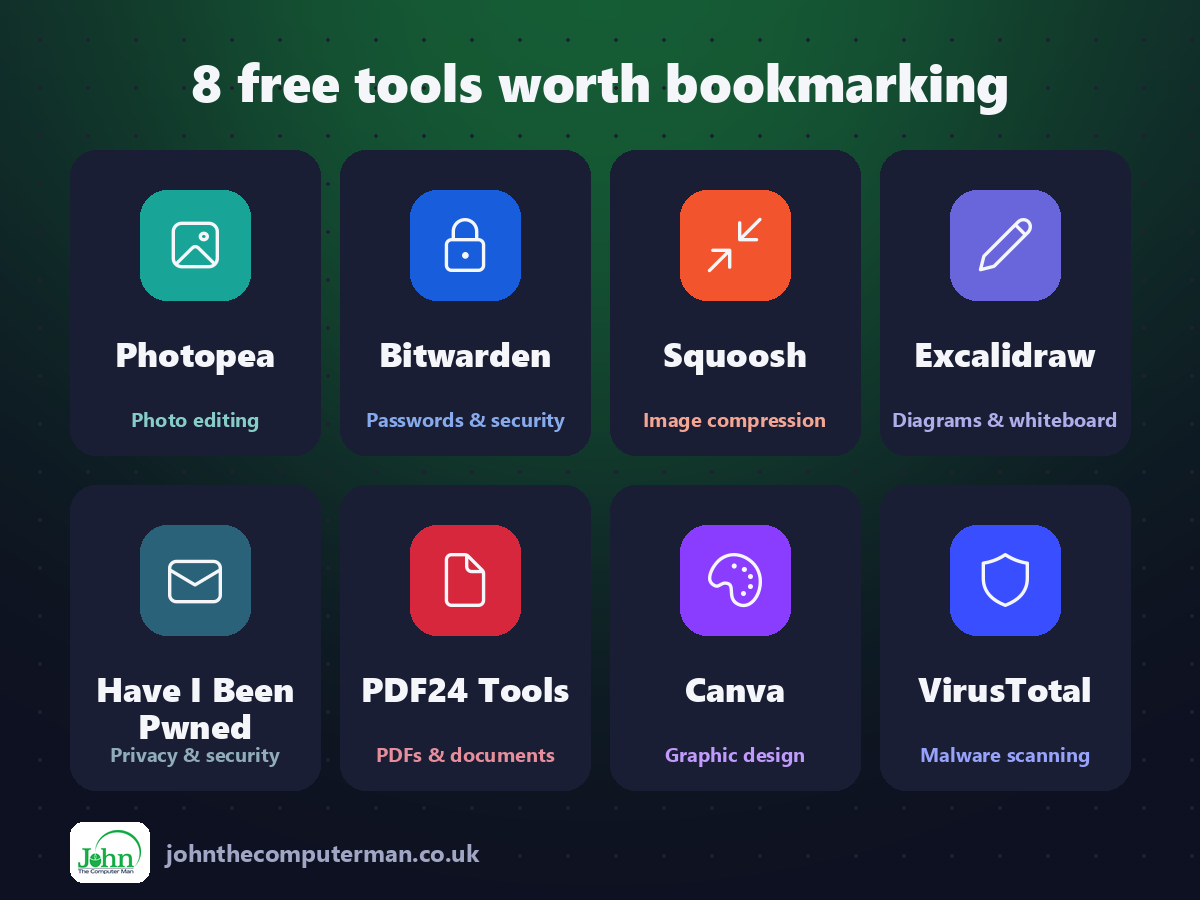
Quick comparison
| Tool | What it does | Sign-up? | Best for |
|---|---|---|---|
| Photopea | Photo editing | Not required | Occasional editors, Chromebook users, anyone handed a PSD |
| Bitwarden | Passwords & security | Free account | Anyone who still reuses passwords |
| Squoosh | Image compression | Not required | Bloggers, website owners, anyone emailing big photos |
| Excalidraw | Diagrams & whiteboard | Not required | Teachers, developers, bloggers, remote teams |
| Have I Been Pwned | Privacy & security | Not required (optional for alerts) | Everyone. Seriously, check today. |
| PDF24 Tools | PDFs & documents | Not required | Students, office workers, anyone who deals with forms |
| Canva | Graphic design | Free account | Small businesses, creators, teachers, students |
| VirusTotal | Malware scanning | Not required | Anyone who gets suspicious downloads or links |
Create and design
1. Canva: templates for social posts, slides, posters and more
Canva is the reason many small businesses and creators never had to learn Photoshop. You pick a template, swap in your words and photos, and download something that looks professionally designed.
Why it's great: Instagram posts, carousels, thumbnails, slides, CVs and flyers, all at the right size.
Free plan: Free for most everyday design. Canva Pro adds premium templates and elements, Brand Kit, Background Remover, one-click resize and more storage.
2. Photopea: a full image editor that runs right in your browser
Photoshop is brilliant, but a monthly subscription is a lot to pay if you only edit images now and then. Photopea fills that gap: a free image editor that runs entirely in your web browser and looks and behaves a lot like Photoshop.
Why it's great: Edit PSD, XCF, Sketch, XD, PDF, SVG and RAW files without owning the software that created them.
Free plan: Free, with ads. An optional Premium plan removes the ads and adds a few extras, such as more undo history.
3. Squoosh: google's free, open-source image compressor
Oversized images are among the most common reasons a website feels slow. A photo straight off your phone can weigh several megabytes, while the same image, sized and compressed properly, often looks identical at a fraction of the size.
Why it's great: Drag the divider to compare the original and the compressed image at any zoom level. You can see exactly where the quality starts to drop.
Free plan: Completely free and open source, with no paid tier. The main limitation is that it compresses one image at a time.
4. Excalidraw: a free, open-source whiteboard for sketchy, friendly diagrams
Most diagram tools want you to get every line perfect. Excalidraw goes the other way. Everything looks hand-sketched, so you think about the idea rather than the pixels, and the results look friendly and clear.
Why it's great: Rough, sketchy lines keep diagrams friendly and quick to make. You can switch to cleaner lines when you need them.
Free plan: Free and open source. The optional Excalidraw+ subscription adds cloud workspaces, saved scenes and team features.
Get documents done
5. PDF24 Tools: a free toolbox for merging, compressing and converting pdfs
Most online PDF tools let you do one or two files, then ask you to upgrade. PDF24 doesn't. You get dozens of PDF tools with no usage limits, no account and no watermarks.
Why it's great: Combine files, pull out the pages you need and shrink large PDFs for email or upload portals.
Free plan: Free, supported by ads. There are no paid plans, usage limits or watermarks.
Stay safe online
6. Bitwarden: an open-source password manager with a generous free plan
Reusing a password is the easiest way to lose several accounts at once. When one site leaks, attackers try that email and password everywhere else. The fix is a unique password for every account, and nobody can remember that many. A password manager can.
Why it's great: Store as many passwords as you like and sync them across all your devices. The free plan has no device limit.
Free plan: Free for unlimited passwords and devices. Premium is a low annual fee and adds a built-in authenticator (2FA codes), emergency access, hardware-key login and vault health reports.
7. Have I Been Pwned: find out whether your data appears in known breaches
Data breaches happen all the time, and there's a good chance at least one of your email addresses has already been caught up in one. The question is which, and what was exposed.
Why it's great: Enter your email to see every known breach it appears in and exactly which kinds of data leaked.
Free plan: Free for individuals, including searching and breach alerts. Paid API plans are for developers and businesses.
8. VirusTotal: scan suspicious files and urls with dozens of engines
A suspicious email attachment, a download from a site you've never heard of, or a shortened link from a stranger: sometimes you just want a second opinion before you click.
Why it's great: One upload is checked by dozens of antivirus products at once. That's more reliable than any single scanner.
Free plan: Free for personal, non-commercial use through the website. Paid API and enterprise plans are for businesses.
Where to start
If you only try one thing this week, check your email on Have I Been Pwned, then set up Bitwarden and fix any reused passwords. For creative work, pair Canva for templates with Photopea for photo edits, and run every web image through Squoosh before you upload it.
All tools were free to use at the time of writing (September 2026). Free plans change, so check each tool's site for current details.