Wi-Fi Not Working on Windows 11? 7 Fixes to Try
Few things are as frustrating as the little globe icon with a line through it. Whether your Wi-Fi won't connect, keeps dropping or says "No internet", work through these fixes in order. They start with the quickest and move on to the more thorough ones.
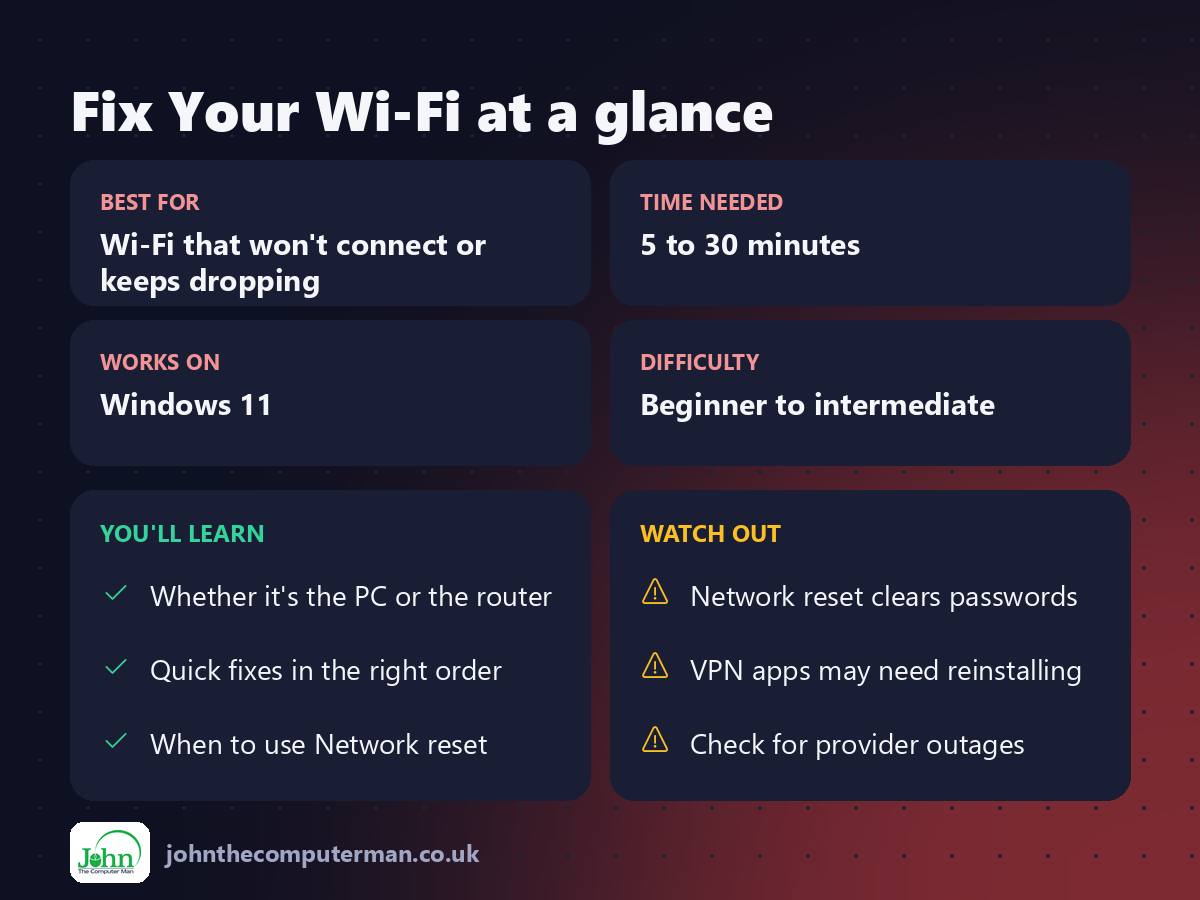
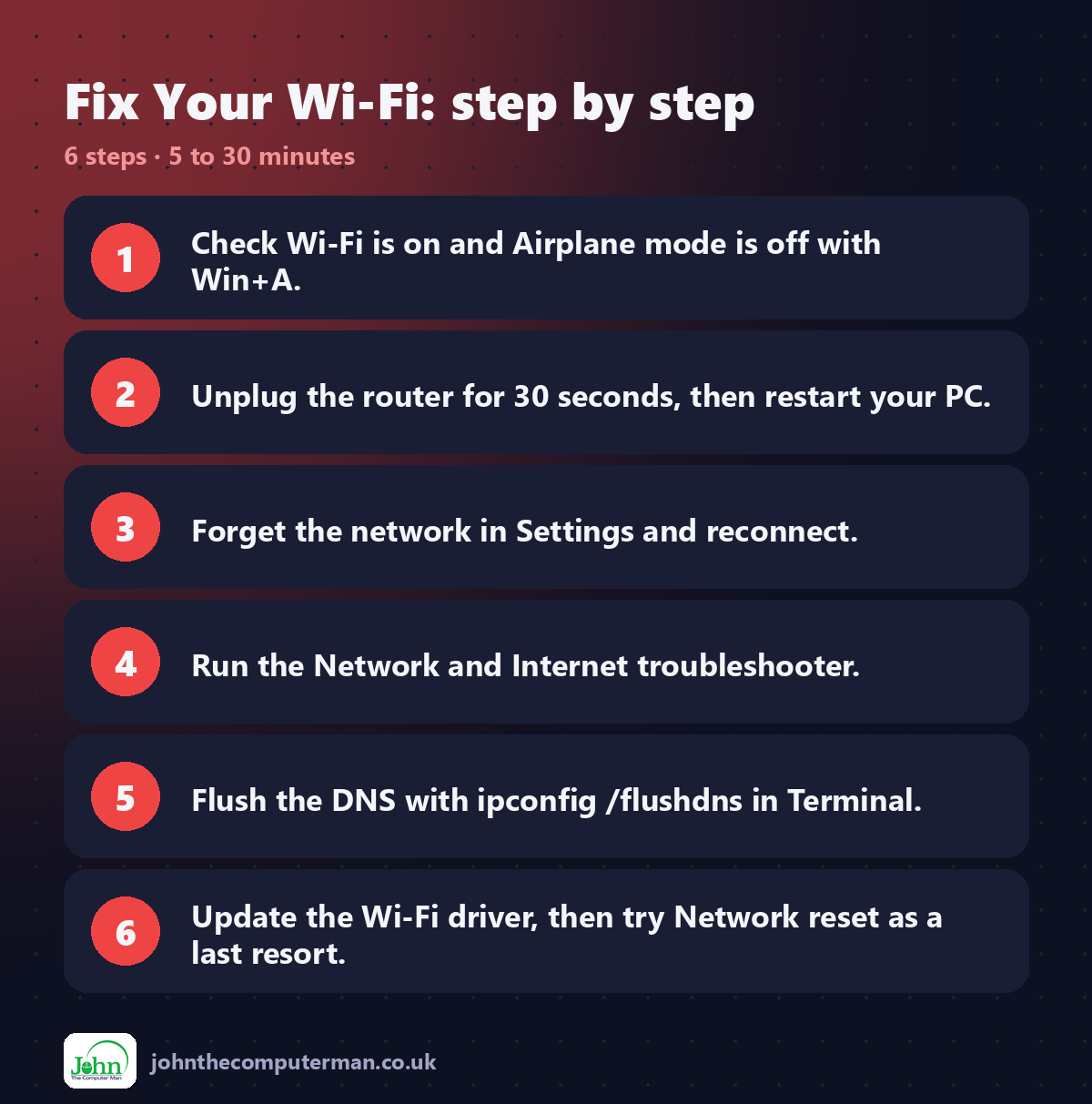
1. Check the basics
1. Press Win + A to open Quick Settings.
2. Make sure Wi-Fi is on and Airplane mode is off.
3. Click the > arrow next to Wi-Fi and check you're connected to the right network.
4. Check whether other devices (phone, tablet) can get online.
2. Make sure Wi-Fi is on and Airplane mode is off.
3. Click the > arrow next to Wi-Fi and check you're connected to the right network.
4. Check whether other devices (phone, tablet) can get online.
If nothing can connect, the problem is your router or broadband, not your PC. Skip to fix #2, then contact your provider. If only your PC can't connect, carry on through the list.
Also check for a physical Wi-Fi switch or Fn key (often Fn + F2 or similar) on laptops.
2. Restart your router and your PC
This fixes a surprising number of problems.
1. Unplug your router at the wall.
2. Wait 30 seconds.
3. Plug it back in and wait 2–3 minutes for the lights to settle.
4. Restart your PC with Start → Power → Restart.
2. Wait 30 seconds.
3. Plug it back in and wait 2–3 minutes for the lights to settle.
4. Restart your PC with Start → Power → Restart.
3. Forget the network and reconnect
If the saved connection details have become corrupted, forgetting the network gives you a clean start.
1. Go to Settings → Network & internet → Wi-Fi.
2. Click Manage known networks.
3. Find your network and click Forget.
4. Reconnect from Quick Settings and enter the Wi-Fi password again. It's usually printed on the back of your router.
2. Click Manage known networks.
3. Find your network and click Forget.
4. Reconnect from Quick Settings and enter the Wi-Fi password again. It's usually printed on the back of your router.
4. Run the network troubleshooter
1. Go to Settings → System → Troubleshoot → Other troubleshooters.
2. Next to Network and Internet, click Run.
3. Follow the steps in the Get Help app.
2. Next to Network and Internet, click Run.
3. Follow the steps in the Get Help app.
5. Flush the DNS and renew your IP address
If you're connected but websites won't load, this often helps.
1. Right-click Start and choose Terminal (Admin).
2. Type each of these commands, pressing Enter after each one:
2. Type each of these commands, pressing Enter after each one:
ipconfig /flushdns
ipconfig /release
ipconfig /renew
ipconfig /release
ipconfig /renew
Your connection will drop for a moment during /release. That's normal.
6. Update or reinstall the Wi-Fi driver
1. Press Win + X and choose Device Manager.
2. Expand Network adapters.
3. Right-click your Wi-Fi adapter (it usually has Wireless, Wi-Fi or 802.11 in the name).
4. Choose Update driver → Search automatically for drivers.
2. Expand Network adapters.
3. Right-click your Wi-Fi adapter (it usually has Wireless, Wi-Fi or 802.11 in the name).
4. Choose Update driver → Search automatically for drivers.
If that doesn't help, right-click it and choose Uninstall device, then restart. Windows reinstalls the driver automatically.
Tip: Your laptop manufacturer's support website often has a newer Wi-Fi driver than Windows Update. You'll need a wired connection or a phone hotspot to download it.
7. Network reset (last resort)
Network reset removes and reinstalls all your network adapters and puts network settings back to default.
1. Go to Settings → Network & internet → Advanced network settings.
2. Click Network reset.
3. Click Reset now, then Yes.
2. Click Network reset.
3. Click Reset now, then Yes.
Your PC will restart after a few minutes.
⚠️ Afterwards you'll need to re-enter your Wi-Fi passwords, and you may need to reinstall VPN software.
Quick recap
Still not working?
• Try connecting with an Ethernet cable or your phone's hotspot. If that works, the problem is between your PC and the router.
• Move closer to the router. Walls, floors and microwaves weaken Wi-Fi.
• Check your broadband provider's service status page for outages.
• Move closer to the router. Walls, floors and microwaves weaken Wi-Fi.
• Check your broadband provider's service status page for outages.

John The Computer Man: plain-English computer help. 🌐 johnthecomputerman.co.uk · 📸 Instagram @johnthecomputerman