How to Customise the Start Menu and Taskbar in Windows 11
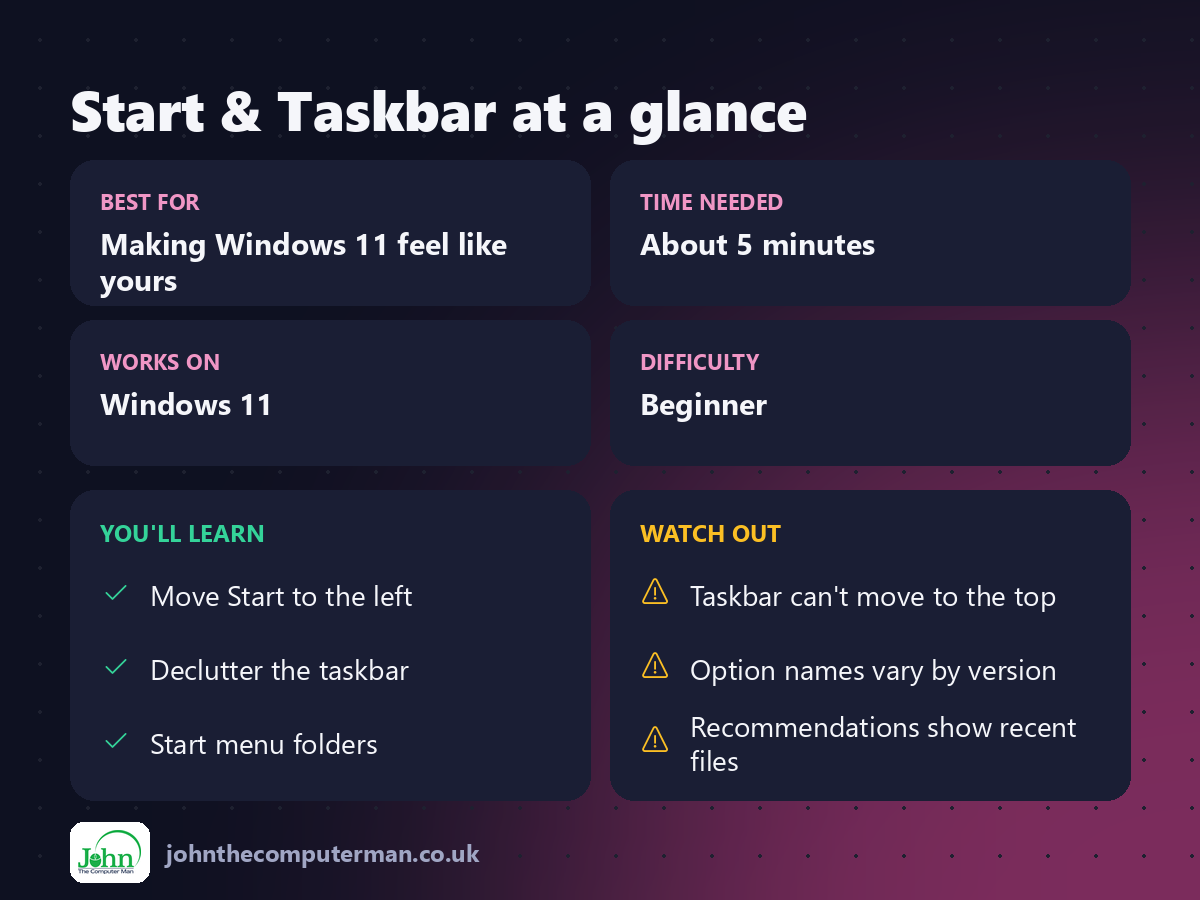
The Windows 11 Start menu and taskbar work fine out of the box, but a few small changes can make them feel much more like yours. They'll be faster to use, too. Here are six tweaks that take about five minutes in total.
1. Move the Start button to the left
Miss the Windows 10 layout? You can move the Start button and taskbar icons back to the left.
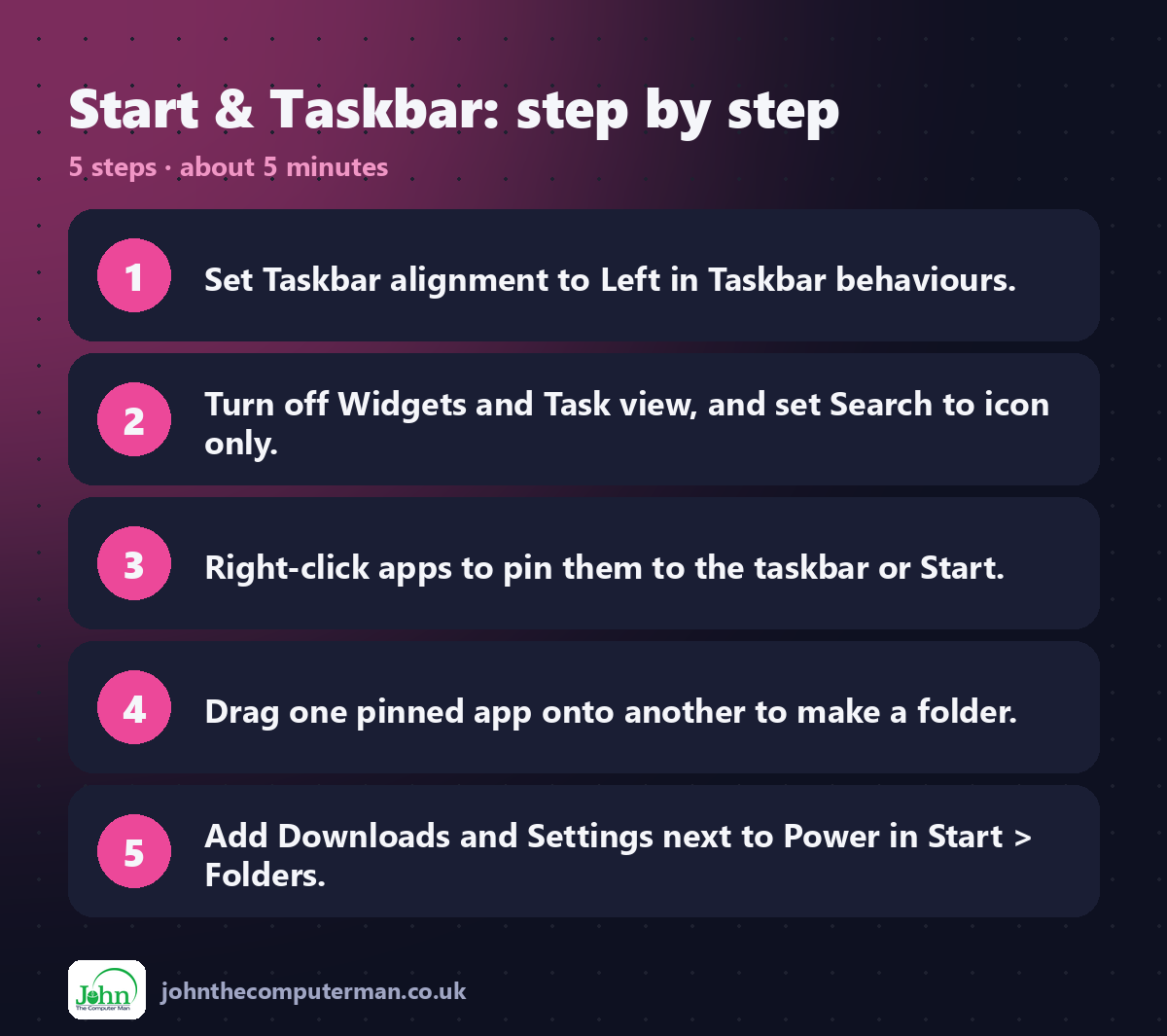
1. Right-click an empty part of the taskbar and choose Taskbar settings, or go to Settings → Personalisation → Taskbar.
2. Expand Taskbar behaviours.
3. Set Taskbar alignment to Left.
2. Expand Taskbar behaviours.
3. Set Taskbar alignment to Left.
2. Declutter the taskbar
In the same Taskbar settings page, look at Taskbar items:
• Search: choose Hide, Search icon only, Search icon and label or Search box. Icon only saves the most space, and you can still just press Win and start typing.
• Task view: turn it off if you use Win + Tab instead.
• Widgets: turn it off if you never use the news and weather panel.
• Task view: turn it off if you use Win + Tab instead.
• Widgets: turn it off if you never use the news and weather panel.
You can also hide rarely used icons from the system tray (bottom right) under Other system tray icons.
3. Pin the apps you use most
• To pin to the taskbar: open Start, right-click an app and choose Pin to taskbar. You can also right-click an open app's icon on the taskbar.
• To pin to Start: right-click any app in All apps and choose Pin to Start.
• To reorder: just drag icons into the order you want.
• To remove: right-click and choose Unpin.
• To pin to Start: right-click any app in All apps and choose Pin to Start.
• To reorder: just drag icons into the order you want.
• To remove: right-click and choose Unpin.
Tip: The first app on your taskbar opens with Win + 1, the second with Win + 2, and so on.
4. Create folders in the Start menu
Group your pinned apps into folders, such as Office, Photos or Games.
1. Open Start.
2. Drag one pinned app on top of another.
3. A folder is created.
4. Open the folder and click Edit name to rename it.
2. Drag one pinned app on top of another.
3. A folder is created.
4. Open the folder and click Edit name to rename it.
5. Add folder shortcuts next to the Power button
You can add quick links next to the Power button at the bottom of Start.
1. Go to Settings → Personalisation → Start.
2. Click Folders.
3. Turn on the ones you want, such as Settings, File Explorer, Downloads, Documents and Pictures.
2. Click Folders.
3. Turn on the ones you want, such as Settings, File Explorer, Downloads, Documents and Pictures.
6. Hide recommendations and recent files
By default, Start shows recently opened files and newly installed apps. That's handy, but not always what you want on a shared or work PC.
1. Go to Settings → Personalisation → Start.
2. Turn off the options for recently added apps, recommended files and recently opened items.
3. Turn off Show recommendations for tips, shortcuts, new apps and more to hide promotional suggestions.
2. Turn off the options for recently added apps, recommended files and recently opened items.
3. Turn off Show recommendations for tips, shortcuts, new apps and more to hide promotional suggestions.
Note: Microsoft updates the Start menu from time to time, so the exact names of these options can vary slightly depending on your version of Windows 11.
Quick recap
Frequently asked questions
Can I move the taskbar to the top or side of the screen? Not with a built-in setting in Windows 11. It stays at the bottom. You can only change the alignment (centre or left).
How do I make the taskbar hide automatically? Go to Taskbar → Taskbar behaviours and tick Automatically hide the taskbar.

John The Computer Man: plain-English computer help. 🌐 johnthecomputerman.co.uk · 📸 Instagram @johnthecomputerman
