How to Free Up Disk Space on Windows 11 (Without Deleting Anything Important)
"Your disk is almost full" is one of the most stressful pop-ups in Windows. The good news is that Windows 11 has built-in tools that can safely clear several gigabytes, sometimes tens of gigabytes, without touching your photos or documents.
Work through these steps in order. The first few are completely safe and do most of the work.
Step 1: See what's taking up space
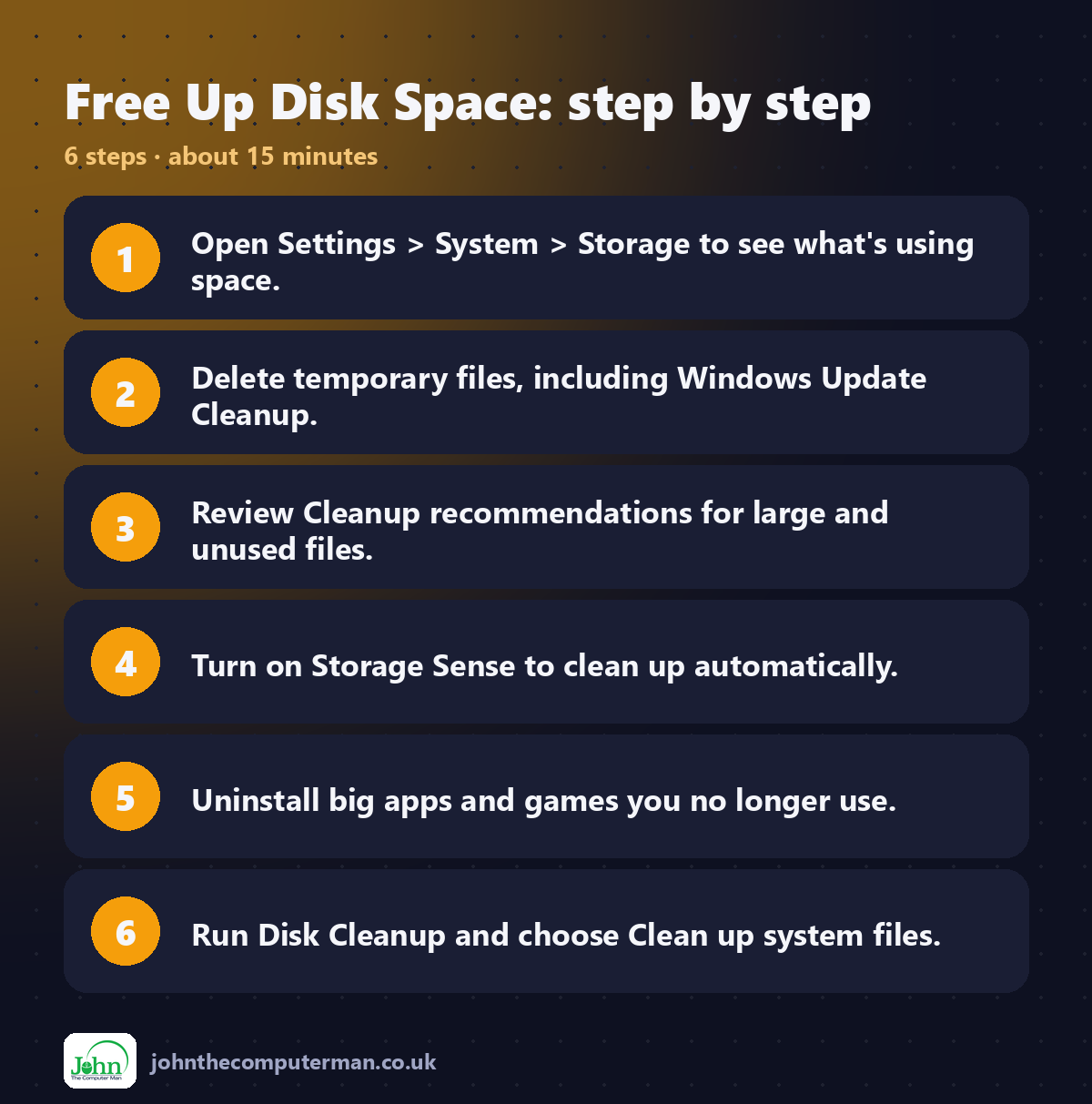
1. Open Settings (Win + I).
2. Go to System → Storage.
3. Windows shows a breakdown: Apps & features, Temporary files, Documents, Pictures and more.
4. Click Show more categories to see everything.
2. Go to System → Storage.
3. Windows shows a breakdown: Apps & features, Temporary files, Documents, Pictures and more.
4. Click Show more categories to see everything.
Now you know where to focus. If Temporary files is huge, start there. If Apps is huge, jump to Step 5.
Step 2: Delete temporary files
This is the safest cleanup there is.
1. In Settings → System → Storage, click Temporary files.
2. Wait for Windows to scan.
3. Tick the boxes you want to clear. Good candidates include:
• Windows Update Cleanup (often several GB after a big update)
• Temporary files
• Delivery Optimization Files
• Thumbnails
• Recycle Bin
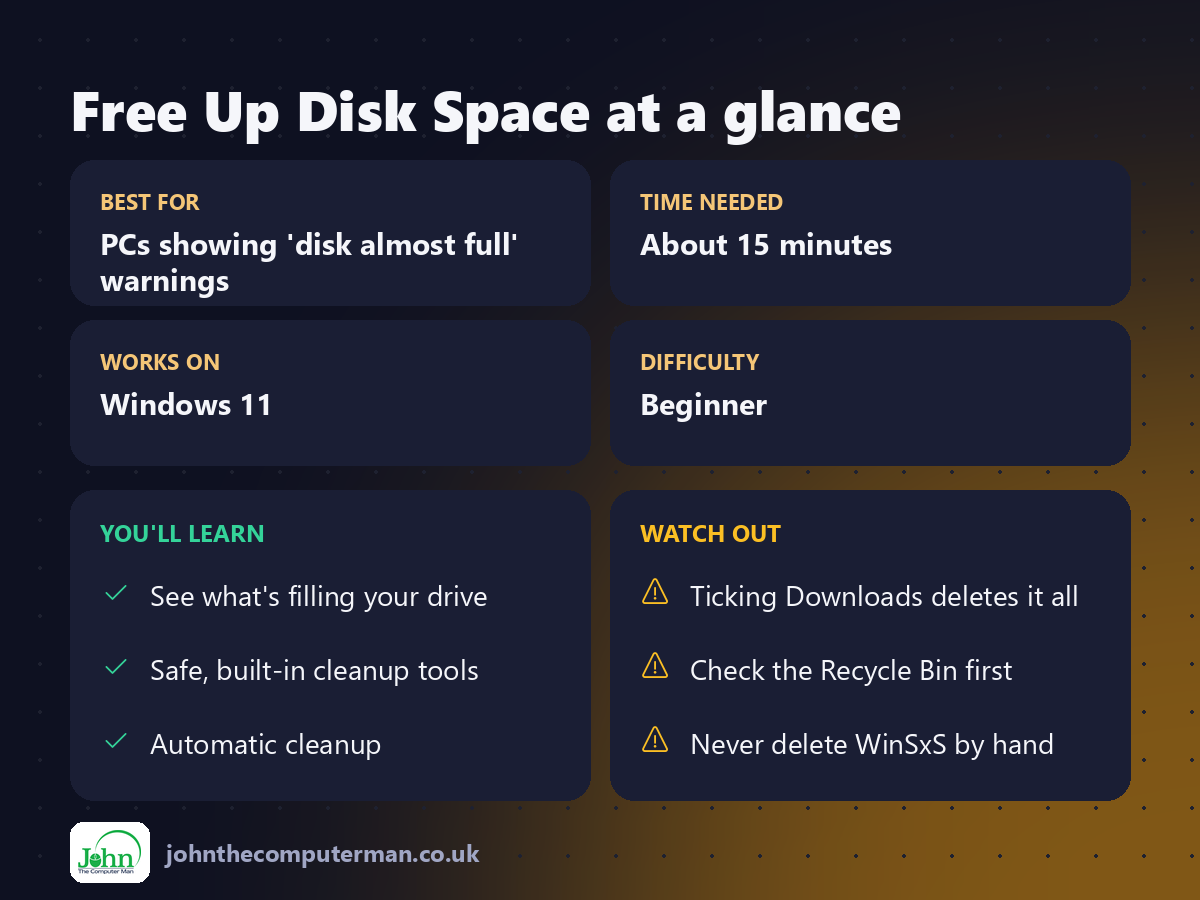
4. ⚠️ Check the Downloads box carefully. Ticking it deletes everything in your Downloads folder.
5. Click Remove files.
2. Wait for Windows to scan.
3. Tick the boxes you want to clear. Good candidates include:
• Windows Update Cleanup (often several GB after a big update)
• Temporary files
• Delivery Optimization Files
• Thumbnails
• Recycle Bin
4. ⚠️ Check the Downloads box carefully. Ticking it deletes everything in your Downloads folder.
5. Click Remove files.
Step 3: Use Cleanup recommendations
Windows 11 can suggest what to delete for you.
1. Go to Settings → System → Storage.
2. Click Cleanup recommendations.
3. Review each section: Temporary files, Large or unused files, Files synced to the cloud and Unused apps.
4. Tick what you're happy to remove and click Clean up.
2. Click Cleanup recommendations.
3. Review each section: Temporary files, Large or unused files, Files synced to the cloud and Unused apps.
4. Tick what you're happy to remove and click Clean up.
Large or unused files is particularly useful for finding forgotten videos and installers.
Step 4: Turn on Storage Sense (set it and forget it)
Storage Sense cleans up automatically so you don't run out of space again.
1. Settings → System → Storage → Storage Sense.
2. Turn on Automatic User content cleanup.
3. Choose how often it runs, e.g. Every month or When free disk space is low.
4. Set it to empty the Recycle Bin after 30 days.
5. Leave Downloads set to Never unless you're sure you don't keep things there.
2. Turn on Automatic User content cleanup.
3. Choose how often it runs, e.g. Every month or When free disk space is low.
4. Set it to empty the Recycle Bin after 30 days.
5. Leave Downloads set to Never unless you're sure you don't keep things there.
Step 5: Uninstall apps and games you don't use
Games in particular can take 50–150 GB each.
1. Go to Settings → Apps → Installed apps.
2. Click Sort by and choose Size (large to small).
3. Click ⋯ next to anything you no longer use, then choose Uninstall.
2. Click Sort by and choose Size (large to small).
3. Click ⋯ next to anything you no longer use, then choose Uninstall.
Step 6: Let OneDrive keep files in the cloud
If you use OneDrive, you can keep files visible in File Explorer without them taking up space on your PC.
1. Right-click a large folder inside your OneDrive folder.
2. Choose Free up space.
2. Choose Free up space.
The files stay in the cloud (shown with a ☁️ icon) and download automatically when you open them. You need an internet connection to open them, so keep anything you need offline set to Always keep on this device.
Step 7: Run Disk Cleanup for system files (advanced)
The classic Disk Cleanup tool can still find extra space, especially old Windows installations after a major upgrade.
1. Press Win + R, type cleanmgr and press Enter.
2. Select your C: drive.
3. Click Clean up system files and choose C: again.
4. Tick Windows Update Cleanup and Previous Windows installation(s) if listed.
5. Click OK → Delete Files.
2. Select your C: drive.
3. Click Clean up system files and choose C: again.
4. Tick Windows Update Cleanup and Previous Windows installation(s) if listed.
5. Click OK → Delete Files.
⚠️ Deleting Previous Windows installation(s) removes the option to roll back to your earlier version of Windows. Only do this once you're happy the upgrade is working. Windows removes it automatically after 10 days anyway.
Step 8: Empty the Recycle Bin and check Downloads
These two are easy to forget:
• Recycle Bin: Right-click it on the desktop and choose Empty Recycle Bin. Check nothing important is in there first!
• Downloads folder: Open File Explorer, go to Downloads, switch to Details view and sort by Size. Old installers (.exe and .msi files) and ZIP files are usually safe to delete.
• Downloads folder: Open File Explorer, go to Downloads, switch to Details view and sort by Size. Old installers (.exe and .msi files) and ZIP files are usually safe to delete.
How much free space should I keep?
Aim for at least 15–20% free on your C: drive. Windows needs room for updates, temporary files and the page file. A nearly full drive is one of the top causes of a slow PC (see How to Speed Up a Slow Windows 11 PC).
Quick recap
Frequently asked questions
Is it safe to delete Windows Update Cleanup files? Yes. They're leftover copies of old updates. The only downside is that you can't uninstall those specific updates afterwards.
Is it safe to delete the WinSxS folder? No. Never delete it manually. Use Disk Cleanup's Windows Update Cleanup option instead, which trims it safely.
What's the hiberfil.sys file taking up so much space? It's used for hibernation. Advanced users can turn off hibernation to delete it, but that also disables Fast Startup, so most people should leave it alone.
Tag a friend who always has "disk almost full" warnings 💾

John The Computer Man: plain-English computer help. 🌐 johnthecomputerman.co.uk · 📸 Instagram @johnthecomputerman
