How to Speed Up a Slow Windows 11 PC (8 Fixes That Actually Work)
A slow PC is one of the most common computer problems, and you rarely need new hardware or a paid "PC optimiser" to fix it. Most of the slowdown comes from a few causes: too many programs starting up, a full drive, power-saving settings, or something running in the background that you didn't know about.
This guide covers eight fixes in order, easiest and most effective first. None of them need extra software, and all of them can be undone.
Before you start: Save your work and restart your PC. It sounds obvious, but a proper restart clears memory leaks and finishes pending updates. Choose Start → Power → Restart, because Shut down with Fast Startup enabled doesn't fully reset Windows.
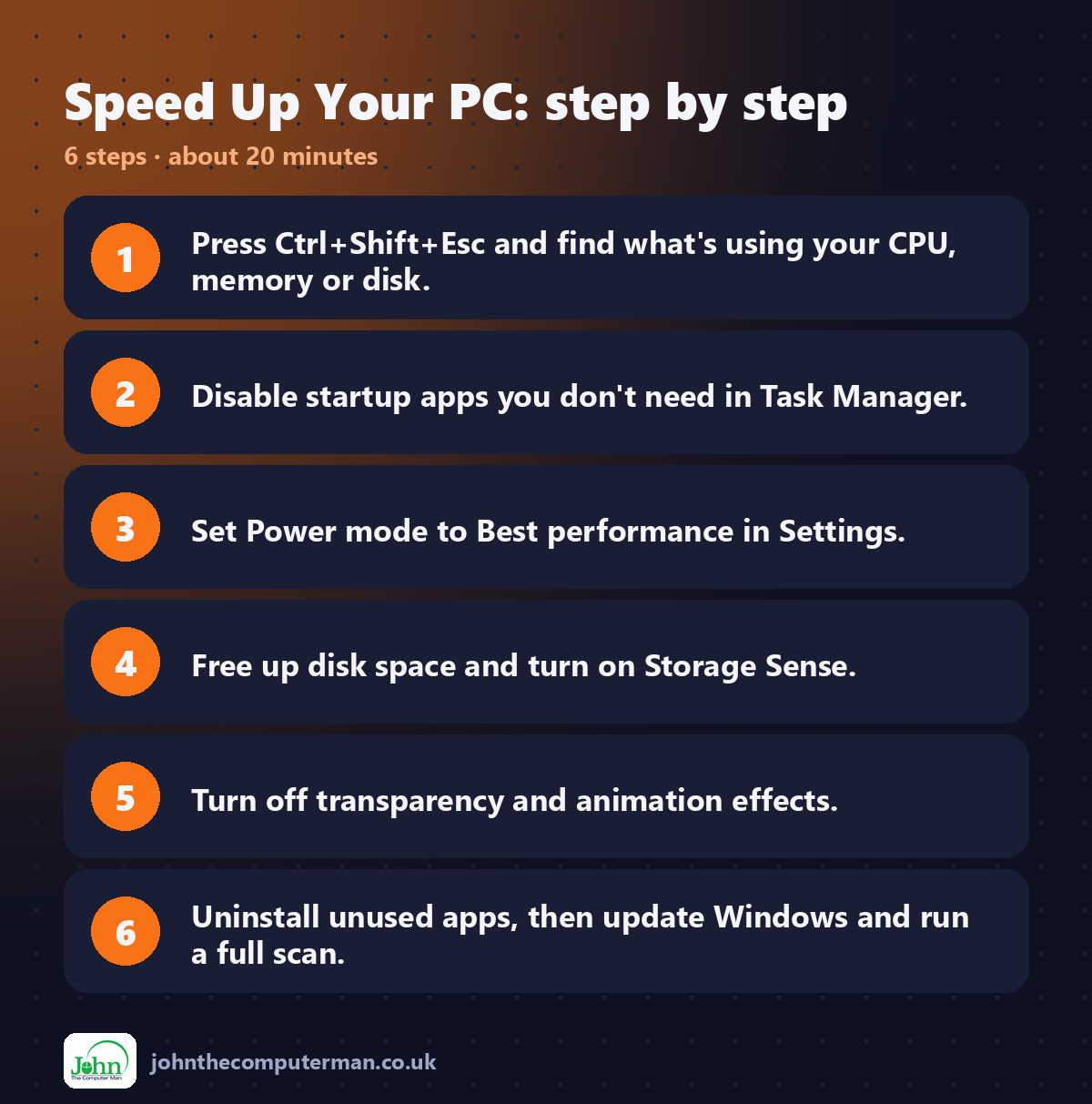
1. Find out what's slowing you down (Task Manager)
Before you change anything, see what's actually using your PC's resources.
1. Press Ctrl + Shift + Esc to open Task Manager.
2. Click Processes.
3. Click the CPU, Memory or Disk column header to sort by usage.
2. Click Processes.
3. Click the CPU, Memory or Disk column header to sort by usage.
If a single app sits near the top using a lot of CPU or disk while you aren't using it, that's likely your culprit. Right-click it and choose End task to close it for now.
Tip: A disk constantly at 100% on an older PC often means a hard drive (HDD) rather than an SSD. See fix #8.
2. Turn off startup apps
Many programs add themselves to startup, so they launch every time you sign in. That slows down boot time and eats memory all day.
1. Open Task Manager (Ctrl + Shift + Esc).
2. Click Startup apps in the left menu.
3. Look at the Startup impact column.
4. Right-click anything you don't need at startup (chat apps, game launchers, updaters) and choose Disable.
2. Click Startup apps in the left menu.
3. Look at the Startup impact column.
4. Right-click anything you don't need at startup (chat apps, game launchers, updaters) and choose Disable.
You can also do this in Settings → Apps → Startup.
Safe to disable: Spotify, Steam, Discord, Teams (personal), Adobe updaters, and most "helper" apps. Leave enabled: Your antivirus, audio/touchpad drivers, and anything you don't recognise until you've looked it up.
3. Switch your power mode
On laptops especially, Windows often defaults to a balanced or battery-saving mode that holds back performance.
1. Open Settings (Win + I).
2. Go to System → Power & battery (or Power on desktops).
3. Under Power mode, choose Best performance.
2. Go to System → Power & battery (or Power on desktops).
3. Under Power mode, choose Best performance.
On a laptop, you can set this separately for when it's plugged in and when it's on battery. Best performance uses more battery, so you may only want it when plugged in.
4. Free up disk space
Windows needs free space for updates, temporary files and virtual memory. When your main drive (usually C:) is nearly full, everything slows down.
1. Go to Settings → System → Storage.
2. Click Temporary files, tick what you want to remove, then click Remove files.
3. Turn on Storage Sense so Windows cleans up automatically.
2. Click Temporary files, tick what you want to remove, then click Remove files.
3. Turn on Storage Sense so Windows cleans up automatically.
Aim to keep at least 15–20% of your drive free. For a full walkthrough, see our guide: How to Free Up Disk Space on Windows 11.
5. Turn off animations and visual effects
The fades, shadows and transparency in Windows 11 look nice but cost a little performance. You'll notice the difference on older or low-end PCs.
Quick way:
1. Settings → Accessibility → Visual effects.
2. Turn off Transparency effects and Animation effects.
2. Turn off Transparency effects and Animation effects.
Maximum way:
1. Press Win + R, type sysdm.cpl and press Enter.
2. Open the Advanced tab. Under Performance, click Settings.
3. Choose Adjust for best performance, or pick Custom and keep only Smooth edges of screen fonts ticked so text still looks sharp.
4. Click OK.
2. Open the Advanced tab. Under Performance, click Settings.
3. Choose Adjust for best performance, or pick Custom and keep only Smooth edges of screen fonts ticked so text still looks sharp.
4. Click OK.
6. Uninstall apps you don't use
New PCs often come with trial software and bloatware, and over time we all install things we forget about.
1. Go to Settings → Apps → Installed apps.
2. Sort by Size or scroll through the list.
3. Click the ⋯ next to an app you don't need, then choose Uninstall.
2. Sort by Size or scroll through the list.
3. Click the ⋯ next to an app you don't need, then choose Uninstall.
Watch for free trials of antivirus software. Running two antivirus programs at once is a classic cause of slowdown, and Windows Security is built in and good enough for most people.
7. Check for updates and scan for malware
Updates often include performance and driver fixes, and malware can quietly use your CPU in the background.
Update Windows:
1. Settings → Windows Update → Check for updates.
2. Install everything, including anything under Advanced options → Optional updates (these often contain driver fixes).
2. Install everything, including anything under Advanced options → Optional updates (these often contain driver fixes).
Scan for malware:
1. Open Windows Security from the Start menu.
2. Go to Virus & threat protection → Scan options.
3. Choose Full scan and click Scan now.
2. Go to Virus & threat protection → Scan options.
3. Choose Full scan and click Scan now.
8. Consider a cheap hardware upgrade
If you've tried everything above and your PC is still slow, the hardware may be the bottleneck. Two upgrades give the biggest boost for the money:
• Swap a hard drive (HDD) for an SSD. This is the single biggest speed upgrade for an older PC. To check what you have, open Task Manager → Performance → Disk 0. The drive type is shown at the bottom.
• Add more RAM. 8 GB is the practical minimum for Windows 11, and 16 GB is comfortable. Check yours in Task Manager → Performance → Memory.
• Add more RAM. 8 GB is the practical minimum for Windows 11, and 16 GB is comfortable. Check yours in Task Manager → Performance → Memory.
Quick recap
Fix | Where to find it | Difficulty
Find resource hogs | Ctrl + Shift + Esc → Processes | Easy
Disable startup apps | Task Manager → Startup apps | Easy
Best performance mode | Settings → System → Power | Easy
Free up space | Settings → System → Storage | Easy
Turn off effects | Settings → Accessibility → Visual effects | Easy
Uninstall unused apps | Settings → Apps → Installed apps | Easy
Update & scan | Windows Update / Windows Security | Easy
SSD / RAM upgrade | Hardware | Moderate
Find resource hogs | Ctrl + Shift + Esc → Processes | Easy
Disable startup apps | Task Manager → Startup apps | Easy
Best performance mode | Settings → System → Power | Easy
Free up space | Settings → System → Storage | Easy
Turn off effects | Settings → Accessibility → Visual effects | Easy
Uninstall unused apps | Settings → Apps → Installed apps | Easy
Update & scan | Windows Update / Windows Security | Easy
SSD / RAM upgrade | Hardware | Moderate
Frequently asked questions
Do I need a PC cleaner or "optimiser" app? No. Windows 11 already includes everything in this guide. Many "registry cleaner" and "optimiser" apps are unnecessary at best and bundle adware at worst.
Will disabling startup apps break anything? No. The app still works; it just won't open automatically. You can re-enable it any time from the same screen.
Why is my PC slow right after an update? Windows often finishes indexing and optimising in the background after a big update. Leave it plugged in and on for an hour or so and it usually settles down.
Found this useful? Share it with someone whose PC is driving them mad. 💻

John The Computer Man: plain-English computer help. 🌐 johnthecomputerman.co.uk · 📸 Instagram @johnthecomputerman
