How to Take a Screenshot on Windows 11: Every Method Explained
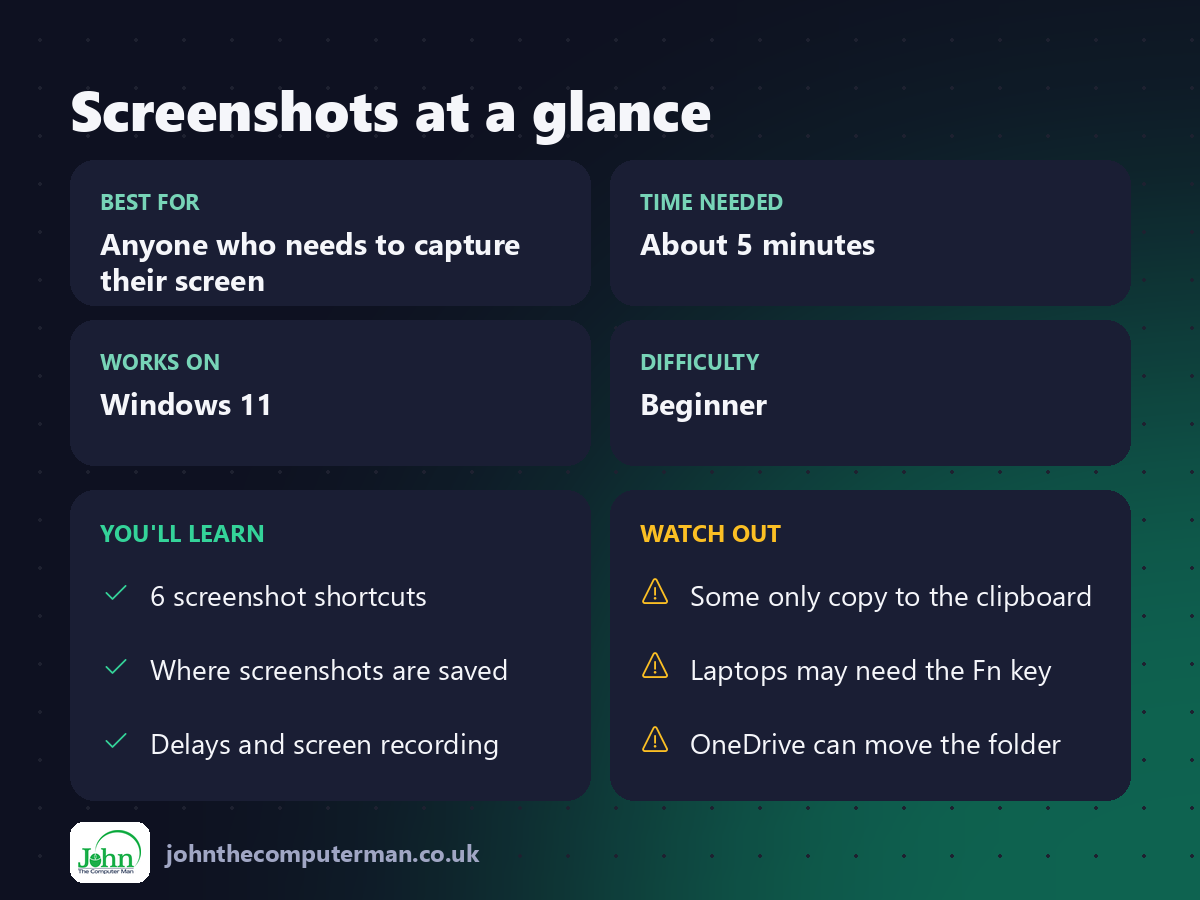
Windows 11 has at least six ways to take a screenshot, and each one behaves a little differently. Some save a file and some only copy to the clipboard. Some capture the whole screen and some let you pick an area.
This guide covers each method, when to use it, and where your screenshot ends up.
Quick reference
Shortcut | What it captures | Where it goes
Win + Shift + S | Area, window or full screen (you choose) | Clipboard + Snipping Tool notification
Print Screen | Opens Snipping Tool* | Clipboard
Win + Print Screen | Whole screen | Saved to Pictures\Screenshots
Alt + Print Screen | Active window only | Clipboard
Win + Alt + Print Screen | Active window (Game Bar) | Saved to Videos\Captures
Snipping Tool app | Anything, with a timer | You choose
Win + Shift + S | Area, window or full screen (you choose) | Clipboard + Snipping Tool notification
Print Screen | Opens Snipping Tool* | Clipboard
Win + Print Screen | Whole screen | Saved to Pictures\Screenshots
Alt + Print Screen | Active window only | Clipboard
Win + Alt + Print Screen | Active window (Game Bar) | Saved to Videos\Captures
Snipping Tool app | Anything, with a timer | You choose
*On up-to-date Windows 11 PCs, Print Screen opens the Snipping Tool by default. You can change this, as shown below.
Method 1: Win + Shift + S (the best all-rounder)
This is the one to remember.
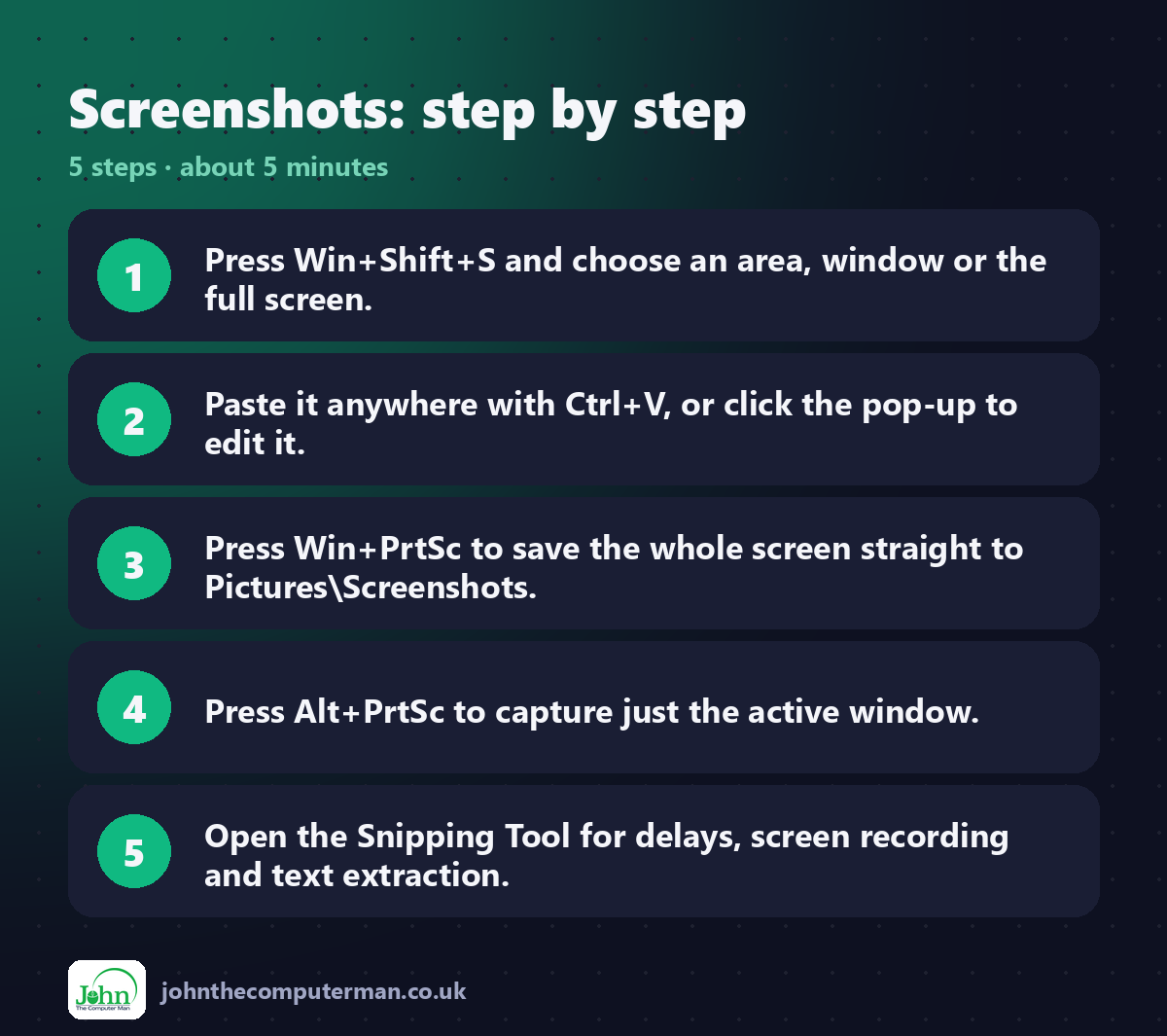
1. Press Win + Shift + S. The screen dims and a small toolbar appears at the top.
2. Choose a mode:
• Rectangle: drag a box around what you want
• Freeform: draw any shape
• Window: click a window
• Full screen: capture everything
3. Your screenshot is copied to the clipboard. Press Ctrl + V to paste it into an email, chat or document.
4. A notification pops up in the corner. Click it to open the screenshot in Snipping Tool, where you can crop, highlight, draw on it and save it.
2. Choose a mode:
• Rectangle: drag a box around what you want
• Freeform: draw any shape
• Window: click a window
• Full screen: capture everything
3. Your screenshot is copied to the clipboard. Press Ctrl + V to paste it into an email, chat or document.
4. A notification pops up in the corner. Click it to open the screenshot in Snipping Tool, where you can crop, highlight, draw on it and save it.
Where is it saved? Snipping Tool also saves an automatic copy in Pictures\Screenshots by default. You can turn this on or off in Snipping Tool's settings.
Method 2: Print Screen key
What Print Screen does depends on your settings:
• Default on current Windows 11: It opens the same Snipping Tool overlay as Win + Shift + S.
• Old behaviour: It silently copies the whole screen to the clipboard.
• Old behaviour: It silently copies the whole screen to the clipboard.
To change it:
1. Go to Settings → Accessibility → Keyboard.
2. Toggle Use the Print Screen key to open screen capture.
2. Toggle Use the Print Screen key to open screen capture.
Laptop tip: On many laptops the key is labelled PrtSc or PrtScn and shares a key with another function. If nothing happens, try Fn + PrtSc.
Method 3: Win + Print Screen (instant saved file)
Press Win + Print Screen and your screen will dim briefly. That's it. The whole screen is saved as a PNG file straight away.
📁 Saved to: This PC → Pictures → Screenshots
This is the fastest way to take lots of screenshots without stopping to paste each one.
Method 4: Alt + Print Screen (just one window)
Press Alt + Print Screen to capture only the window you're currently using. You won't get the taskbar, other windows or the desktop.
The image goes to the clipboard, so paste it with Ctrl + V. This is ideal for capturing a single error message or dialog box.
Method 5: Game Bar (Win + Alt + Print Screen)
The Xbox Game Bar is built into Windows 11 and works in any app, not just games.
• Win + Alt + Print Screen takes a screenshot of the active window.
• Win + G opens the full Game Bar, with a capture widget for screenshots and recording.
• Win + G opens the full Game Bar, with a capture widget for screenshots and recording.
📁 Saved to: This PC → Videos → Captures
Method 6: Snipping Tool app (delays and screen recording)
Open Snipping Tool from the Start menu to use extra features:
• Delayed screenshot: Choose a 3, 5 or 10 second delay. This is perfect for capturing drop-down menus and tooltips that disappear when you press a key.
• Screen recording: Switch to the video camera icon to record part of your screen as a video.
• Text extraction: After taking a screenshot, use Text actions to copy text straight out of the image.
• Markup: Pen, highlighter, ruler and crop tools.
• Screen recording: Switch to the video camera icon to record part of your screen as a video.
• Text extraction: After taking a screenshot, use Text actions to copy text straight out of the image.
• Markup: Pen, highlighter, ruler and crop tools.
Where are my screenshots saved?
• Win + Print Screen and Snipping Tool auto-save: Pictures\Screenshots
• Game Bar: Videos\Captures
• Win + Shift + S, Print Screen, Alt + Print Screen: the clipboard. Press Win + V to see your clipboard history, if it's turned on.
• Game Bar: Videos\Captures
• Win + Shift + S, Print Screen, Alt + Print Screen: the clipboard. Press Win + V to see your clipboard history, if it's turned on.
Tip: If OneDrive is backing up your Pictures folder, look in OneDrive → Pictures → Screenshots instead.
Quick recap
Frequently asked questions
My Print Screen key doesn't do anything. What's wrong? Try Fn + PrtSc on laptops. If that doesn't work, check whether another app such as OneDrive or Dropbox has taken over the key in its own settings.
How do I screenshot a scrolling web page? In Microsoft Edge, press Ctrl + Shift + S and choose Capture full page.
Can I screenshot the login screen? Yes. Print Screen works on the lock screen and copies to the clipboard, so you can paste it after signing in.
Save this guide for the next time someone asks "how do I take a screenshot?" 📸

John The Computer Man: plain-English computer help. 🌐 johnthecomputerman.co.uk · 📸 Instagram @johnthecomputerman
