How to Use Google Calendar on Android: 5 Things Worth Knowing
Dentist appointments on scraps of paper, birthdays you remember a day late, a family that never quite knows who's doing what.
Google Calendar is free, already on your Android phone, and syncs with your Google account so it's on your computer and tablet too. Here are the five things that make it genuinely useful.
Before you start: Android menus vary a little between phone makers. The steps below use Google Pixel / standard Android names, with Samsung Galaxy differences noted. If you can't find a setting, tap the search bar at the top of Settings and type its name.
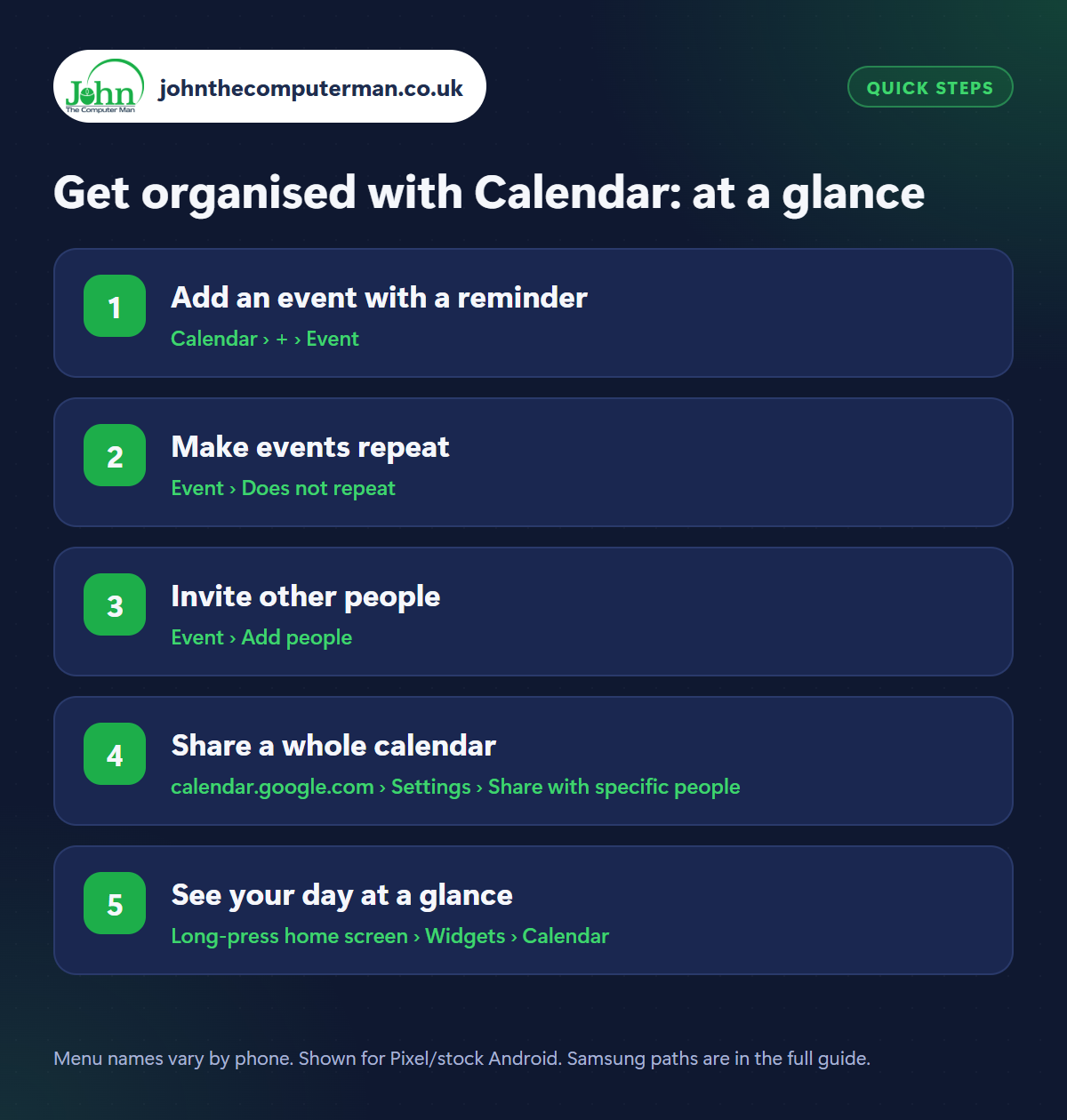
How to get organised with Calendar on Android
Step 1: Add an event with a reminder
Where: Calendar › + › Event
Open Calendar, tap + and choose Event. Give it a title, set the date and time, and add a location if it has one (you can then tap it for directions). Tap Add notification and choose when to be reminded: 30 minutes before for a meeting, 1 day before for something you need to prepare for. You can add more than one. Tap Save.
Step 2: Make events repeat
Where: Event › Does not repeat
When creating an event, tap Does not repeat and choose Every day, week, month or year, or Custom for things like every second Tuesday. Use it for birthdays and anniversaries, bin collections, MOT and insurance renewals, medication and direct debit dates. Fill these in once and your phone remembers them for good.
Step 3: Invite other people
Where: Event › Add people
On any event, tap Add people and enter someone's email address. They get an invitation, and once they accept, the event appears in their calendar with the same time, place and reminders. Change the time and it updates for everyone. It's ideal for appointments you need a lift to, family meals and anything two people must both remember.
Step 4: Share a whole calendar
Where: calendar.google.com › Settings › Share with specific people
For a proper family calendar, go to calendar.google.com on a computer (this setting isn't in the phone app). Under Other calendars, click + › Create new calendar, name it ‘Family’, then open its settings and use Share with specific people to add each person. Everyone can then add events from their own phone, and each calendar shows in a different colour.
Step 5: See your day at a glance
Where: Long-press home screen › Widgets › Calendar
Long-press your home screen, tap Widgets › Calendar and add the Schedule widget to see what's coming up without opening the app. Then check Calendar › menu › Settings › Events from Gmail is on. Flights, hotel bookings, restaurant reservations and tickets that arrive by email are added to your calendar automatically.
Pro tip
💡 Add events by voice: “Hey Google, add dentist to my calendar on Tuesday at 3pm.” It's quicker than typing.
FAQ
Is Google Calendar free?
Yes, completely, and it works on Android, iPhone and any web browser.
Can my partner with an iPhone use a shared calendar?
Yes. They can install the Google Calendar app or add their Google account to the iPhone's own Calendar app.
How do I stop getting spam calendar invites?
In Calendar settings on the web, set ‘Add invitations to my calendar’ to ‘Only if the sender is known’.
The bottom line
Put your repeating events in once, add reminders to appointments, and share a family calendar. It takes an evening to set up and saves a lot of ‘I thought you were picking them up’.
More Android tutorials:
• Using Your Android Phone Abroad: 5 Things to Do Before You Fly
• How to Free Up Storage on Your Android Phone (5 Easy Fixes)
• How to Make Your Android Battery Last Longer: 5 Settings to Change
• How to Free Up Storage on Your Android Phone (5 Easy Fixes)
• How to Make Your Android Battery Last Longer: 5 Settings to Change
Part of the android phone tutorials series on johnthecomputerman.co.uk. Follow @johnthecomputerman on Instagram for more Android tips. Steps were checked on current Android and Samsung One UI versions in September 2026; menu names can change with updates.
