Using Your Android Phone Abroad: 5 Things to Do Before You Fly
Your phone is your map, translator, camera, boarding pass and wallet when you travel. It can also be the source of a nasty bill, or a ruined trip if it's lost with nothing backed up.
Ten minutes of preparation on your home Wi-Fi avoids nearly all of it. Do these five things before you leave for the airport.
Before you start: Android menus vary a little between phone makers. The steps below use Google Pixel / standard Android names, with Samsung Galaxy differences noted. If you can't find a setting, tap the search bar at the top of Settings and type its name.
How to using your phone abroad on Android
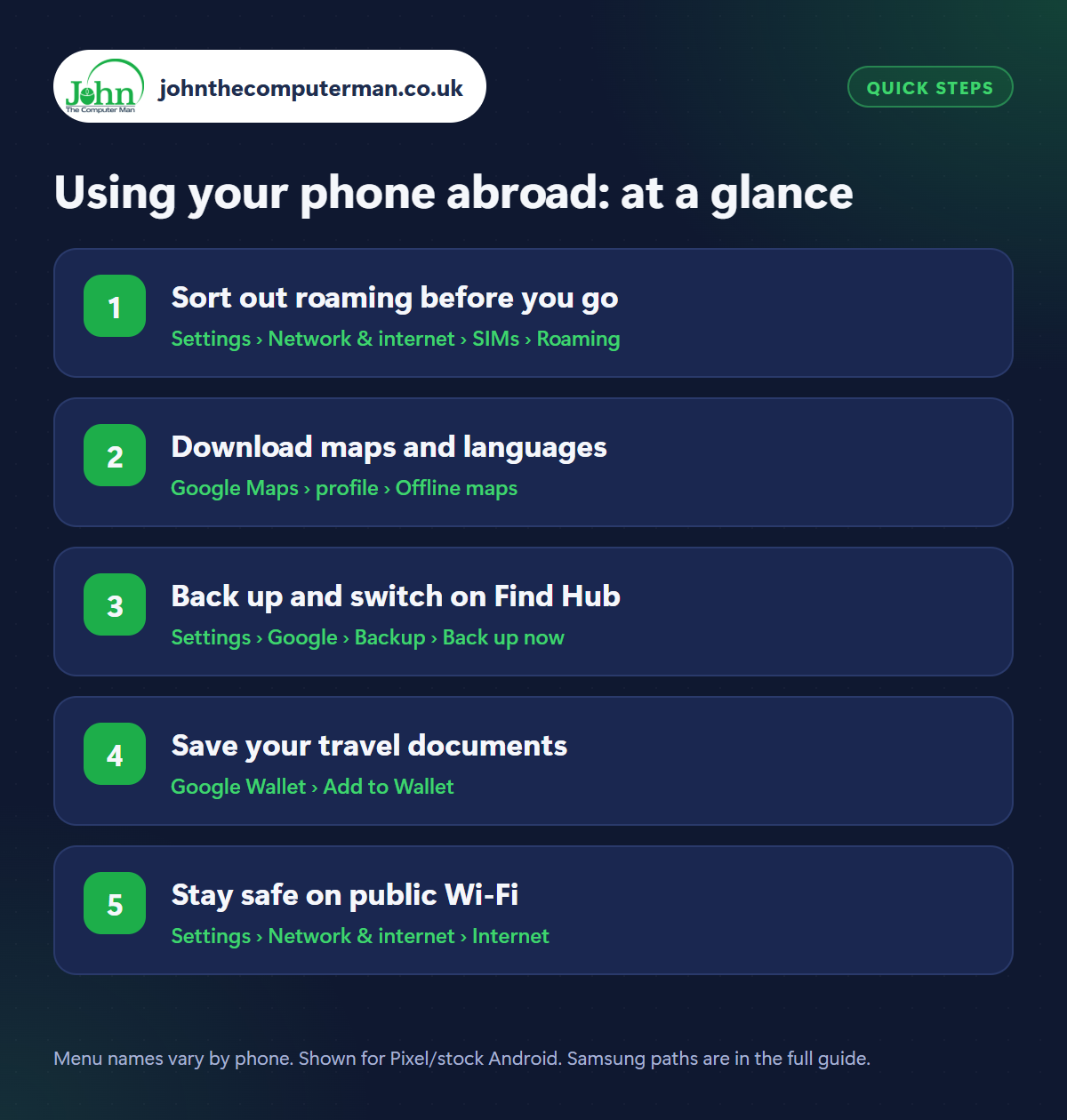
Step 1: Sort out roaming before you go
Where: Settings › Network & internet › SIMs › Roaming
Samsung: Settings › Connections › Mobile networks › Data roaming
Samsung: Settings › Connections › Mobile networks › Data roaming
Check your network's roaming charges for your destination. They vary enormously, and several UK networks now charge a daily fee even in Europe. If it's expensive, turn Roaming off in Settings › Network & internet › SIMs (Samsung: Connections › Mobile networks › Data roaming) and use Wi-Fi, or buy a travel eSIM. See our guide to eSIMs and dual SIM.
Step 2: Download maps and languages
Where: Google Maps › profile › Offline maps
On Wi-Fi at home, download your destination in Google Maps › profile picture › Offline maps, and the local language in Google Translate › profile picture › Downloaded languages. Both then work with no signal or data, and GPS is free everywhere. See Google Maps offline and Google Translate. Download films, music and podcasts for the journey too.
Step 3: Back up and switch on Find Hub
Where: Settings › Google › Backup › Back up now
Holidays are when phones go missing. Before you leave, run a backup (Settings › Google › Backup › Back up now) and check Google Photos has finished backing up. Then confirm Find Hub is on, so you can locate, lock or erase the phone from another device. See how to back up your phone and finding a lost phone.
Step 4: Save your travel documents
Where: Google Wallet › Add to Wallet
Add your boarding pass to Google Wallet from the airline's app or email, so it opens instantly without a connection. Take screenshots of hotel bookings, transfer details and your travel insurance policy number, or save the emails as PDFs. Note down your bank's number for calling from abroad. Don't keep photos of your passport anywhere that isn't locked.
Step 5: Stay safe on public Wi-Fi
Where: Settings › Network & internet › Internet
Hotel, café and airport Wi-Fi is fine for browsing and maps. Avoid banking or entering card details on it unless you're using mobile data or your phone's own hotspot. Ask staff for the exact network name, as fake look-alike networks are a known trick. Charge from a wall socket with your own plug where you can, and pack the right travel adapter.
Pro tip
💡 Wherever you are in the EU and many other countries, dial 112 for the emergency services. It works from any mobile, even with no credit.
FAQ
Will I be charged if I just receive calls abroad?
Possibly. Outside your network's included destinations, you can be charged for receiving calls and for voicemail. Check before you go.
Can I still use WhatsApp with roaming off?
Yes, on Wi-Fi. Calls and messages over Wi-Fi are free wherever you are.
Should I use Airplane mode on the flight?
Yes. You can switch Wi-Fi and Bluetooth back on afterwards for in-flight Wi-Fi and wireless headphones.
The bottom line
Check roaming, download your maps and language, and back up. Do those three on your home Wi-Fi the night before, and your phone becomes the most useful thing in your hand luggage.
More Android tutorials:
• How to Free Up Storage on Your Android Phone (5 Easy Fixes)
• How to Make Your Android Battery Last Longer: 5 Settings to Change
• How to Take a Screenshot (and Record Your Screen) on Android
• How to Make Your Android Battery Last Longer: 5 Settings to Change
• How to Take a Screenshot (and Record Your Screen) on Android
Part of the android phone tutorials series on johnthecomputerman.co.uk. Follow @johnthecomputerman on Instagram for more Android tips. Steps were checked on current Android and Samsung One UI versions in September 2026; menu names can change with updates.
