Audacity for Mac: Free Audio Recording and Editing (Beginner's Guide)
Recording a podcast, a voiceover or a quick demo? GarageBand is great for music, but for trimming, cleaning up and fixing spoken audio it can feel like overkill.
Audacity is the classic free audio editor. Record, cut, remove background hum, even out volume and export to MP3, all without paying a penny.
What is Audacity?
Audacity is a free, open-source audio editor and recorder for Mac, Windows and Linux. You can record from a microphone, import audio files, cut and arrange clips, apply effects such as noise reduction, compression and normalisation, and export to MP3, WAV and other formats. It's been a go-to tool for podcasters, teachers and musicians for over twenty years.
Key features
Record and edit
Record from any microphone, then cut, copy and move clips on a simple timeline.
Clean up your sound
Reduce background noise, remove clicks and even out volume with built-in effects.
Export anywhere
Save as MP3, WAV and more, ready for podcasts, videos or sharing.
How to get started with Audacity
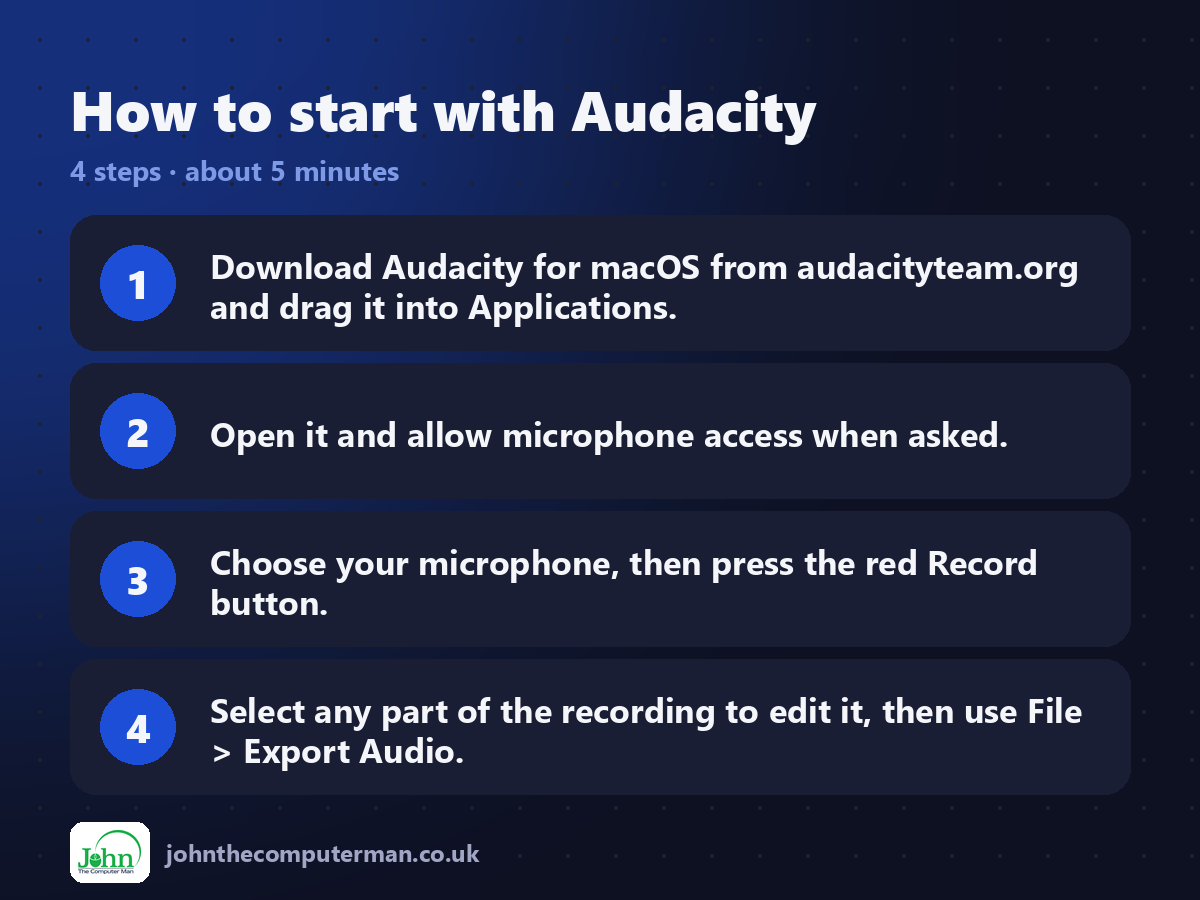
1. Download Audacity for macOS from audacityteam.org and drag it into Applications.
2. Open it and allow microphone access when asked.
3. Choose your microphone, then press the red Record button.
4. Select any part of the recording to edit it, then use File > Export Audio.
2. Open it and allow microphone access when asked.
3. Choose your microphone, then press the red Record button.
4. Select any part of the recording to edit it, then use File > Export Audio.
Prefer the command line? If you use Homebrew, the free package manager for Mac, open Terminal and run:
brew install --cask audacity
Tips to get more out of it
• Record a few seconds of silence first. Noise Reduction uses it to learn your background hum.
• Normalise or use Loudness Normalization so your whole recording is an even volume.
• Want to record your Mac's own sound? You'll need a free virtual audio driver like BlackHole.
• Save the project as you go, and export an MP3 only when you're finished.
• Normalise or use Loudness Normalization so your whole recording is an even volume.
• Want to record your Mac's own sound? You'll need a free virtual audio driver like BlackHole.
• Save the project as you go, and export an MP3 only when you're finished.
Is it really free?
Free and open source. No ads, no account and no paid version.
Pros and cons
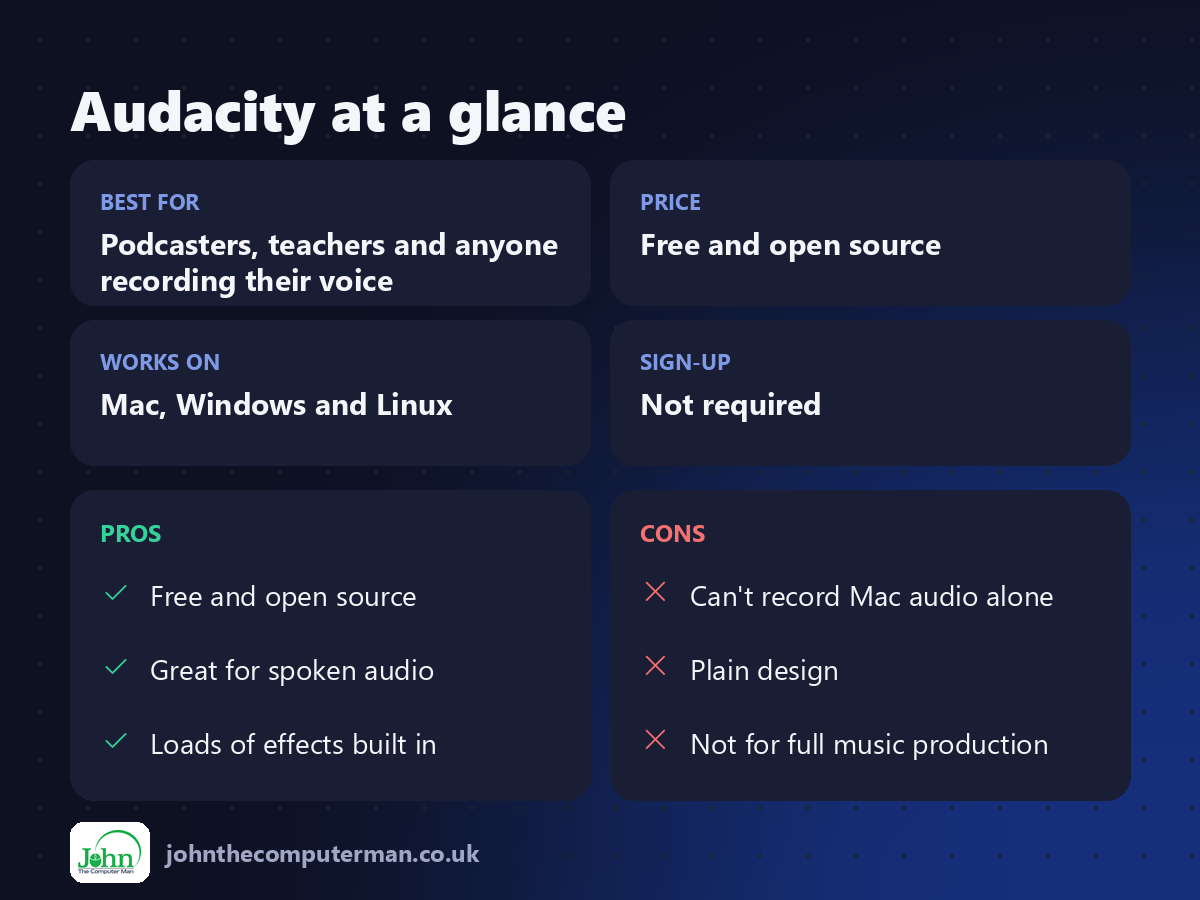
| 👍 Pros | 👎 Cons |
|---|---|
| Free and open source | Can't record Mac audio alone |
| Great for spoken audio | Plain design |
| Loads of effects built in | Not for full music production |
Who is it for?
Best for: Podcasters, teachers and anyone recording their voice. Works on: Mac, Windows and Linux. Sign-up: Not required.
Audacity alternatives
• GarageBand: free on every Mac and better for making music.
• Ocenaudio: a free, simpler audio editor.
• Adobe Audition: a professional paid audio editor.
• Ocenaudio: a free, simpler audio editor.
• Adobe Audition: a professional paid audio editor.
FAQ
Can Audacity record sound from my Mac?
Not on its own. Install a free virtual audio device like BlackHole, then choose it as the recording source.
Is Audacity safe?
Yes. It's open source and has been trusted for over twenty years. Download it only from audacityteam.org.
The verdict
Audacity is the easiest free way to record and tidy up audio on a Mac. It's not flashy, but it does the job brilliantly.
👉 Try it: www.audacityteam.org
Part of the free mac apps that replace paid software series on johnthecomputerman.co.uk. Follow @johnthecomputerman on Instagram for a new free Mac tool every Monday, Wednesday and Friday. Pricing and features were checked in September 2026 and can change, so check the tool's own site for the latest.
