Blender for Mac: Free 3D Modelling and Animation (Beginner's Guide)
Professional 3D software can cost thousands a year. That puts it out of reach for most hobbyists, students and small studios.
Blender is free and open source, and it's used for real films, adverts and games. It runs brilliantly on Apple Silicon Macs, and there's a huge community of free tutorials.
What is Blender?
Blender is a free, open-source 3D creation suite for Mac, Windows and Linux. It covers modelling, sculpting, texturing, rigging, animation, simulation, rendering with the Cycles and EEVEE engines, compositing and even video editing. On Apple Silicon Macs it uses Metal for fast GPU rendering. It's developed by the Blender Foundation and a global community.
Key features
Model, sculpt and animate
Everything from simple objects to full animated characters.
Fast on Apple Silicon
GPU rendering with Metal makes M-series Macs great for Blender.
Huge free community
Thousands of free tutorials, add-ons and models to learn from.
How to get started with Blender
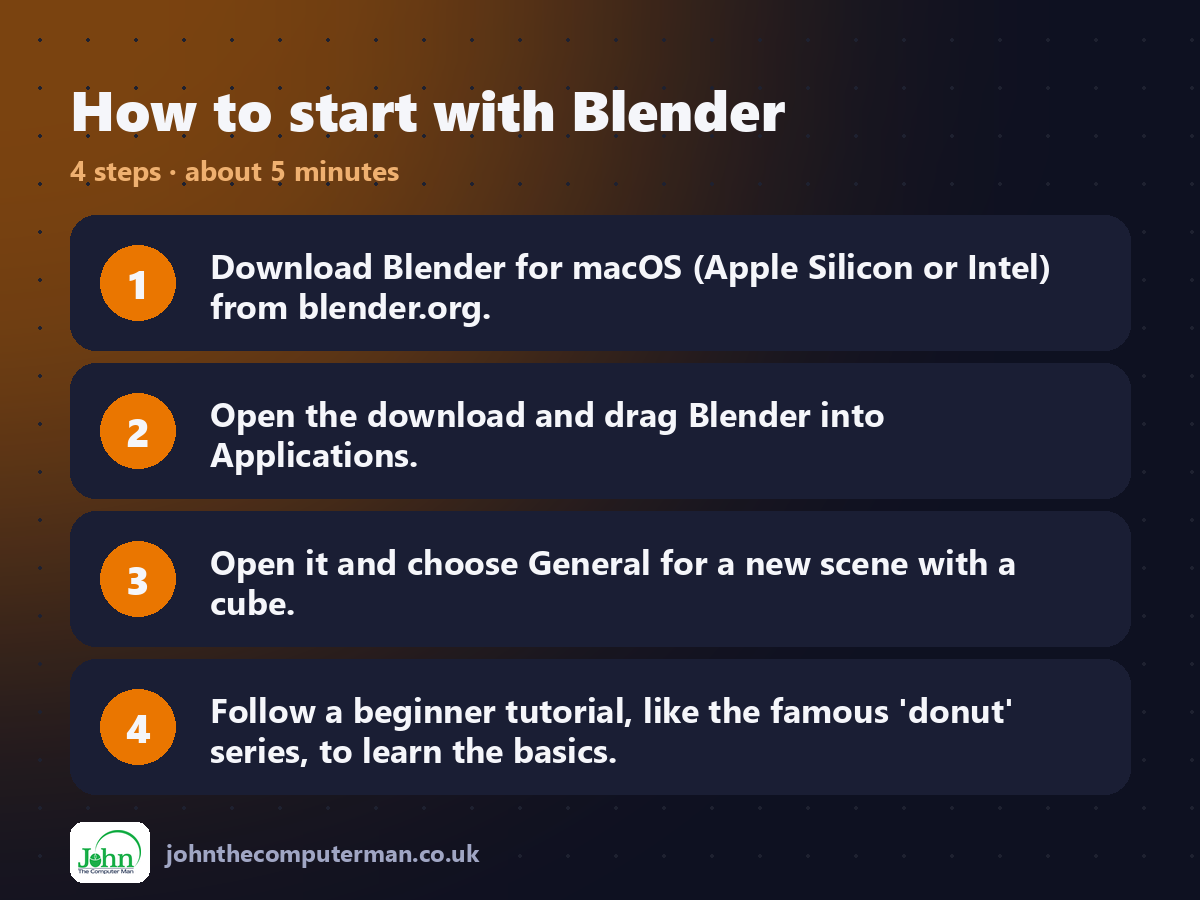
1. Download Blender for macOS (Apple Silicon or Intel) from blender.org.
2. Open the download and drag Blender into Applications.
3. Open it and choose General for a new scene with a cube.
4. Follow a beginner tutorial, like the famous 'donut' series, to learn the basics.
2. Open the download and drag Blender into Applications.
3. Open it and choose General for a new scene with a cube.
4. Follow a beginner tutorial, like the famous 'donut' series, to learn the basics.
Prefer the command line? If you use Homebrew, the free package manager for Mac, open Terminal and run:
brew install --cask blender
Tips to get more out of it
• In Settings > System, choose Metal as your GPU backend for faster rendering.
• Press F3 to search for any command.
• Middle-click drag rotates the view. No three-button mouse? Turn on Emulate 3 Button Mouse in Settings > Input.
• Save often with Command+S, and use File > Save Incremental to keep versions.
• Press F3 to search for any command.
• Middle-click drag rotates the view. No three-button mouse? Turn on Emulate 3 Button Mouse in Settings > Input.
• Save often with Command+S, and use File > Save Incremental to keep versions.
Is it really free?
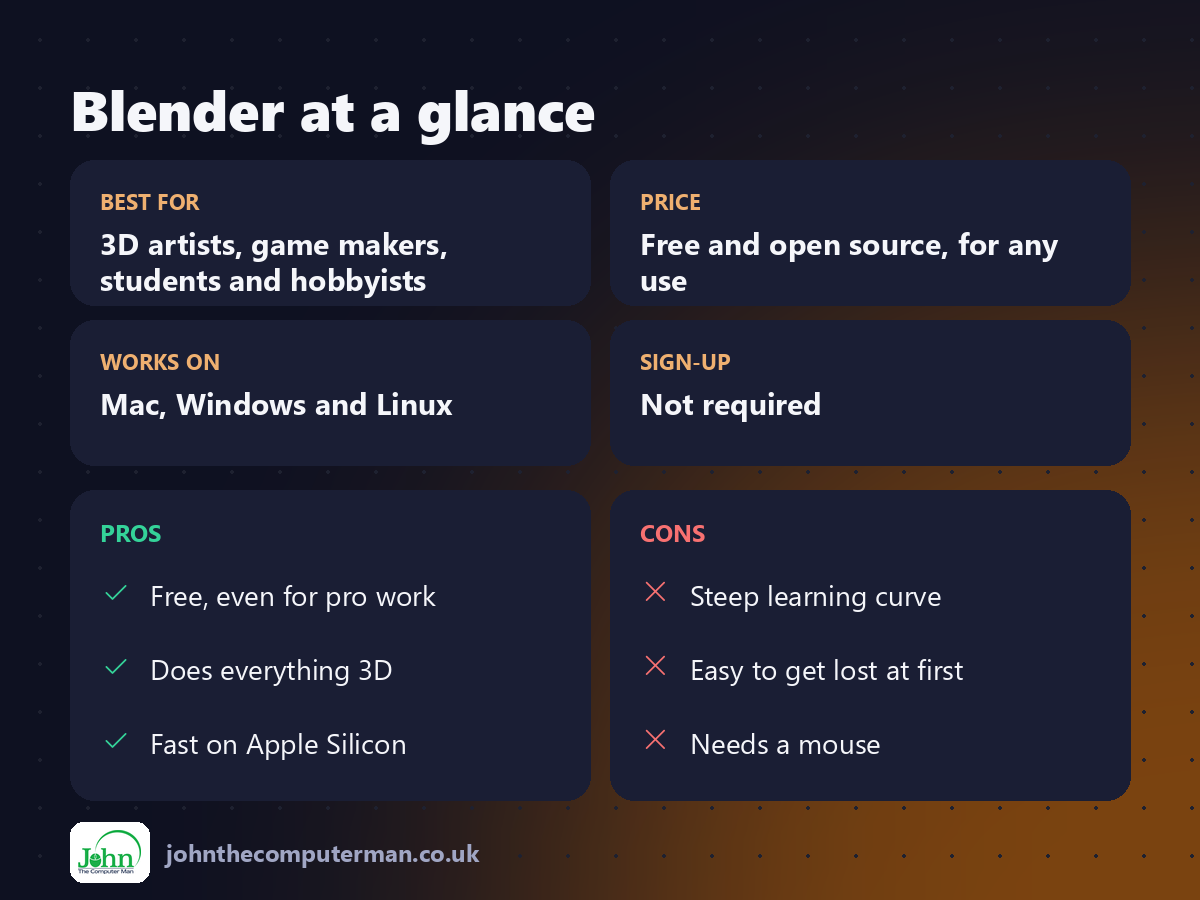
Free and open source, for any use. No ads, no account and no paid version.
Pros and cons
| 👍 Pros | 👎 Cons |
|---|---|
| Free, even for pro work | Steep learning curve |
| Does everything 3D | Easy to get lost at first |
| Fast on Apple Silicon | Needs a mouse |
Who is it for?
Best for: 3D artists, game makers, students and hobbyists. Works on: Mac, Windows and Linux. Sign-up: Not required.
Blender alternatives
• Cinema 4D: a popular professional 3D app, paid.
• SketchUp: simpler 3D for architecture, with a limited free web version.
• Tinkercad: free, very easy 3D design in the browser for beginners and 3D printing.
• SketchUp: simpler 3D for architecture, with a limited free web version.
• Tinkercad: free, very easy 3D design in the browser for beginners and 3D printing.
FAQ
Is Blender hard to learn?
It takes time, but beginner tutorials make the first steps easy. The 'donut' tutorial is a rite of passage.
Can I use Blender for 3D printing?
Yes. Export your models as STL or OBJ files for your slicer.
The verdict
Blender is one of the most impressive free apps ever made. It takes time to learn, but there's nothing you can't make with it.
👉 Try it: www.blender.org
Part of the free mac apps that replace paid software series on johnthecomputerman.co.uk. Follow @johnthecomputerman on Instagram for a new free Mac tool every Monday, Wednesday and Friday. Pricing and features were checked in September 2026 and can change, so check the tool's own site for the latest.
