Calibre for Mac: Manage, Convert and Send Ebooks to Your Kindle for Free
Ebooks end up everywhere: downloads, email attachments, old folders from a previous computer. Some are EPUB, some PDF, some formats your reader won't open.
Calibre brings them all into one tidy library, fixes their titles and covers, converts them to the right format, and sends them to your Kindle or Kobo.
What is Calibre?
Calibre is a free, open-source ebook manager for Mac, Windows and Linux. It organises your ebook library, downloads covers and details, converts between formats such as EPUB, AZW3, MOBI and PDF, includes an ebook reader and editor, and can send books to e-readers by cable or email. It can also turn news websites into daily ebooks.
Key features
One tidy library
Import all your ebooks and Calibre sorts them by author, series and tags.
Convert any format
Turn EPUB into Kindle format, or PDFs into reflowable ebooks.
Send to your e-reader
Plug in your Kindle or Kobo, or email books straight to it.
How to get started with Calibre
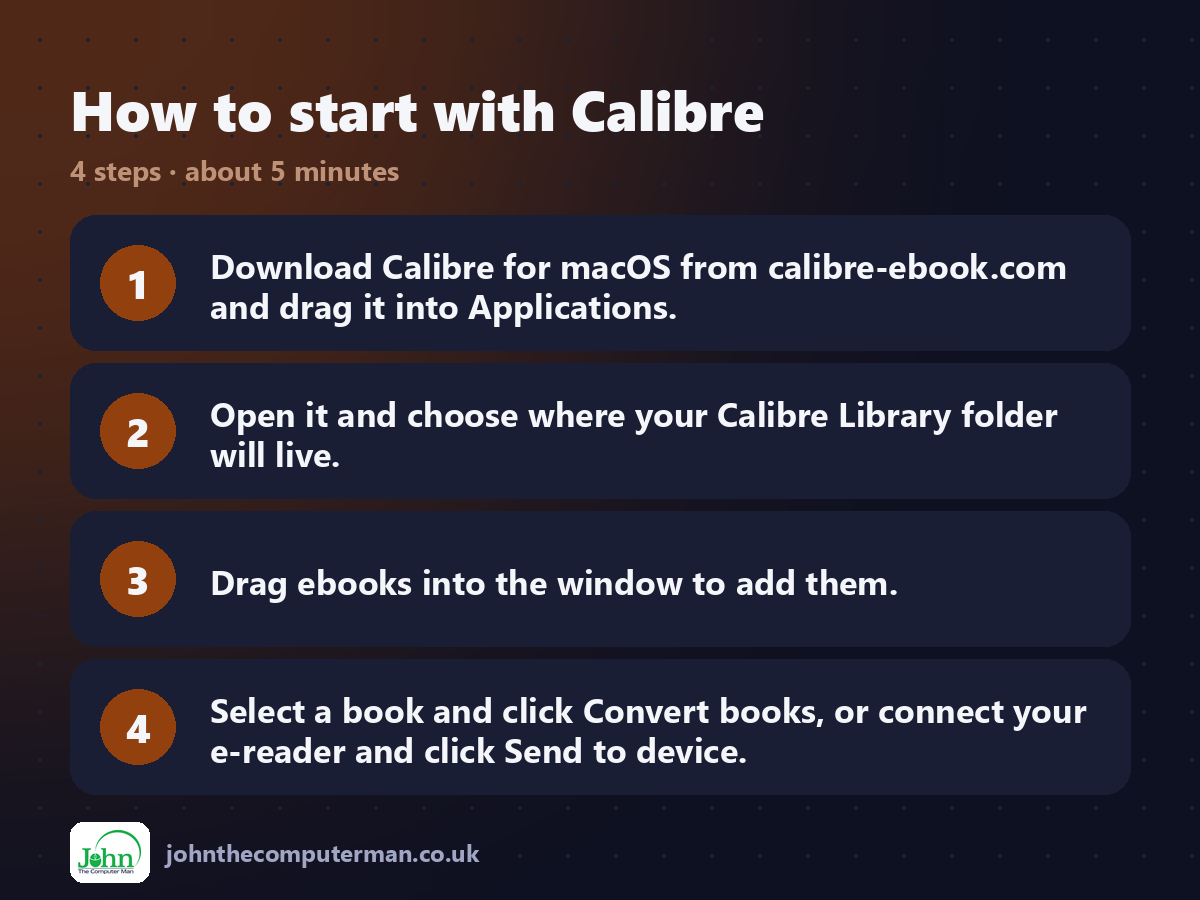
1. Download Calibre for macOS from calibre-ebook.com and drag it into Applications.
2. Open it and choose where your Calibre Library folder will live.
3. Drag ebooks into the window to add them.
4. Select a book and click Convert books, or connect your e-reader and click Send to device.
2. Open it and choose where your Calibre Library folder will live.
3. Drag ebooks into the window to add them.
4. Select a book and click Convert books, or connect your e-reader and click Send to device.
Prefer the command line? If you use Homebrew, the free package manager for Mac, open Terminal and run:
brew install --cask calibre
Tips to get more out of it
• Select a book and press D to download its cover and details automatically.
• Send to Kindle's email address accepts EPUB. Set it up in Calibre's email sharing settings.
• Use Edit book to fix typos or formatting in an EPUB.
• Put your Calibre Library in a backed-up folder. It's your whole collection.
• Send to Kindle's email address accepts EPUB. Set it up in Calibre's email sharing settings.
• Use Edit book to fix typos or formatting in an EPUB.
• Put your Calibre Library in a backed-up folder. It's your whole collection.
Is it really free?
Free and open source. No ads, no account and no paid version. Donations are welcome.
Pros and cons
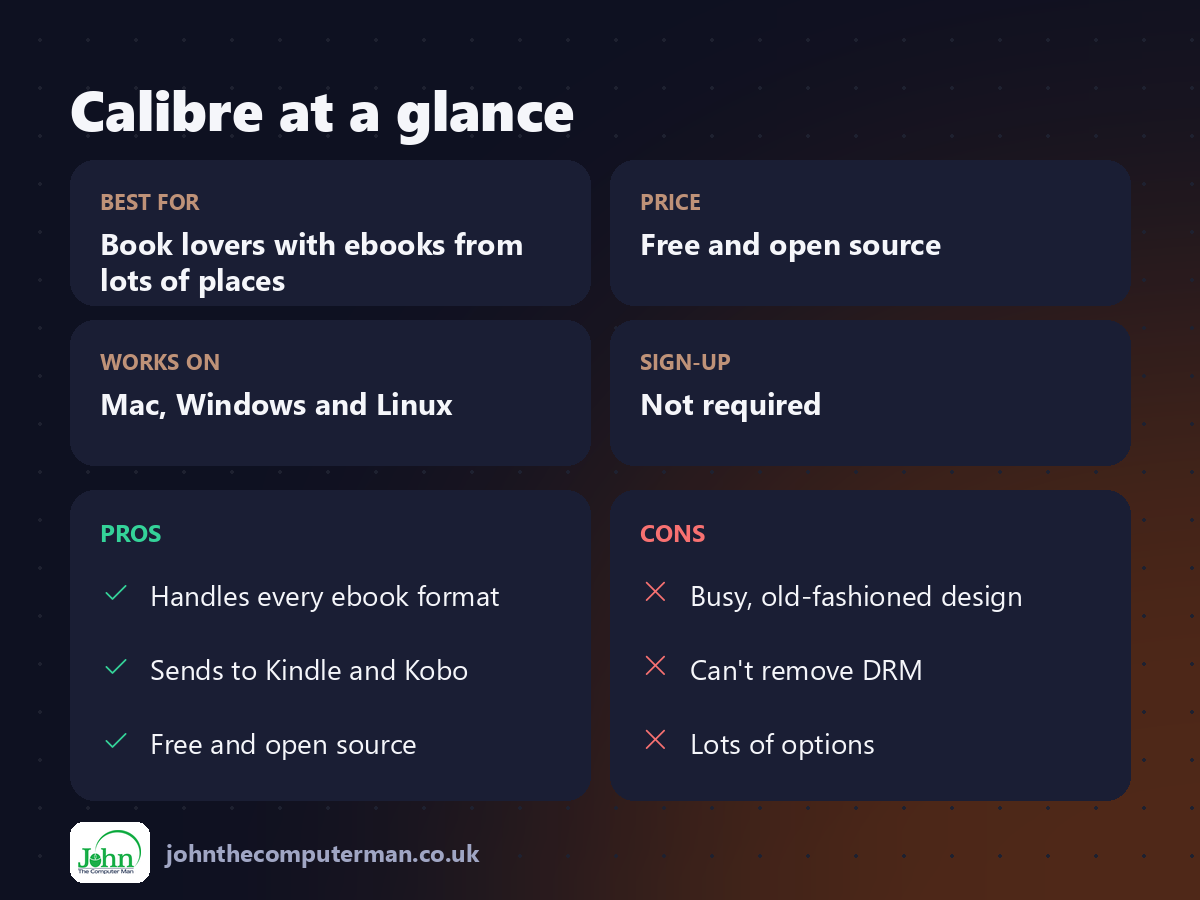
| 👍 Pros | 👎 Cons |
|---|---|
| Handles every ebook format | Busy, old-fashioned design |
| Sends to Kindle and Kobo | Can't remove DRM |
| Free and open source | Lots of options |
Who is it for?
Best for: Book lovers with ebooks from lots of places. Works on: Mac, Windows and Linux. Sign-up: Not required.
Calibre alternatives
• Apple Books: built in and lovely for reading, but limited for managing files.
• Send to Kindle: Amazon's free Mac app for sending documents to your Kindle.
• Kobo Desktop: for Kobo readers, free from Kobo.
• Send to Kindle: Amazon's free Mac app for sending documents to your Kindle.
• Kobo Desktop: for Kobo readers, free from Kobo.
FAQ
Can Calibre open Kindle books I've bought?
Only if they're DRM-free. Calibre doesn't remove copy protection.
Is Calibre safe?
Yes. It's open source, has been around since 2006, and is downloaded millions of times a year.
The verdict
If you read ebooks, Calibre is the one app you need to keep them organised. It's not pretty, but nothing else comes close, at any price.
👉 Try it: calibre-ebook.com
Part of the free mac apps that replace paid software series on johnthecomputerman.co.uk. Follow @johnthecomputerman on Instagram for a new free Mac tool every Monday, Wednesday and Friday. Pricing and features were checked in September 2026 and can change, so check the tool's own site for the latest.
