Cyberduck for Mac: Free FTP, SFTP and Cloud Storage Browser
Updating a website, uploading to a server or moving files between cloud services usually means a different app or web page for each.
Cyberduck handles all of them in one simple file browser. FTP, SFTP, WebDAV, Amazon S3, Backblaze, Google Drive, Dropbox and OneDrive, all with drag and drop.
What is Cyberduck?
Cyberduck is a free, open-source file transfer app for Mac and Windows. It connects to FTP, SFTP and WebDAV servers and cloud storage including Amazon S3, Backblaze B2, Google Drive, Dropbox, OneDrive and more. You can save bookmarks, edit files in your favourite editor and sync them back, and it can open Cryptomator vaults. It's free to download, with a donation prompt you can remove.
Key features
Every server and cloud
FTP, SFTP, WebDAV, S3, Google Drive, Dropbox, OneDrive and more.
Drag and drop
Upload and download by dragging files, just like in Finder.
Edit in place
Open a file in your editor, save, and Cyberduck uploads the change.
How to get started with Cyberduck
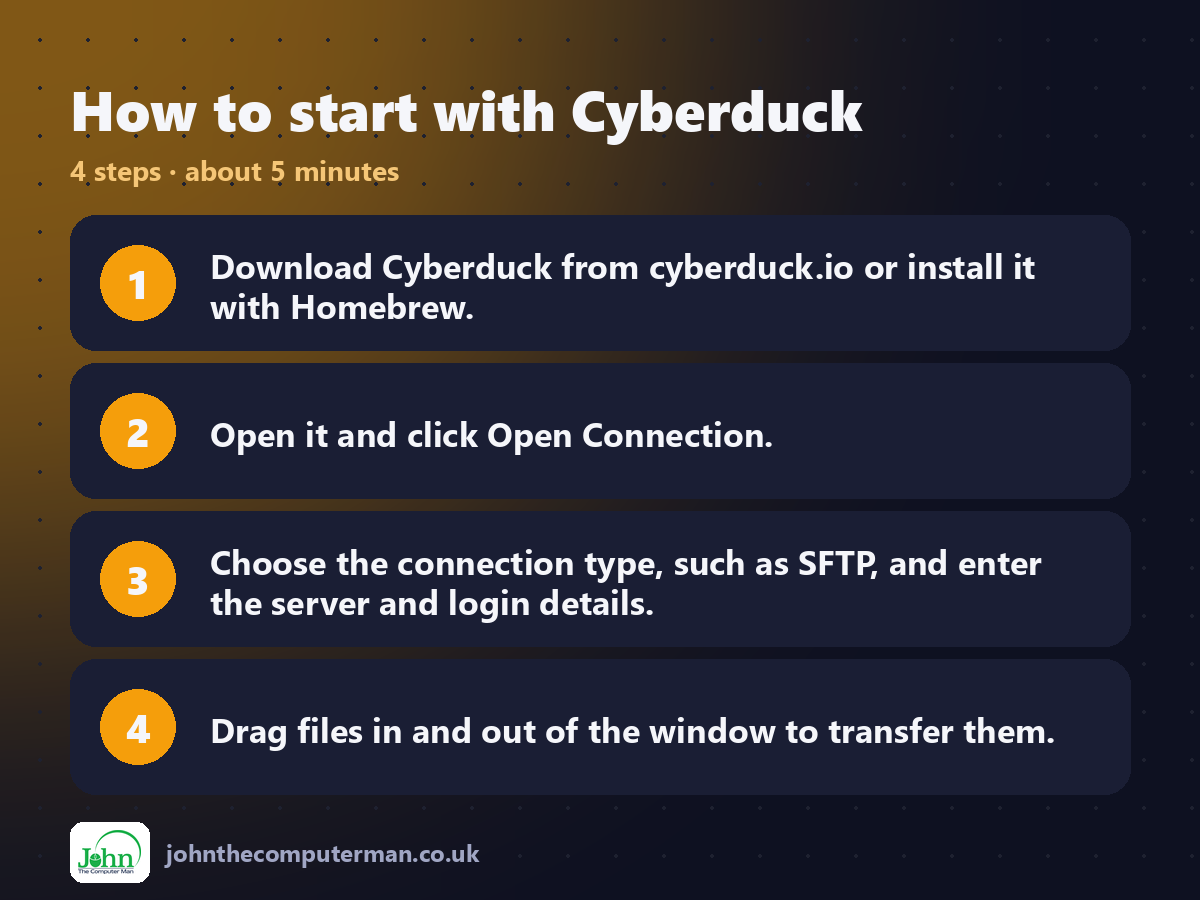
1. Download Cyberduck from cyberduck.io or install it with Homebrew.
2. Open it and click Open Connection.
3. Choose the connection type, such as SFTP, and enter the server and login details.
4. Drag files in and out of the window to transfer them.
2. Open it and click Open Connection.
3. Choose the connection type, such as SFTP, and enter the server and login details.
4. Drag files in and out of the window to transfer them.
Prefer the command line? If you use Homebrew, the free package manager for Mac, open Terminal and run:
brew install --cask cyberduck
Tips to get more out of it
• Save connections as bookmarks so you never retype server details.
• Use SFTP instead of plain FTP whenever your host supports it. It's encrypted.
• Right-click a file and choose Edit With to change it in your editor.
• Cyberduck can open Cryptomator vaults stored in the cloud.
• Use SFTP instead of plain FTP whenever your host supports it. It's encrypted.
• Right-click a file and choose Edit With to change it in your editor.
• Cyberduck can open Cryptomator vaults stored in the cloud.
Is it really free?
Free and open source. It asks for a donation, which removes the prompt. The Mac App Store version is paid.
Pros and cons
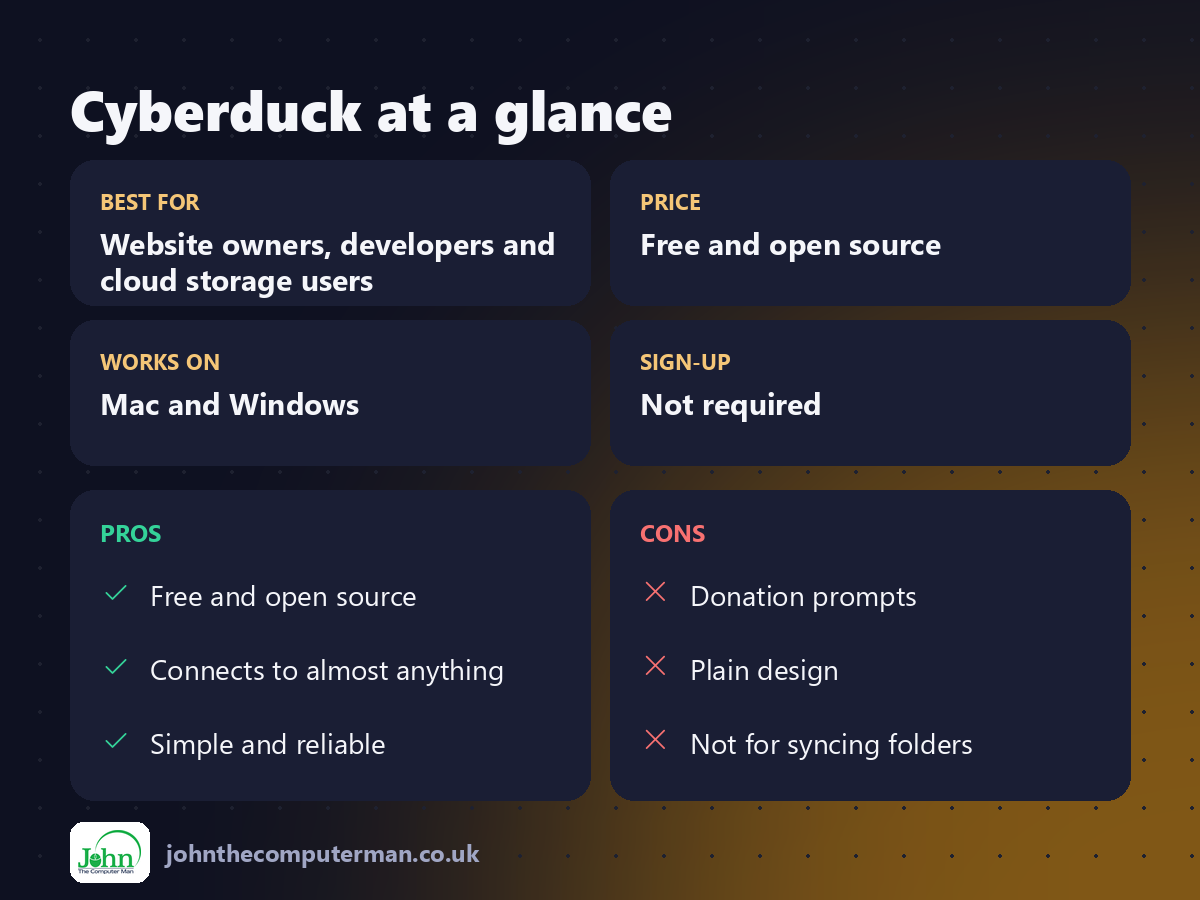
| 👍 Pros | 👎 Cons |
|---|---|
| Free and open source | Donation prompts |
| Connects to almost anything | Plain design |
| Simple and reliable | Not for syncing folders |
Who is it for?
Best for: Website owners, developers and cloud storage users. Works on: Mac and Windows. Sign-up: Not required.
Cyberduck alternatives
• Transmit: a polished paid Mac file transfer app.
• FileZilla: a free, popular FTP app across platforms.
• Mountain Duck: from the same team: mounts servers as drives in Finder, paid.
• FileZilla: a free, popular FTP app across platforms.
• Mountain Duck: from the same team: mounts servers as drives in Finder, paid.
FAQ
Is Cyberduck free?
Yes. It's free and open source. Donating removes the occasional prompt.
Is it safe?
Yes, when downloaded from cyberduck.io. Use SFTP or other encrypted connections to keep transfers private.
The verdict
Cyberduck is the easy free way to reach your servers and cloud storage from a Mac. Save a few bookmarks and you're set.
👉 Try it: cyberduck.io
Part of the hidden-gem mac apps series on johnthecomputerman.co.uk. Follow @johnthecomputerman on Instagram for a new free Mac tool every Monday, Wednesday and Friday. Pricing and features were checked in September 2026 and can change, so check the tool's own site for the latest.
