FreeCAD for Mac: Free 3D CAD for 3D Printing and Engineering
Blender is great for artistic 3D, but when you need a bracket with a hole exactly 5 mm wide, you need CAD. Professional CAD software is expensive, and free licences often come with strings.
FreeCAD is fully free and open source, with no licence limits. Since version 1.0 it's more stable and easier to use than ever, and it's perfect for 3D printing.
What is FreeCAD?
FreeCAD is a free, open-source parametric 3D modeller for Mac, Windows and Linux. You sketch 2D shapes with exact dimensions and constraints, then turn them into 3D parts. Because it's parametric, you can go back and change a dimension and the model updates. It includes workbenches for part design, assemblies, technical drawings, architecture and more, and exports to STL and STEP.
Key features
Exact dimensions
Sketch with precise measurements and constraints, then extrude into 3D.
Change anything later
Edit a dimension and the whole model updates automatically.
Ready for printing
Export STL or 3MF files straight to your slicer.
How to get started with FreeCAD
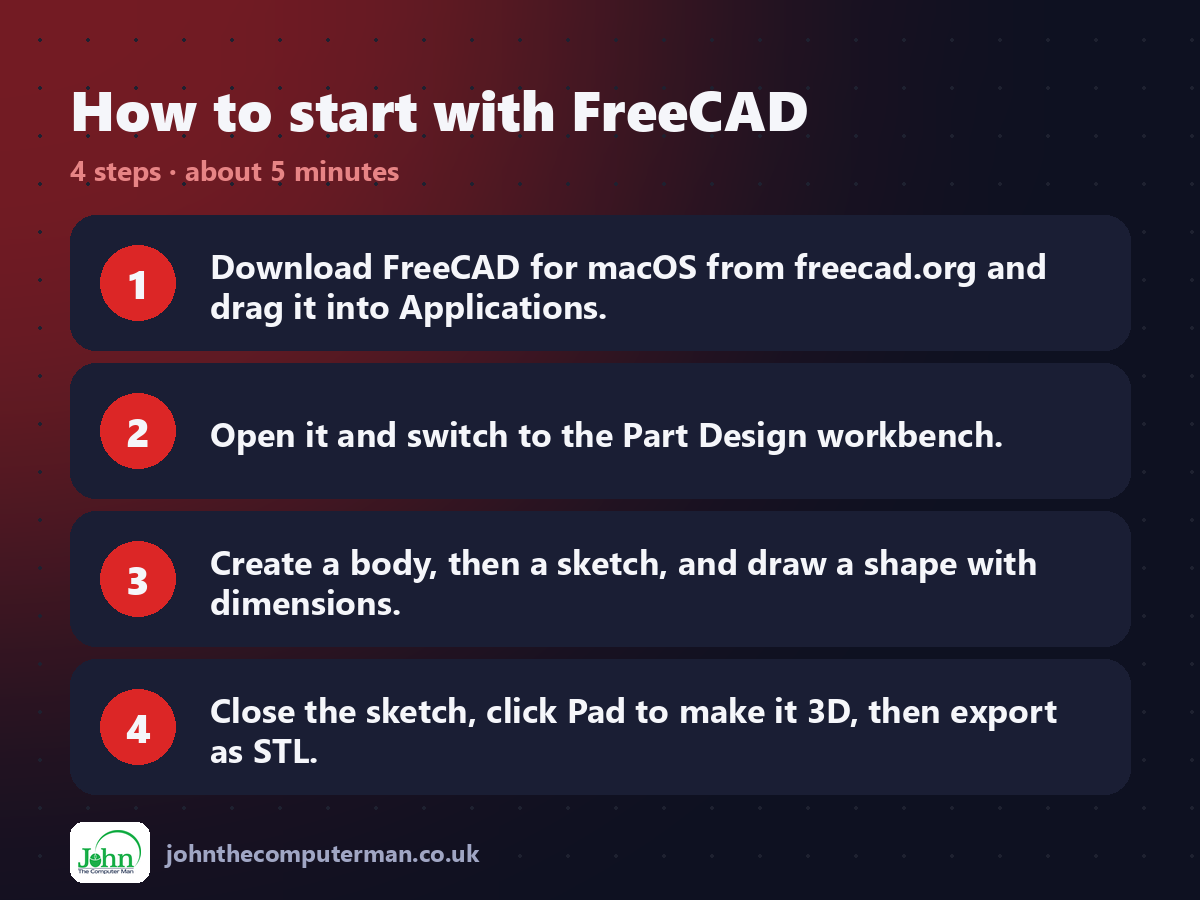
1. Download FreeCAD for macOS from freecad.org and drag it into Applications.
2. Open it and switch to the Part Design workbench.
3. Create a body, then a sketch, and draw a shape with dimensions.
4. Close the sketch, click Pad to make it 3D, then export as STL.
2. Open it and switch to the Part Design workbench.
3. Create a body, then a sketch, and draw a shape with dimensions.
4. Close the sketch, click Pad to make it 3D, then export as STL.
Prefer the command line? If you use Homebrew, the free package manager for Mac, open Terminal and run:
brew install --cask freecad
Tips to get more out of it
• Fully constrain your sketches. When the lines turn green, the shape is locked down.
• Follow a beginner tutorial for FreeCAD 1.0 or later. Older tutorials look different.
• Name your sketches and features so you can find them later.
• Use the built-in Assembly workbench to fit parts together.
• Follow a beginner tutorial for FreeCAD 1.0 or later. Older tutorials look different.
• Name your sketches and features so you can find them later.
• Use the built-in Assembly workbench to fit parts together.
Is it really free?
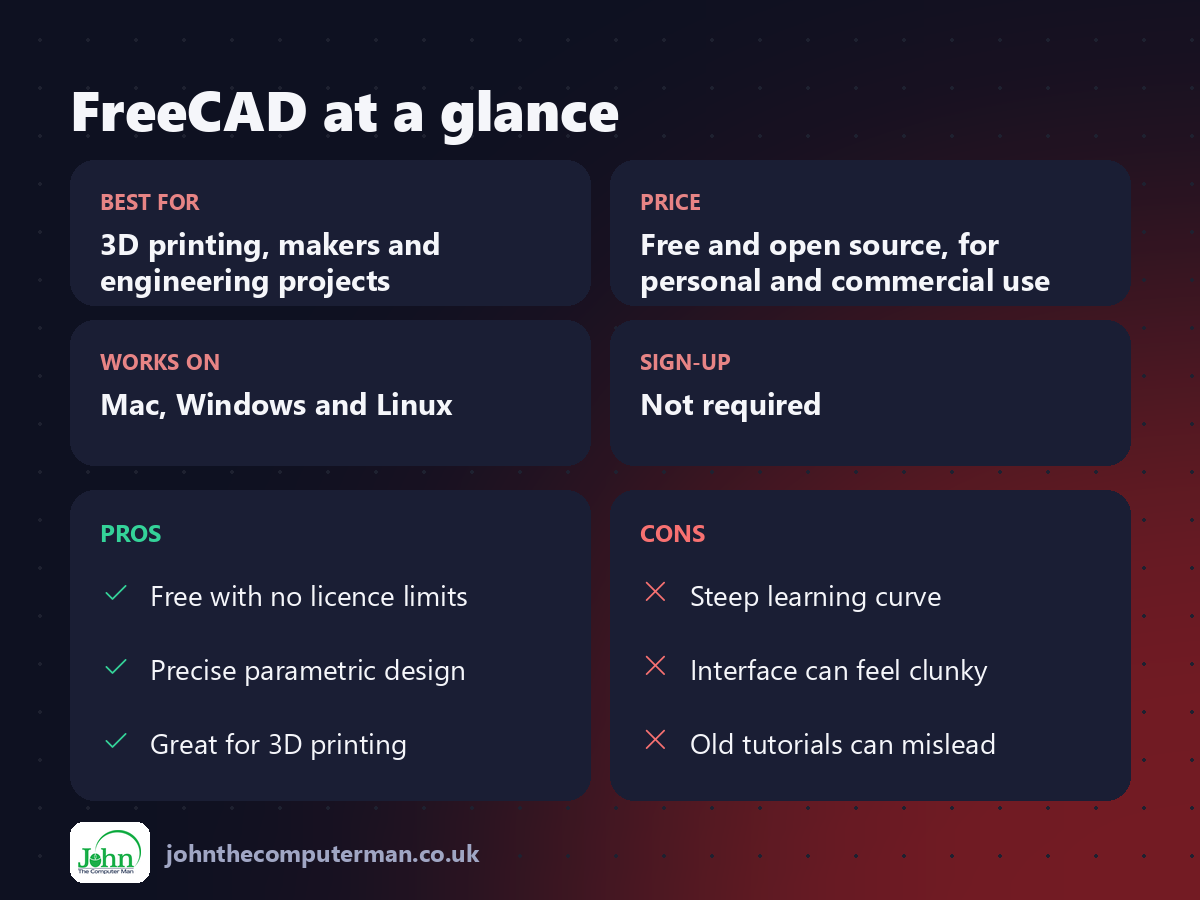
Free and open source, for personal and commercial use. No licence limits.
Pros and cons
| 👍 Pros | 👎 Cons |
|---|---|
| Free with no licence limits | Steep learning curve |
| Precise parametric design | Interface can feel clunky |
| Great for 3D printing | Old tutorials can mislead |
Who is it for?
Best for: 3D printing, makers and engineering projects. Works on: Mac, Windows and Linux. Sign-up: Not required.
FreeCAD alternatives
• Autodesk Fusion: powerful CAD with a limited free licence for personal use.
• Onshape: browser-based CAD with a free public plan.
• Tinkercad: free, very simple 3D design in the browser for beginners.
• Onshape: browser-based CAD with a free public plan.
• Tinkercad: free, very simple 3D design in the browser for beginners.
FAQ
Is FreeCAD good for 3D printing?
Yes. It's ideal for precise, functional parts. Export STL or 3MF and open them in your slicer.
Can I use FreeCAD for commercial work?
Yes. It's open source and free for any use, with no licence restrictions.
The verdict
FreeCAD takes patience, but it's the most capable truly free CAD app available. If you 3D print functional parts, it's worth learning.
👉 Try it: www.freecad.org
Part of the free creative apps for mac series on johnthecomputerman.co.uk. Follow @johnthecomputerman on Instagram for a new free Mac tool every Monday, Wednesday and Friday. Pricing and features were checked in September 2026 and can change, so check the tool's own site for the latest.
