GIMP for Mac: The Free Photoshop Alternative (Beginner's Guide)
Photoshop is brilliant, but it's also a monthly subscription. If you only edit photos now and then, that adds up fast.
GIMP is the long-standing free alternative. It has layers, masks, retouching and colour tools, and since GIMP 3 it supports non-destructive filters you can tweak later. It's open source and free for everything.
What is GIMP?
GIMP (GNU Image Manipulation Program) is a free, open-source image editor for Mac, Windows and Linux. It supports layers and masks, selections, retouching tools like Heal and Clone, colour correction, text and hundreds of filters. GIMP 3 added a refreshed interface, non-destructive filters and better support for Photoshop PSD files.
Key features
Layers and masks
Build up edits in layers and hide parts with masks, just like in Photoshop.
Retouching tools
Heal, Clone and Perspective Clone remove blemishes, wires and photobombers.
Non-destructive filters
In GIMP 3, adjust or remove filters later without redoing your work.
How to get started with GIMP
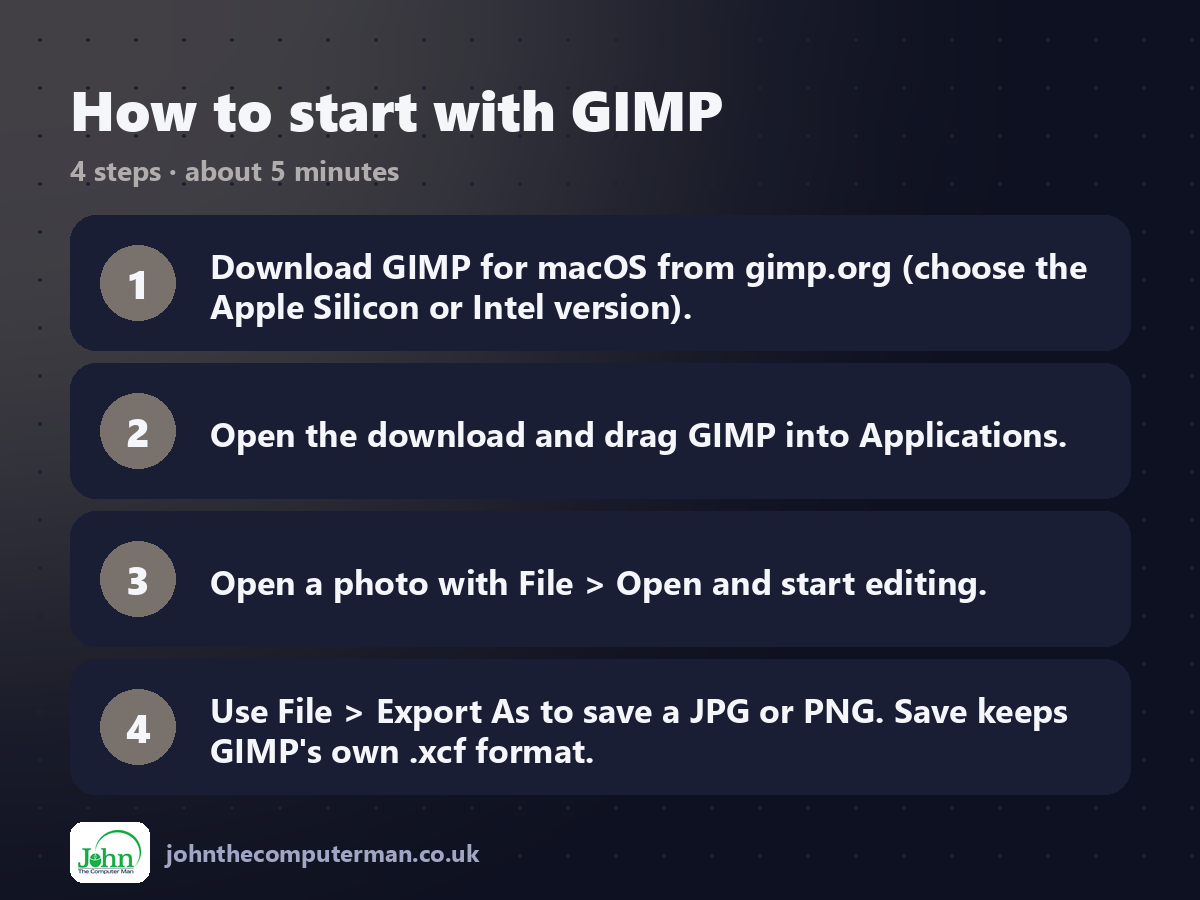
1. Download GIMP for macOS from gimp.org (choose the Apple Silicon or Intel version).
2. Open the download and drag GIMP into Applications.
3. Open a photo with File > Open and start editing.
4. Use File > Export As to save a JPG or PNG. Save keeps GIMP's own .xcf format.
2. Open the download and drag GIMP into Applications.
3. Open a photo with File > Open and start editing.
4. Use File > Export As to save a JPG or PNG. Save keeps GIMP's own .xcf format.
Prefer the command line? If you use Homebrew, the free package manager for Mac, open Terminal and run:
brew install --cask gimp
Tips to get more out of it
• Remember: Export As saves JPG and PNG. Save only saves GIMP's .xcf project file.
• Press Shift+C for the Crop tool and H for the Heal tool.
• Colors > Curves is the quickest way to fix a dull or dark photo.
• Follow a beginner tutorial on gimp.org to learn the basics in an afternoon.
• Press Shift+C for the Crop tool and H for the Heal tool.
• Colors > Curves is the quickest way to fix a dull or dark photo.
• Follow a beginner tutorial on gimp.org to learn the basics in an afternoon.
Is it really free?
Free and open source. No ads, no account and no paid version.
Pros and cons
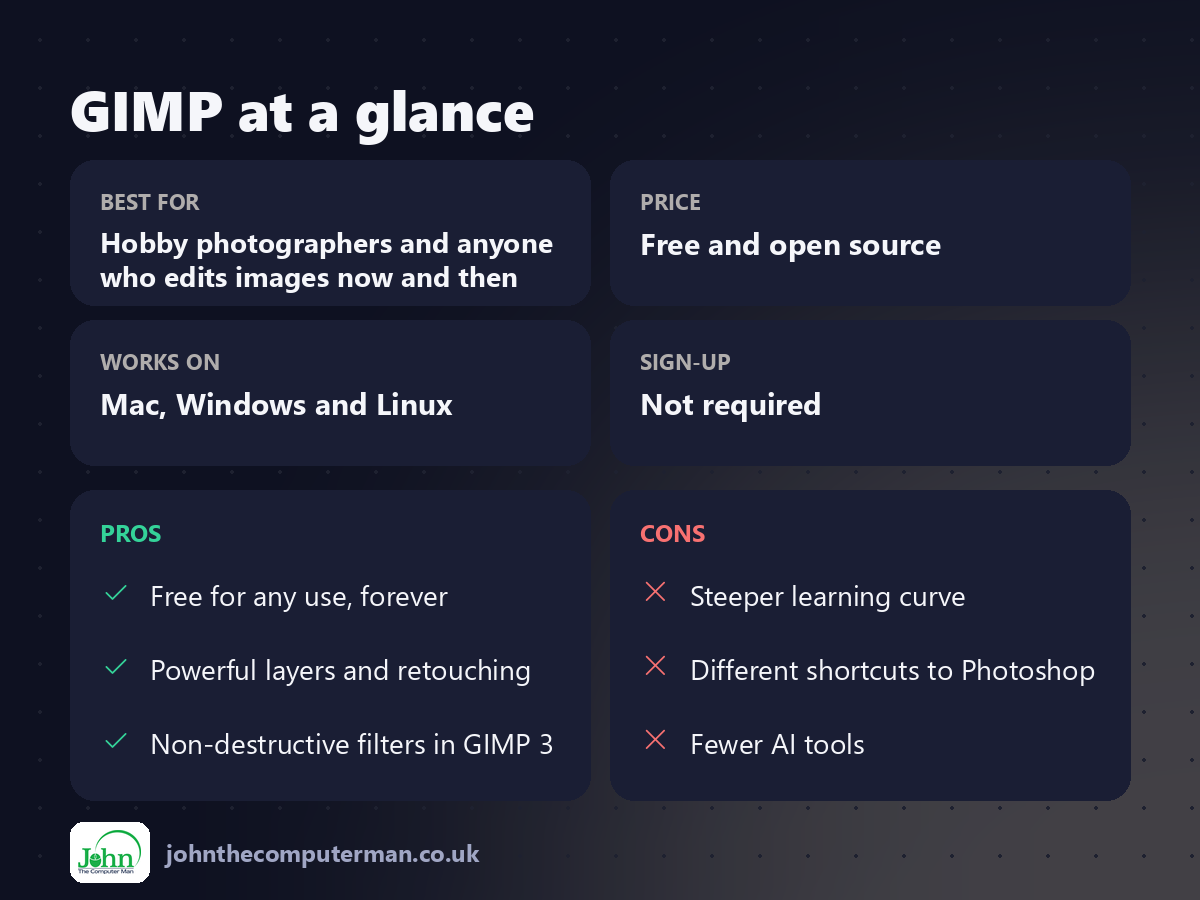
| 👍 Pros | 👎 Cons |
|---|---|
| Free for any use, forever | Steeper learning curve |
| Powerful layers and retouching | Different shortcuts to Photoshop |
| Non-destructive filters in GIMP 3 | Fewer AI tools |
Who is it for?
Best for: Hobby photographers and anyone who edits images now and then. Works on: Mac, Windows and Linux. Sign-up: Not required.
GIMP alternatives
• Affinity: Canva's pro design app, free to use with a Canva account.
• Photopea: a Photoshop-style editor in your browser, free with ads.
• Pixelmator Pro: a beautiful paid Mac photo editor, now owned by Apple.
• Photopea: a Photoshop-style editor in your browser, free with ads.
• Pixelmator Pro: a beautiful paid Mac photo editor, now owned by Apple.
FAQ
Can GIMP open Photoshop files?
Yes. GIMP opens PSD files, including layers, though some Photoshop-only features won't carry over.
Is GIMP hard to learn?
It's different rather than hard. GIMP 3 is friendlier than older versions, and there are plenty of free beginner tutorials.
The verdict
GIMP takes a little learning, but it can do far more than most people will ever need, and it costs nothing. If you're paying for Photoshop just for occasional edits, give it a proper try.
👉 Try it: www.gimp.org
Part of the free mac apps that replace paid software series on johnthecomputerman.co.uk. Follow @johnthecomputerman on Instagram for a new free Mac tool every Monday, Wednesday and Friday. Pricing and features were checked in September 2026 and can change, so check the tool's own site for the latest.
