KeepingYouAwake: Stop Your Mac Sleeping With One Click (Free)
You start a big download, walk away, and come back to find your Mac went to sleep halfway through. Or your screen dims in the middle of a presentation.
KeepingYouAwake puts a little coffee cup in your menu bar. Click it and your Mac stays awake. Click it again and it goes back to normal. That's it.
What is KeepingYouAwake?
KeepingYouAwake is a free, open-source menu bar app for macOS that temporarily stops your Mac from sleeping. Click its icon to keep your Mac awake indefinitely, or choose a set time such as one hour. It uses macOS's own built-in caffeinate tool, so it's light and reliable, and can switch itself off when your battery gets low.
Key features
One-click awake
Click the menu bar icon to keep your Mac awake. Click again to turn it off.
Set a time limit
Right-click to stay awake for 5 minutes, an hour or longer, then it switches off by itself.
Battery-aware
Can turn itself off when your battery drops below a level you choose.
How to get started with KeepingYouAwake
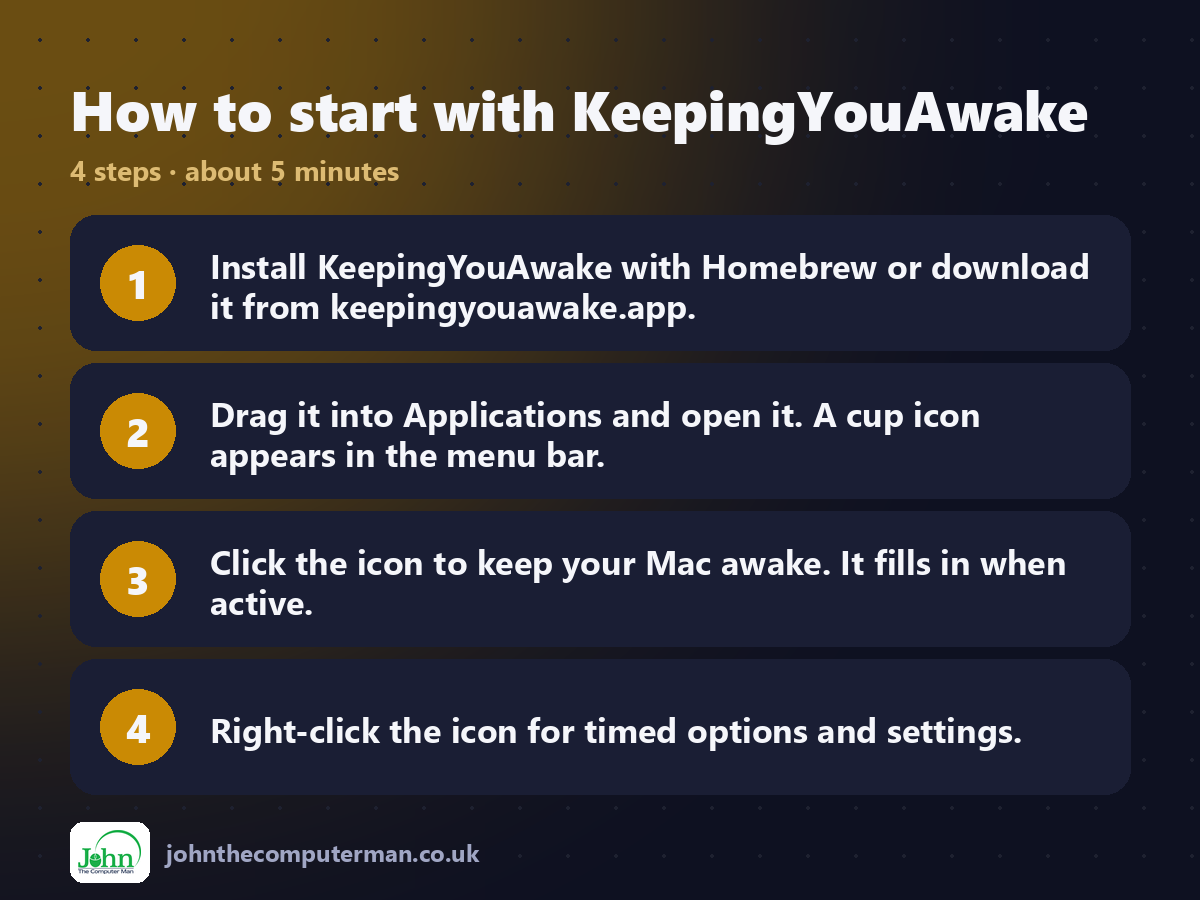
1. Install KeepingYouAwake with Homebrew or download it from keepingyouawake.app.
2. Drag it into Applications and open it. A cup icon appears in the menu bar.
3. Click the icon to keep your Mac awake. It fills in when active.
4. Right-click the icon for timed options and settings.
2. Drag it into Applications and open it. A cup icon appears in the menu bar.
3. Click the icon to keep your Mac awake. It fills in when active.
4. Right-click the icon for timed options and settings.
Prefer the command line? If you use Homebrew, the free package manager for Mac, open Terminal and run:
brew install --cask keepingyouawake
Tips to get more out of it
• Turn on 'Start at Login' in settings so it's always ready.
• Set a battery threshold so it can't drain your MacBook completely.
• No app? Type caffeinate -d in Terminal to keep your display awake until you press Control+C.
• Use a timed session for downloads, so your Mac still sleeps when it's done.
• Set a battery threshold so it can't drain your MacBook completely.
• No app? Type caffeinate -d in Terminal to keep your display awake until you press Control+C.
• Use a timed session for downloads, so your Mac still sleeps when it's done.
Is it really free?
Free and open source. No ads, no account and no paid version.
Pros and cons
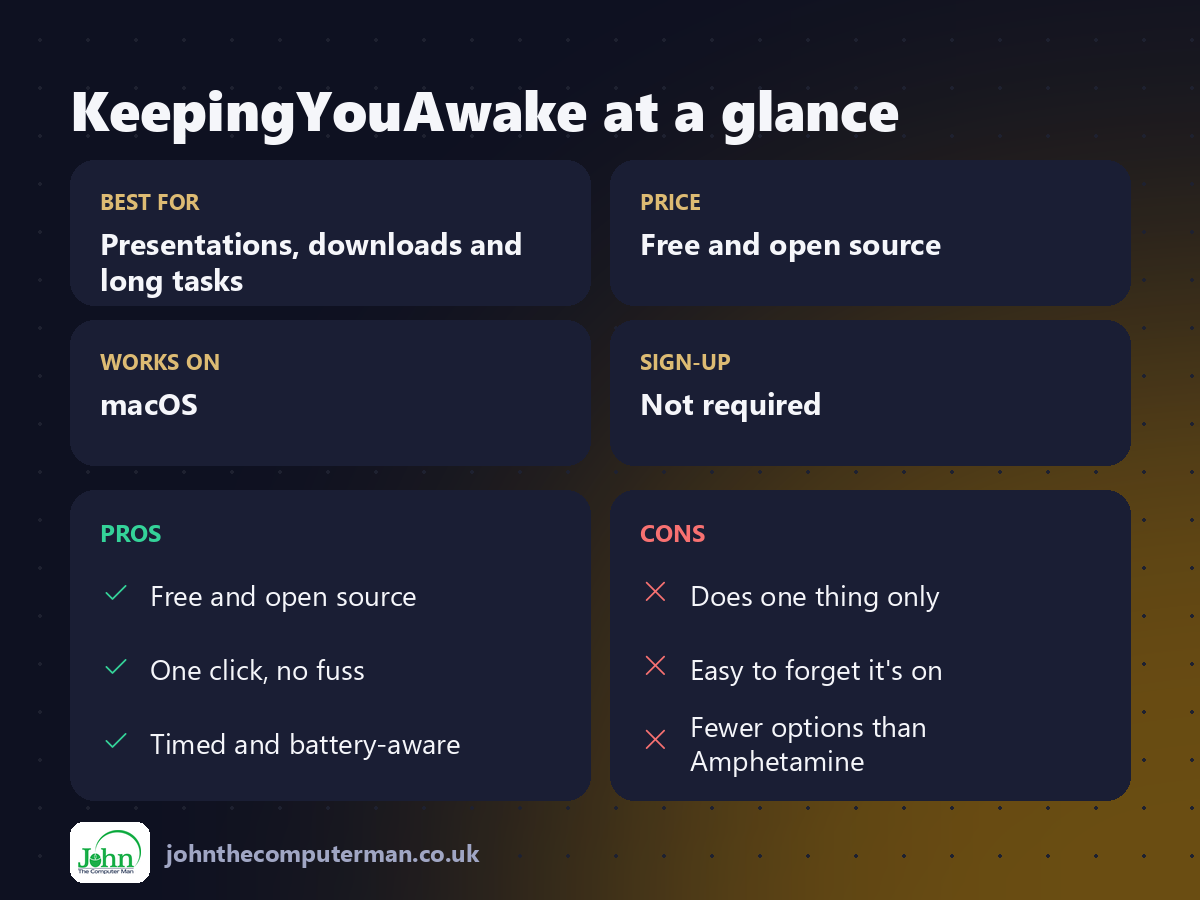
| 👍 Pros | 👎 Cons |
|---|---|
| Free and open source | Does one thing only |
| One click, no fuss | Easy to forget it's on |
| Timed and battery-aware | Fewer options than Amphetamine |
Who is it for?
Best for: Presentations, downloads and long tasks. Works on: macOS. Sign-up: Not required.
KeepingYouAwake alternatives
• Amphetamine: free on the Mac App Store, with lots of advanced triggers.
• caffeinate: a Terminal command built into macOS that does the same job.
• Energy settings: change sleep timings in System Settings, but that's permanent.
• caffeinate: a Terminal command built into macOS that does the same job.
• Energy settings: change sleep timings in System Settings, but that's permanent.
FAQ
Will it drain my battery?
Only while it's on, as your Mac isn't sleeping. Use a time limit or battery threshold to be safe.
Does it stop my Mac locking?
It keeps the display awake, so your screen won't lock from inactivity while it's on. You can still lock it yourself with Control+Command+Q.
The verdict
KeepingYouAwake is the simplest fix for a Mac that sleeps at the wrong moment. It's free and tiny, and you'll be glad it's there next time you start a big download.
👉 Try it: keepingyouawake.app
Part of the 10 more free mac tools series on johnthecomputerman.co.uk. Follow @johnthecomputerman on Instagram for a new free Mac tool every Monday, Wednesday and Friday. Pricing and features were checked in September 2026 and can change, so check the tool's own site for the latest.
