MonitorControl: Change External Monitor Brightness From Your Mac Keyboard (Free)
Your MacBook's brightness keys work perfectly on its own screen. Plug in an external monitor, though, and you're back to fiddling with tiny buttons on the back of the display.
MonitorControl fixes that. It lets your keyboard's brightness and volume keys control external monitors too, and adds handy sliders to the menu bar. Free and open source.
What is MonitorControl?
MonitorControl is a free, open-source menu bar app for macOS that controls external displays. It talks to most monitors using the DDC standard, the same way the monitor's own buttons do, to change hardware brightness, contrast and volume. For displays that don't support DDC, it can dim the picture in software instead. Your keyboard's brightness and volume keys can control whichever screen you're working on.
Key features
Your keys, every screen
Use the Mac's brightness and volume keys to adjust your external monitor.
Menu bar sliders
Brightness and volume sliders for every connected display in one place.
Works with most monitors
Uses real hardware brightness where supported, with software dimming as a fallback.
How to get started with MonitorControl
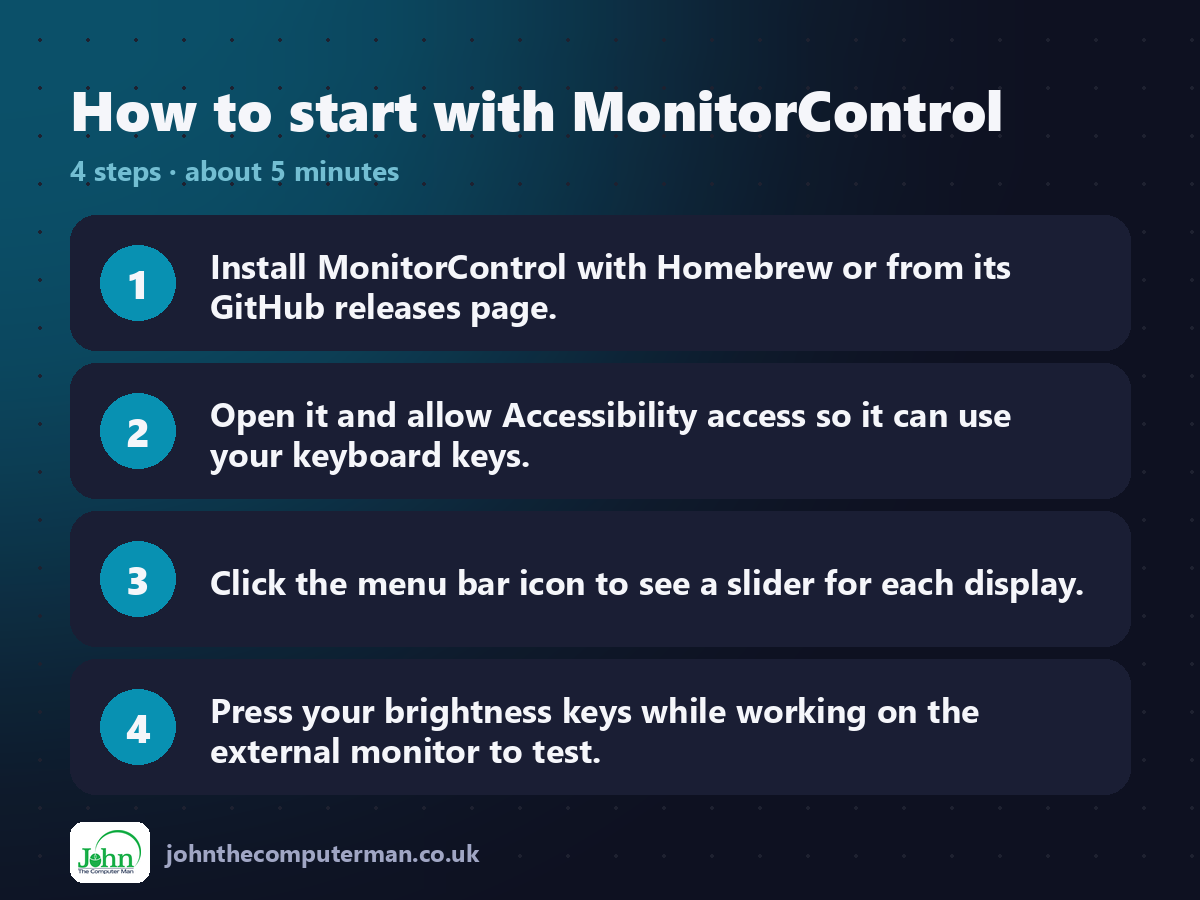
1. Install MonitorControl with Homebrew or from its GitHub releases page.
2. Open it and allow Accessibility access so it can use your keyboard keys.
3. Click the menu bar icon to see a slider for each display.
4. Press your brightness keys while working on the external monitor to test.
2. Open it and allow Accessibility access so it can use your keyboard keys.
3. Click the menu bar icon to see a slider for each display.
4. Press your brightness keys while working on the external monitor to test.
Prefer the command line? If you use Homebrew, the free package manager for Mac, open Terminal and run:
brew install --cask monitorcontrol
Tips to get more out of it
• In Settings > Keyboard, choose whether keys control all screens or just the one with your mouse pointer.
• If brightness doesn't change, try a different cable or port. Some built-in HDMI ports don't pass DDC signals.
• Turn on 'Start at Login' so your keys always work.
• Monitor has speakers? MonitorControl can change its volume with your Mac's volume keys too.
• If brightness doesn't change, try a different cable or port. Some built-in HDMI ports don't pass DDC signals.
• Turn on 'Start at Login' so your keys always work.
• Monitor has speakers? MonitorControl can change its volume with your Mac's volume keys too.
Is it really free?
Free and open source. No ads, no account and no paid version.
Pros and cons
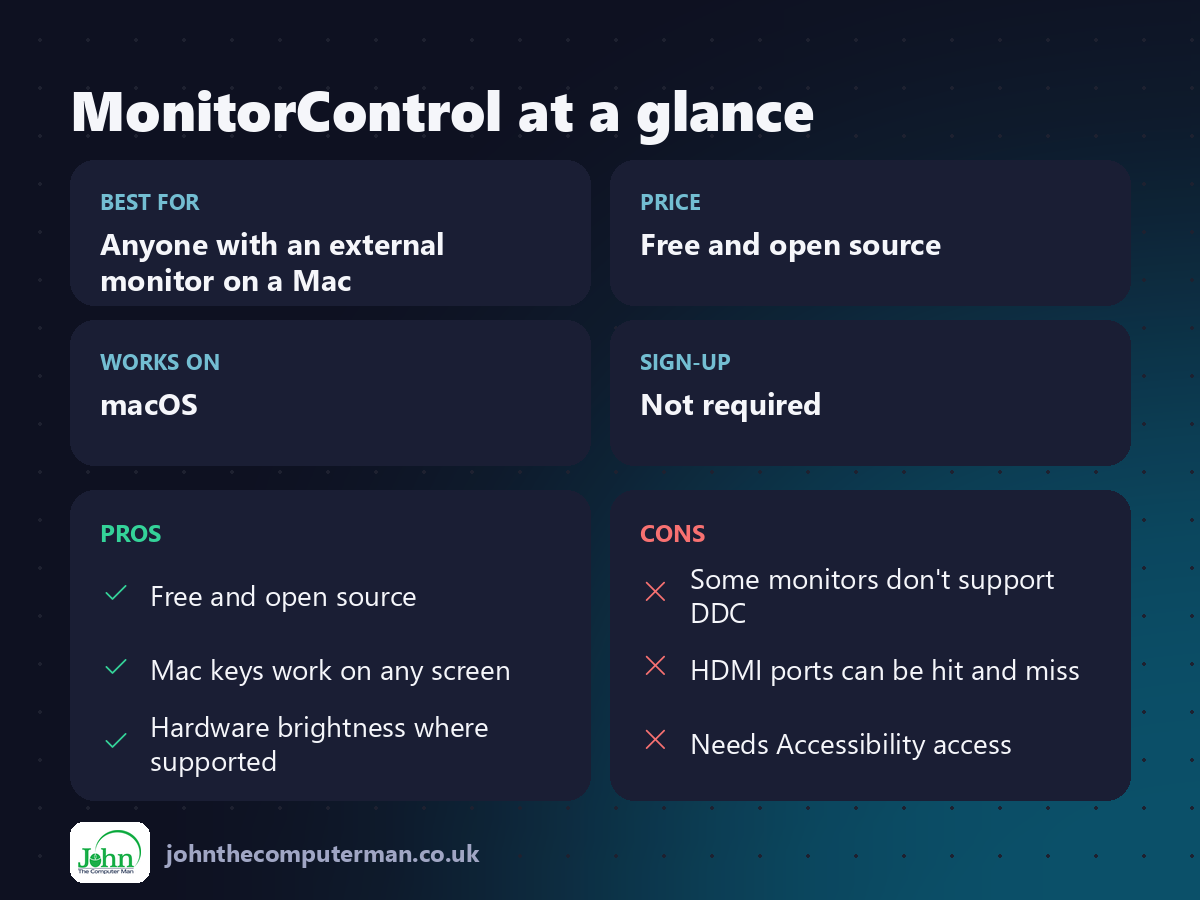
| 👍 Pros | 👎 Cons |
|---|---|
| Free and open source | Some monitors don't support DDC |
| Mac keys work on any screen | HDMI ports can be hit and miss |
| Hardware brightness where supported | Needs Accessibility access |
Who is it for?
Best for: Anyone with an external monitor on a Mac. Works on: macOS. Sign-up: Not required.
MonitorControl alternatives
• Lunar: adds adaptive brightness and syncing, with a paid Pro version.
• BetterDisplay: powerful display control with a free version and paid Pro.
• Your monitor's buttons: always work, but you have to reach round the back.
• BetterDisplay: powerful display control with a free version and paid Pro.
• Your monitor's buttons: always work, but you have to reach round the back.
FAQ
Why doesn't it work with my monitor?
Some monitors don't support DDC, and some Mac HDMI ports don't pass it through. Try another cable or port, or use software dimming in MonitorControl's settings.
Is MonitorControl safe?
Yes. It's open source, it runs locally, and it only sends standard brightness and volume commands to your monitor.
The verdict
MonitorControl is one of those little apps that makes a Mac with an external monitor feel complete. Install it once and your brightness keys just work everywhere.
👉 Try it: github.com/MonitorControl/MonitorControl
Part of the 10 more free mac tools series on johnthecomputerman.co.uk. Follow @johnthecomputerman on Instagram for a new free Mac tool every Monday, Wednesday and Friday. Pricing and features were checked in September 2026 and can change, so check the tool's own site for the latest.
