Obsidian for Mac: The Free Notes App That Keeps Your Notes Yours
Most notes apps keep your notes in their own format, on their own servers. If the company changes its pricing or shuts down, getting your notes out can be a pain.
Obsidian keeps your notes as plain text files in a folder on your Mac. Any app can open them, forever. On top of that it adds linking, search and a huge library of plugins, and it's free for everyone.
What is Obsidian?
Obsidian is a notes app for Mac, Windows, Linux, iPhone and Android. Your notes are Markdown text files stored in a folder called a vault, on your own device. You can link notes together, see how they connect in a graph, and add features with thousands of community plugins and themes. The app is free for personal and work use. Optional paid add-ons are Obsidian Sync and Obsidian Publish.
Key features
Your notes, your files
Notes are plain Markdown files in a folder on your Mac. No lock-in, ever.
Link your thinking
Type [[ to link notes together, and see connections in the graph view.
Thousands of plugins
Add calendars, task lists, kanban boards and more from the free plugin library.
How to get started with Obsidian
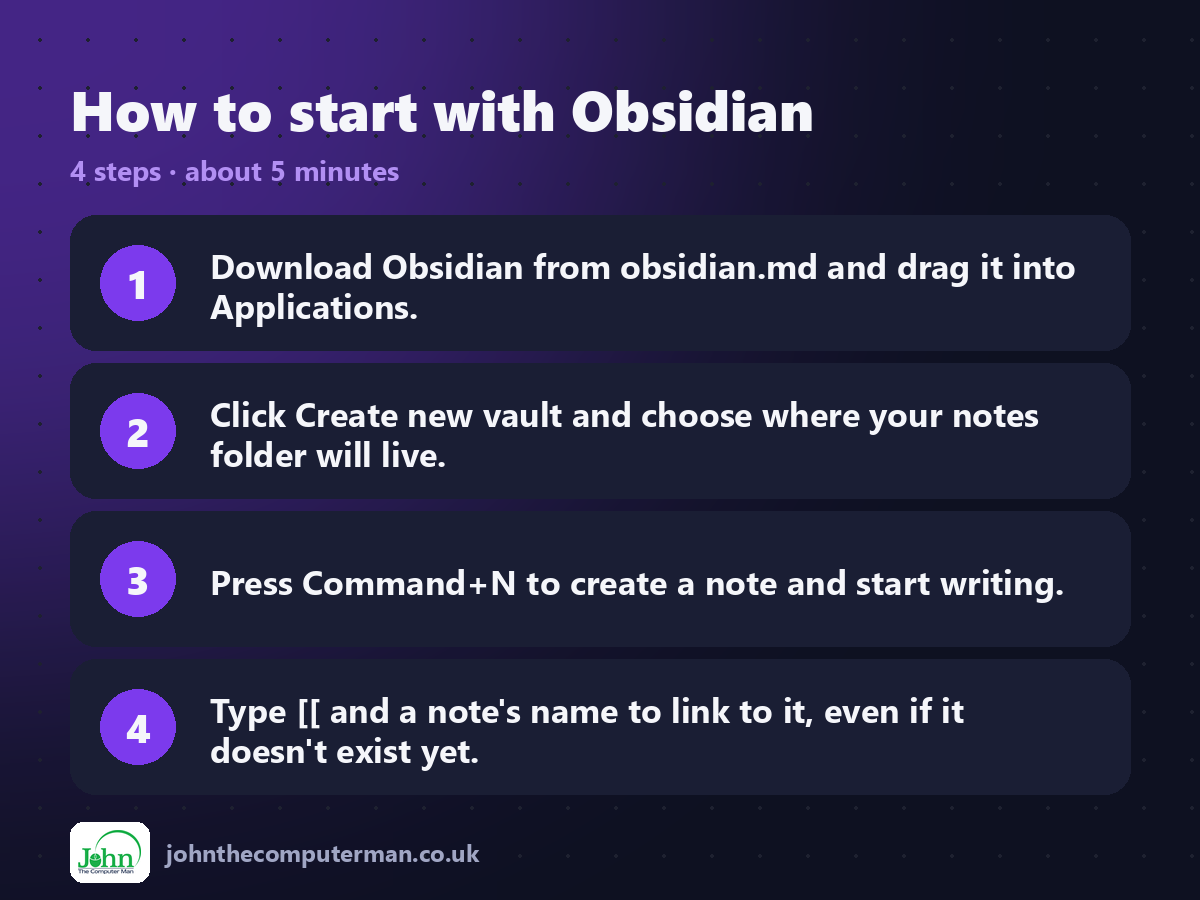
1. Download Obsidian from obsidian.md and drag it into Applications.
2. Click Create new vault and choose where your notes folder will live.
3. Press Command+N to create a note and start writing.
4. Type [[ and a note's name to link to it, even if it doesn't exist yet.
2. Click Create new vault and choose where your notes folder will live.
3. Press Command+N to create a note and start writing.
4. Type [[ and a note's name to link to it, even if it doesn't exist yet.
Prefer the command line? If you use Homebrew, the free package manager for Mac, open Terminal and run:
brew install --cask obsidian
Tips to get more out of it
• Put your vault in iCloud Drive to sync free with the Obsidian iPhone app.
• Turn on Daily notes in Settings > Core plugins for a quick journal or work log.
• Press Command+O to jump to any note, and Command+P for every command.
• Start simple. Add plugins only when you know what you're missing.
• Turn on Daily notes in Settings > Core plugins for a quick journal or work log.
• Press Command+O to jump to any note, and Command+P for every command.
• Start simple. Add plugins only when you know what you're missing.
Is it really free?
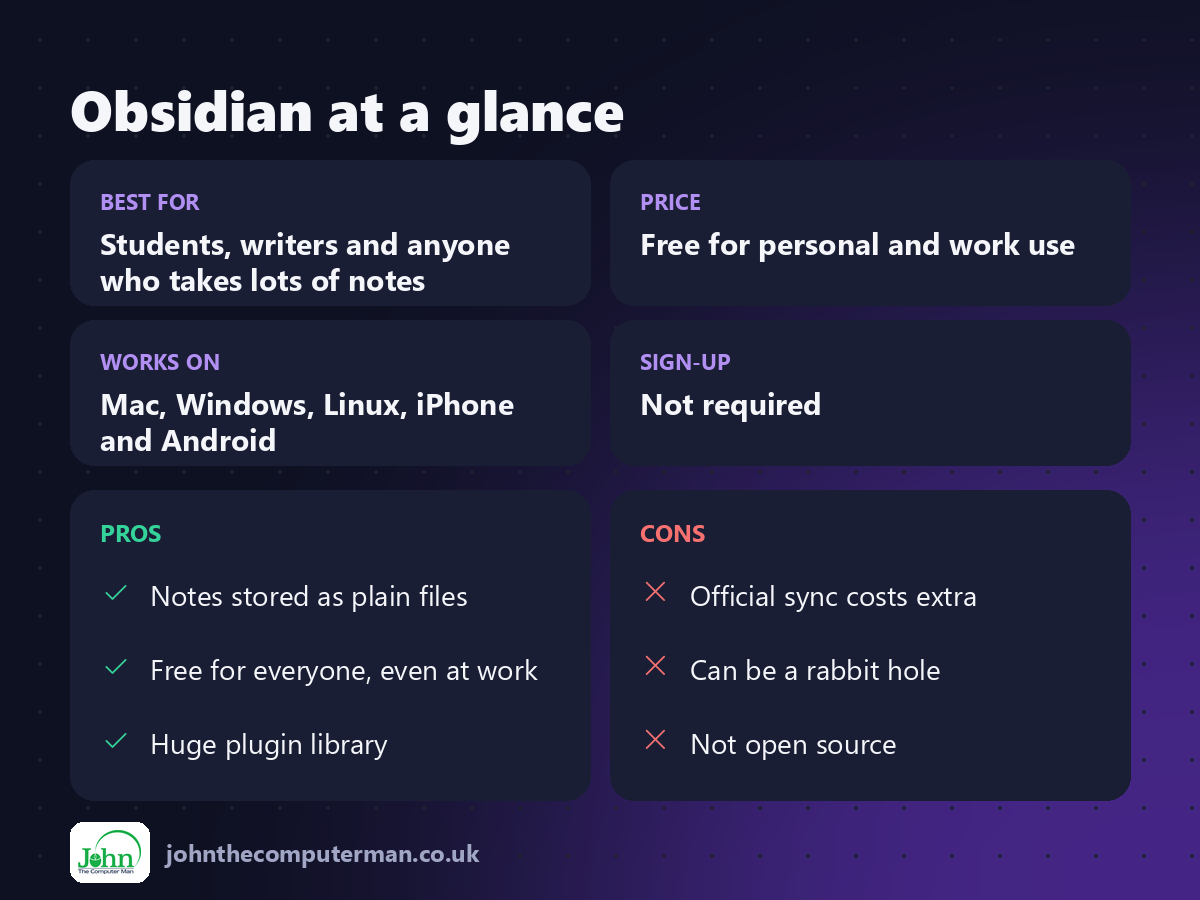
Free for personal and work use. Sync and Publish are optional paid add-ons.
Pros and cons
| 👍 Pros | 👎 Cons |
|---|---|
| Notes stored as plain files | Official sync costs extra |
| Free for everyone, even at work | Can be a rabbit hole |
| Huge plugin library | Not open source |
Who is it for?
Best for: Students, writers and anyone who takes lots of notes. Works on: Mac, Windows, Linux, iPhone and Android. Sign-up: Not required.
Obsidian alternatives
• Apple Notes: built in, simple and syncs with iCloud, but notes are harder to export.
• Joplin: a free, open-source notes app with built-in sync options.
• Logseq: a free, open-source outliner for linked notes.
• Joplin: a free, open-source notes app with built-in sync options.
• Logseq: a free, open-source outliner for linked notes.
FAQ
Is Obsidian really free?
Yes. It's free for personal and commercial use. You only pay if you want the official Sync or Publish services.
Can I sync Obsidian without paying?
Yes. Store your vault in iCloud Drive (best for Apple devices), or use another sync service. Obsidian Sync is the paid, easiest option.
The verdict
Obsidian is the notes app to choose if you want your notes to outlast any app. Start with a single vault and plain notes, and grow into the rest when you're ready.
👉 Try it: obsidian.md
Part of the 10 more free mac tools series on johnthecomputerman.co.uk. Follow @johnthecomputerman on Instagram for a new free Mac tool every Monday, Wednesday and Friday. Pricing and features were checked in September 2026 and can change, so check the tool's own site for the latest.
