Shotcut for Mac: Free Video Editing With No Watermark (Beginner's Guide)
iMovie is fine for quick edits, but it's limited. Many 'free' video editors stamp a watermark on your video or lock exports behind a paywall.
Shotcut is genuinely free. It's open source, has no watermark and no export limits, and gives you a proper timeline with filters, transitions and colour correction.
What is Shotcut?
Shotcut is a free, open-source video editor for Mac, Windows and Linux. It supports a wide range of video and audio formats without converting them first, and includes a multi-track timeline, transitions, filters, colour grading, text, keyframes and 4K editing. Proxy editing helps it run smoothly on older Macs.
Key features
Proper timeline editing
Multiple video and audio tracks, trims, splits and transitions.
No watermark, ever
Export in full quality with no watermark, no time limits and no paywall.
Filters and colour
Colour correction, text, speed changes, keyframes and more, all built in.
How to get started with Shotcut
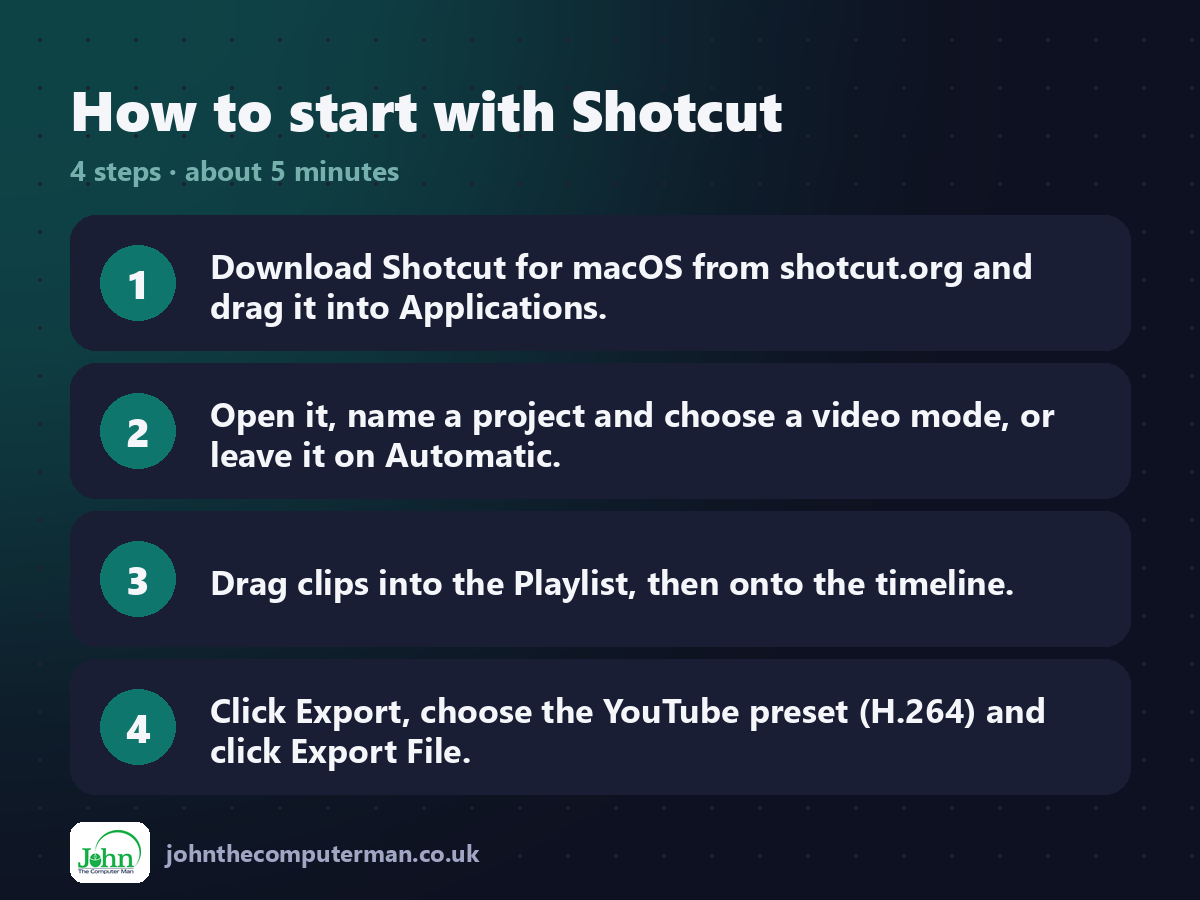
1. Download Shotcut for macOS from shotcut.org and drag it into Applications.
2. Open it, name a project and choose a video mode, or leave it on Automatic.
3. Drag clips into the Playlist, then onto the timeline.
4. Click Export, choose the YouTube preset (H.264) and click Export File.
2. Open it, name a project and choose a video mode, or leave it on Automatic.
3. Drag clips into the Playlist, then onto the timeline.
4. Click Export, choose the YouTube preset (H.264) and click Export File.
Prefer the command line? If you use Homebrew, the free package manager for Mac, open Terminal and run:
brew install --cask shotcut
Tips to get more out of it
• Turn on Settings > Proxy > Use Proxy for smoother 4K editing on older Macs.
• Press S to split a clip at the playhead.
• Add filters from the Filters panel: select a clip, click +, and search.
• Save often. Shotcut also keeps backups you can restore after a crash.
• Press S to split a clip at the playhead.
• Add filters from the Filters panel: select a clip, click +, and search.
• Save often. Shotcut also keeps backups you can restore after a crash.
Is it really free?
Free and open source. No watermark, no ads and no paid version.
Pros and cons
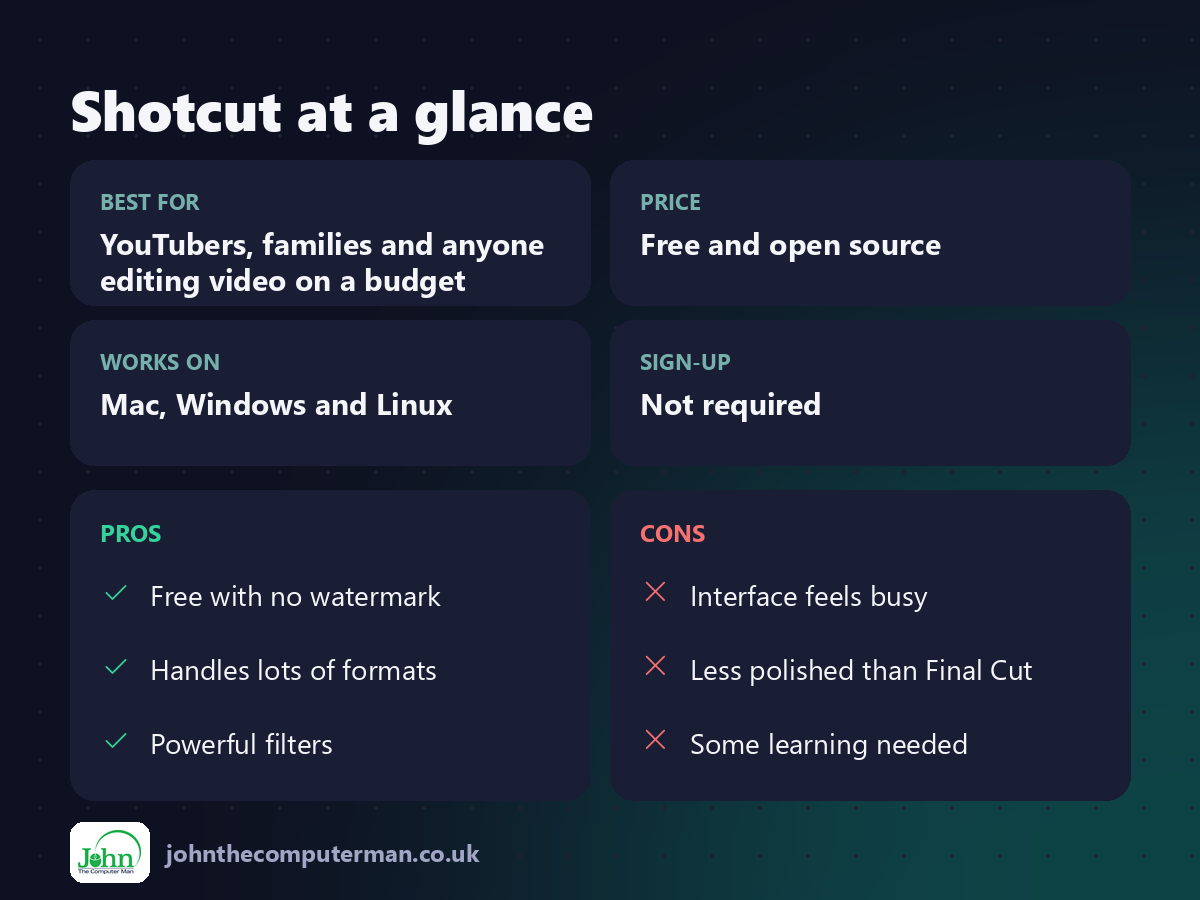
| 👍 Pros | 👎 Cons |
|---|---|
| Free with no watermark | Interface feels busy |
| Handles lots of formats | Less polished than Final Cut |
| Powerful filters | Some learning needed |
Who is it for?
Best for: YouTubers, families and anyone editing video on a budget. Works on: Mac, Windows and Linux. Sign-up: Not required.
Shotcut alternatives
• iMovie: free on every Mac and very easy, but limited.
• DaVinci Resolve: a professional editor with a very generous free version.
• CapCut: quick social videos, with some features behind a paywall.
• DaVinci Resolve: a professional editor with a very generous free version.
• CapCut: quick social videos, with some features behind a paywall.
FAQ
Does Shotcut add a watermark?
No. Shotcut is completely free with no watermark and no export limits.
Is Shotcut good for beginners?
It's a step up from iMovie. Start with the timeline and export, then explore filters when you're ready.
The verdict
Shotcut is the free video editor to try when iMovie runs out of road. No watermark, no catches, just a proper editor.
👉 Try it: www.shotcut.org
Part of the free mac apps that replace paid software series on johnthecomputerman.co.uk. Follow @johnthecomputerman on Instagram for a new free Mac tool every Monday, Wednesday and Friday. Pricing and features were checked in September 2026 and can change, so check the tool's own site for the latest.
