6 Windows Security Settings to Check Right Now
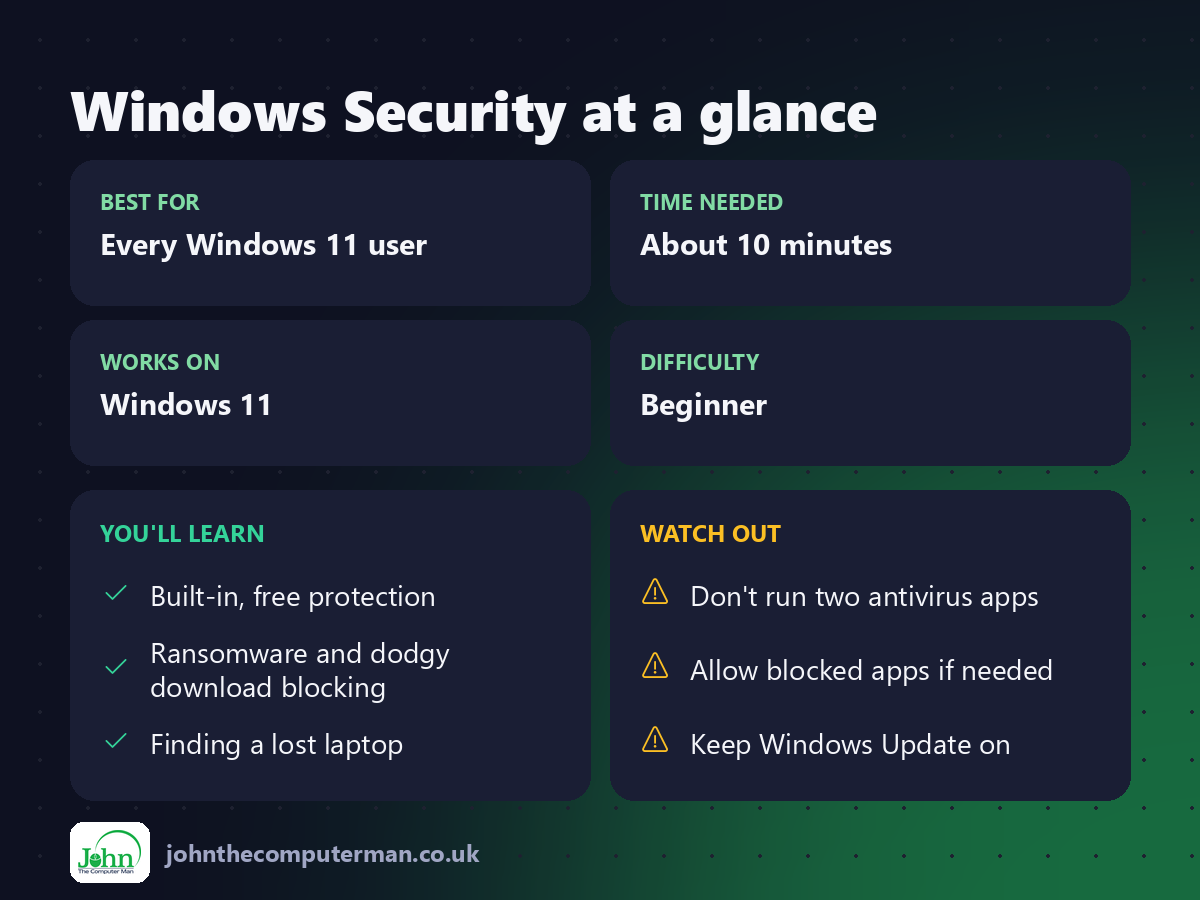
Windows 11 comes with Windows Security (also called Microsoft Defender) built in. For most people it's all the antivirus protection they need, and you don't need to pay for extra software. Some of its best protections aren't switched on by default, though.
It takes about 10 minutes to check these six settings.
1. Check the Windows Security dashboard
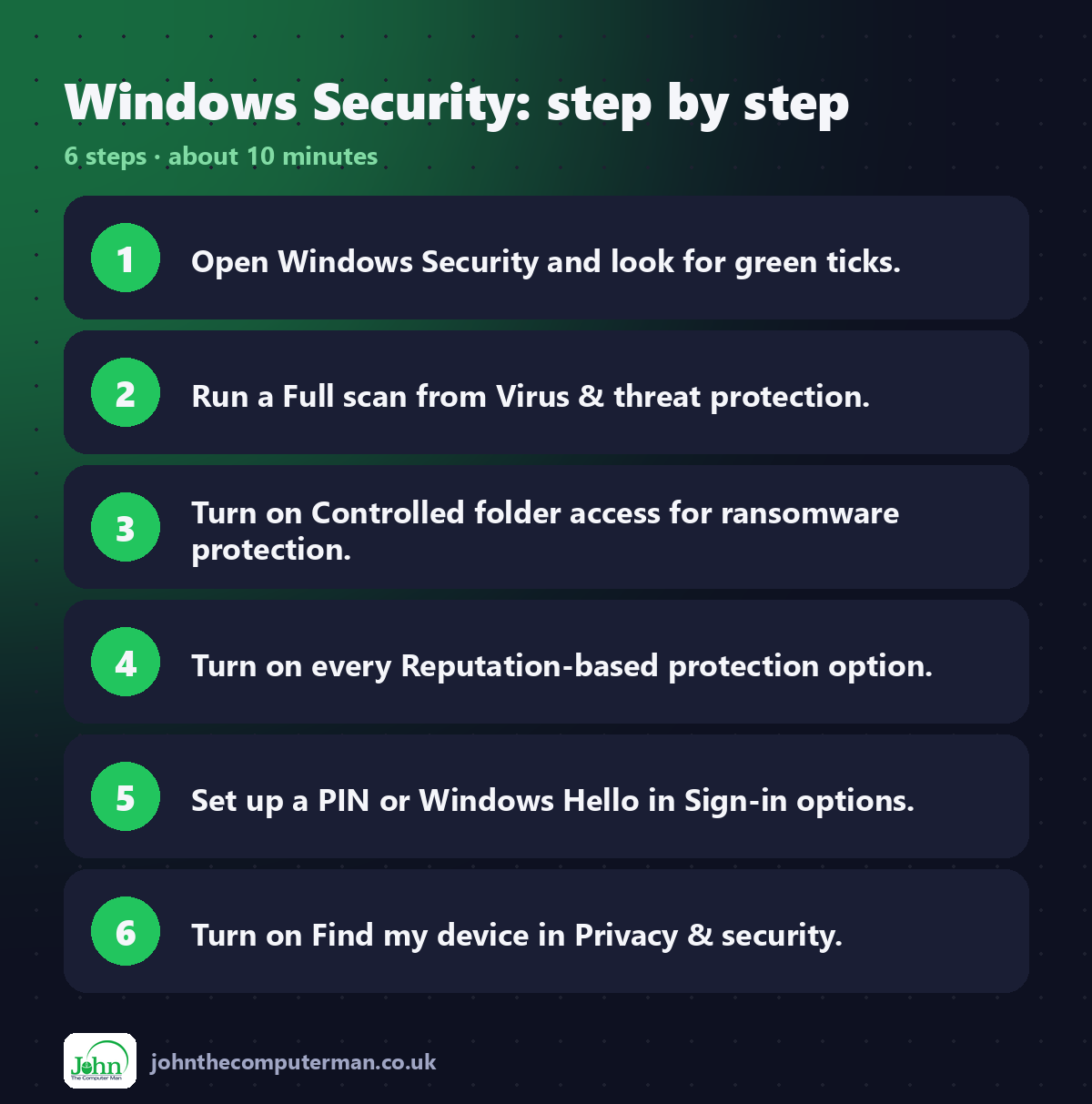
1. Click Start and search for Windows Security.
2. Look at the Security at a glance page.
2. Look at the Security at a glance page.
You want a green tick ✅ on every section. A yellow warning or red cross means something needs attention. Click it and Windows tells you how to fix it.
2. Run a full scan
The quick scans that run automatically are good, but a full scan checks every file.
1. Go to Virus & threat protection.
2. Click Scan options.
3. Select Full scan and click Scan now.
2. Click Scan options.
3. Select Full scan and click Scan now.
It can take an hour or more. You can keep using your PC while it runs.
Extra tip: If you suspect something nasty, choose Microsoft Defender Offline scan. Your PC restarts and scans before Windows loads, which catches malware that hides while Windows is running.
3. Turn on ransomware protection
Ransomware encrypts your files and demands payment to unlock them. Controlled folder access blocks unknown apps from changing files in your protected folders.
1. Go to Virus & threat protection.
2. Scroll down to Ransomware protection and click Manage ransomware protection.
3. Turn on Controlled folder access.
2. Scroll down to Ransomware protection and click Manage ransomware protection.
3. Turn on Controlled folder access.
Note: Occasionally it blocks a legitimate app, such as an older photo editor. You'll get a notification. Click Allow an app through Controlled folder access to add it.
4. Block dodgy downloads (Reputation-based protection)
Microsoft Defender SmartScreen warns you about malicious websites, downloads and apps.
1. Go to App & browser control.
2. Click Reputation-based protection settings.
3. Turn on every option, including Potentially unwanted app blocking. This blocks adware and bundled junk that sneaks in with free software.
2. Click Reputation-based protection settings.
3. Turn on every option, including Potentially unwanted app blocking. This blocks adware and bundled junk that sneaks in with free software.
5. Use a PIN or Windows Hello instead of a password
A Windows Hello PIN is tied to your specific device, so it's safer than a password that could be phished and used anywhere.
1. Go to Settings → Accounts → Sign-in options.
2. Set up a PIN. If your PC supports it, also set up Facial recognition or Fingerprint.
2. Set up a PIN. If your PC supports it, also set up Facial recognition or Fingerprint.
Bonus: Turn on two-step verification for your Microsoft account at account.microsoft.com.
6. Turn on Find my device
If your laptop is lost or stolen, you can see its location on a map and lock it remotely.
1. Go to Settings → Privacy & security → Find my device.
2. Turn it On.
2. Turn it On.
To find your device, sign in at account.microsoft.com/devices.
And the most important one: keep Windows updated
Most attacks exploit security holes that have already been fixed. Go to Settings → Windows Update and make sure updates are installing. Don't keep clicking "Pause updates".
Quick recap
Frequently asked questions
Do I need to buy antivirus software? For most home users, no. Windows Security is free, built in and consistently scores well in independent tests. Don't run two antivirus programs at once, because they conflict and slow your PC down.
What about Core isolation / Memory integrity? Under Device security → Core isolation, turning on Memory integrity adds extra protection. If Windows says an incompatible driver is blocking it, leave it off. It's not worth breaking hardware for.
Related: How to Back Up Your Windows 11 PC

John The Computer Man: plain-English computer help. 🌐 johnthecomputerman.co.uk · 📸 Instagram @johnthecomputerman
