How to Back Up Your Windows 11 PC (3 Free Methods)
Hard drives fail, laptops get stolen, and ransomware and accidental deletions happen. If your photos and documents only exist on one computer, it's only a matter of time before you lose something.
The good news is that Windows 11 includes three free backup tools. This guide shows you how to use them.
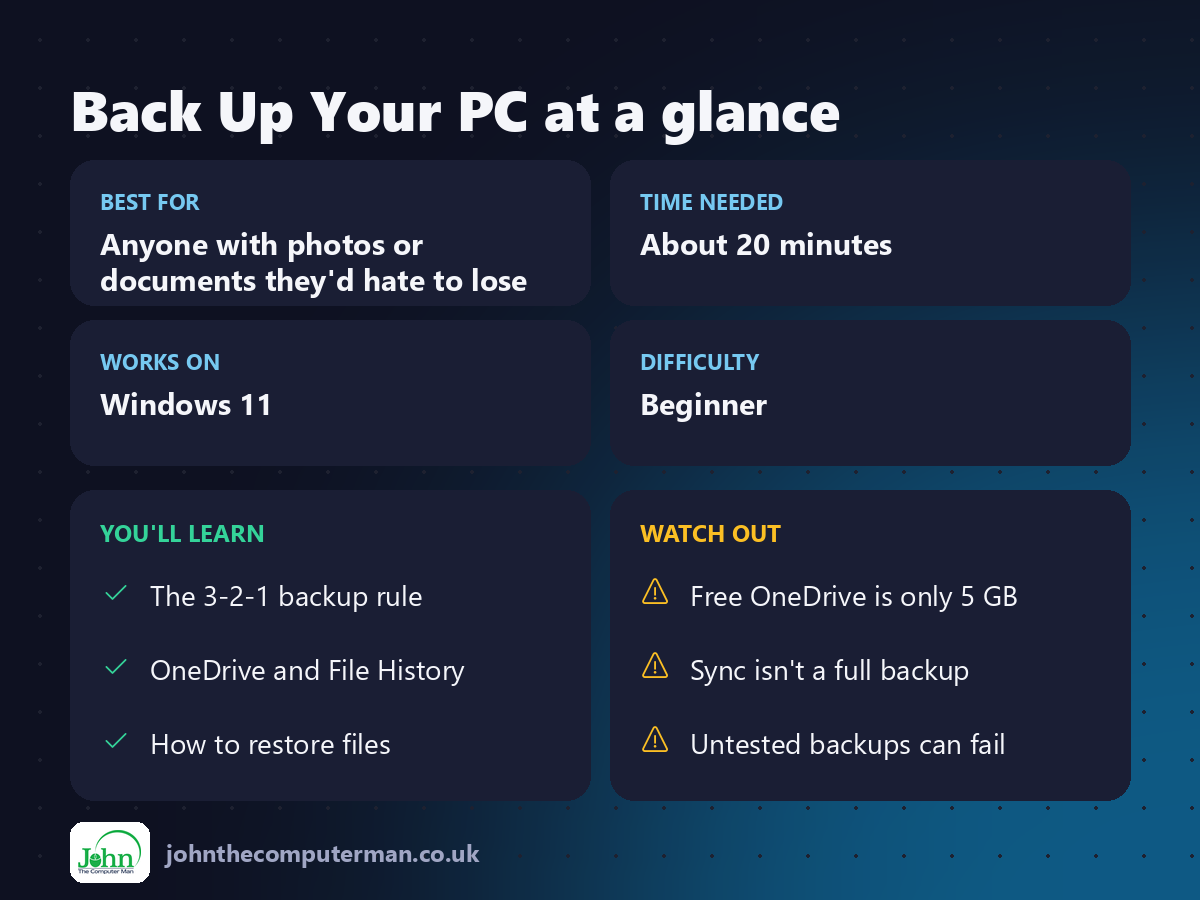
First: the 3-2-1 backup rule
The gold standard for backups is simple:
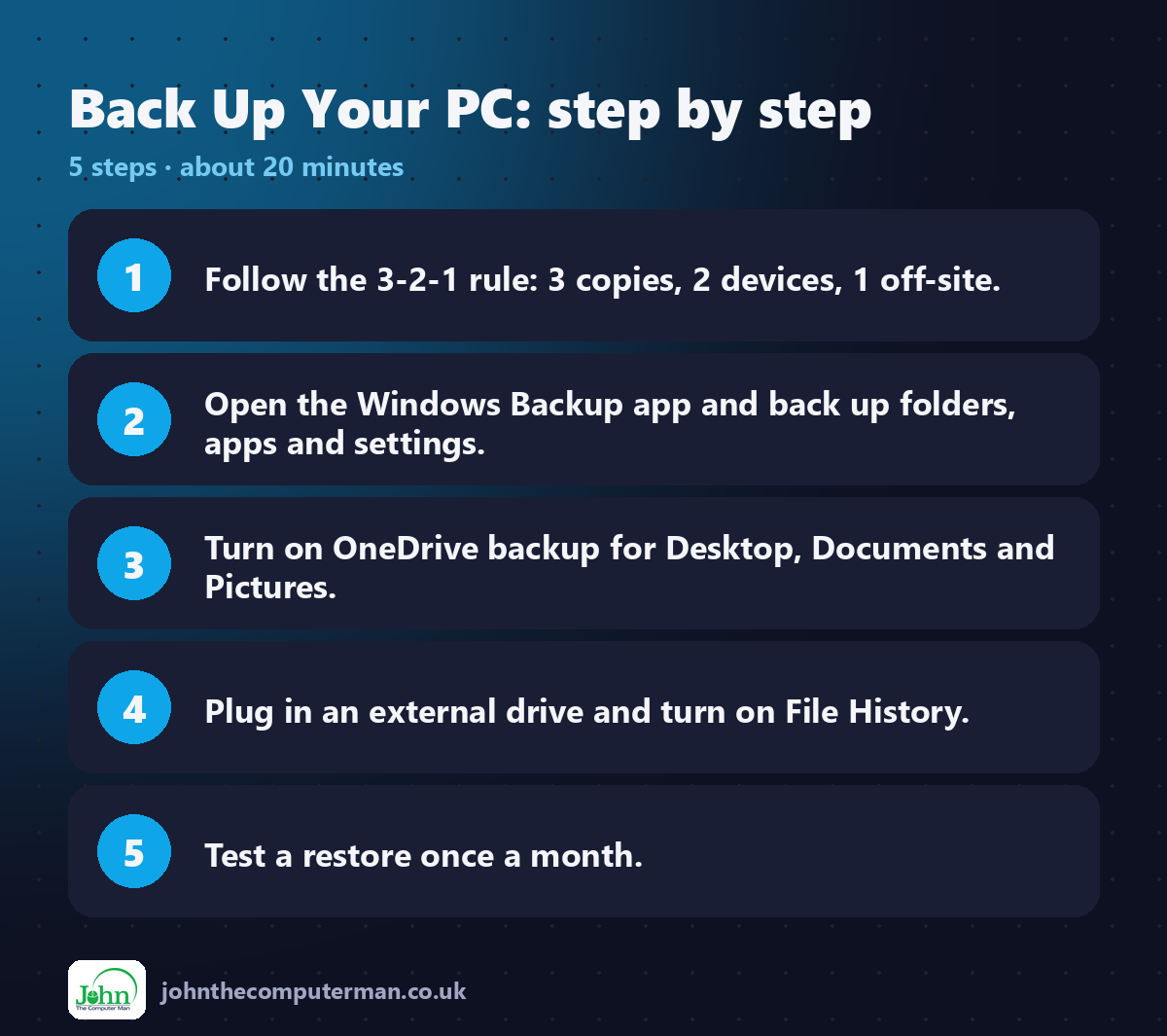
• 3 copies of your important files
• on 2 different types of storage (e.g. your PC and an external drive)
• with 1 copy kept off-site (e.g. in the cloud)
• on 2 different types of storage (e.g. your PC and an external drive)
• with 1 copy kept off-site (e.g. in the cloud)
Using OneDrive and File History together gets you there.
Method 1: The Windows Backup app
The Windows Backup app backs up your folders, installed app list, settings and saved Wi-Fi networks and passwords to your Microsoft account. It's especially useful when you move to a new PC.
1. Click Start and search for Windows Backup.
2. Choose what to back up: Folders, Apps, Settings and Credentials.
3. Click Back up.
2. Choose what to back up: Folders, Apps, Settings and Credentials.
3. Click Back up.
When you set up a new Windows 11 PC and sign in with the same Microsoft account, you can choose to restore from this backup.
Note: Folder backup uses OneDrive. The free plan includes 5 GB, and a Microsoft 365 subscription gives you 1 TB.
Method 2: OneDrive folder backup
OneDrive can continuously back up your Desktop, Documents, Pictures, Music and Videos folders to the cloud.
1. Go to Settings → Accounts → Windows backup.
2. Next to OneDrive folder syncing, click Manage sync settings.
3. Turn on the folders you want to back up.
4. Click Start backup.
2. Next to OneDrive folder syncing, click Manage sync settings.
3. Turn on the folders you want to back up.
4. Click Start backup.
Benefits:
• Your files are off-site, so they're safe if your PC is lost, stolen or damaged.
• You can access them from your phone or any web browser.
• OneDrive keeps version history, so you can go back to an older copy of a file.
• You can access them from your phone or any web browser.
• OneDrive keeps version history, so you can go back to an older copy of a file.
Method 3: File History (to an external drive)
File History copies your files to an external USB drive every hour by default and keeps older versions, so you can go back in time.
1. Plug in an external hard drive or USB stick.
2. Open Control Panel (search for it in Start).
3. Go to System and Security → File History.
4. Select your drive and click Turn on.
2. Open Control Panel (search for it in Start).
3. Go to System and Security → File History.
4. Select your drive and click Turn on.
To change how often it runs and how long it keeps versions, click Advanced settings.
How to restore your files
From File History:
1. Open Control Panel → File History.
2. Click Restore personal files.
3. Use the arrows to go back in time, select files and click the green Restore button.
2. Click Restore personal files.
3. Use the arrows to go back in time, select files and click the green Restore button.
From OneDrive:
• Deleted files go to the OneDrive Recycle bin (at onedrive.com) for 30 days.
• Right-click a file and choose Version history to restore an older version.
• Right-click a file and choose Version history to restore an older version.
Test your backup!
A backup you've never tested might not work when you need it. Once a month:
1. Try restoring one file from each backup method.
2. Check the last backup date in File History.
3. Make sure your external drive isn't full.
2. Check the last backup date in File History.
3. Make sure your external drive isn't full.
Quick recap
Frequently asked questions
Is OneDrive a real backup? It's close. OneDrive syncs, so if you delete a file on your PC, it's deleted in OneDrive too (though it's kept in the Recycle bin for 30 days). That's why an external drive with File History is a good second copy.
How big should my external drive be? At least twice the size of the files you're backing up, so there's room for older versions.

John The Computer Man: plain-English computer help. 🌐 johnthecomputerman.co.uk · 📸 Instagram @johnthecomputerman
