7 Windows 11 Accessibility Features Everyone Should Know
Accessibility features aren't just for people with disabilities. Bigger text helps tired eyes, live captions help in a noisy office, and a magnifier helps anyone reading small print.
Here are seven built-in features worth knowing, and they're all free.
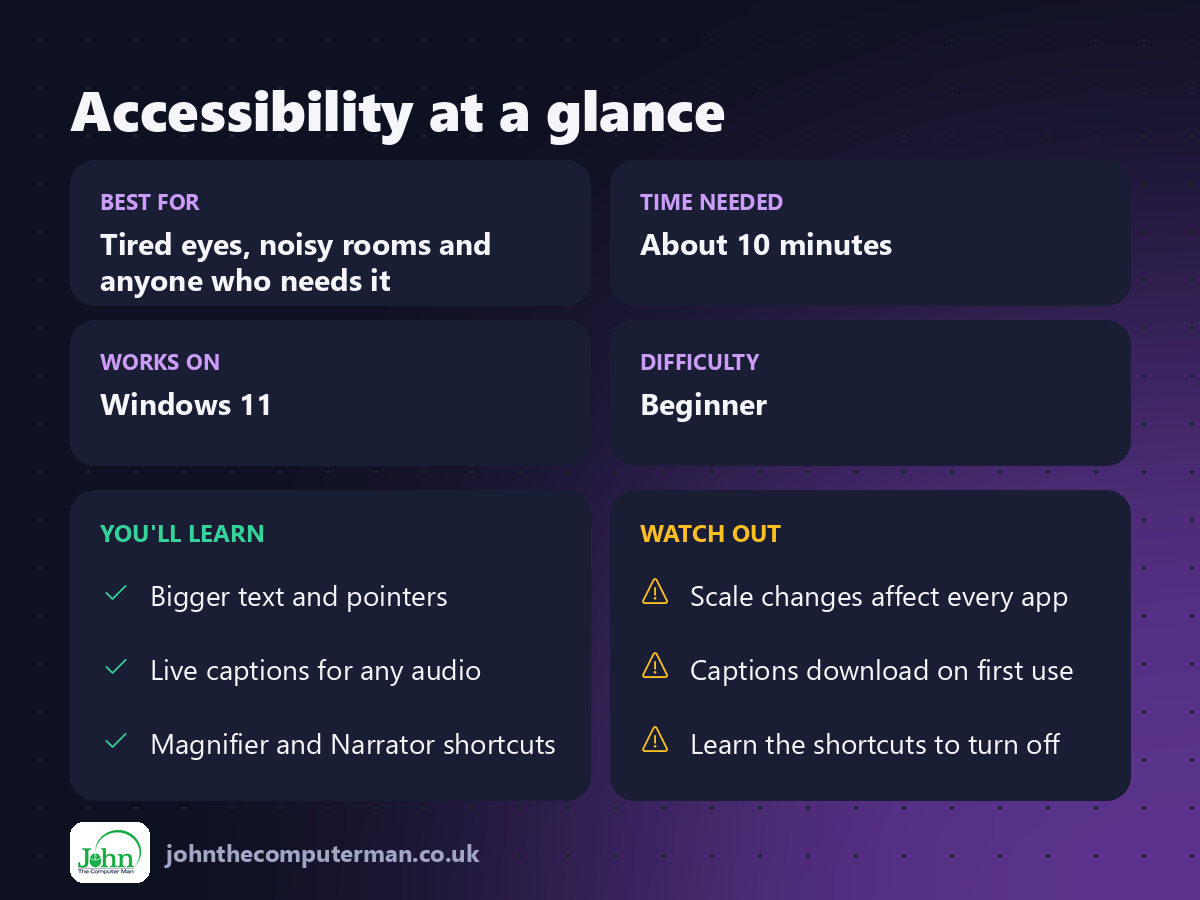
All of them live in Settings → Accessibility (press Win + I).
1. Make text bigger
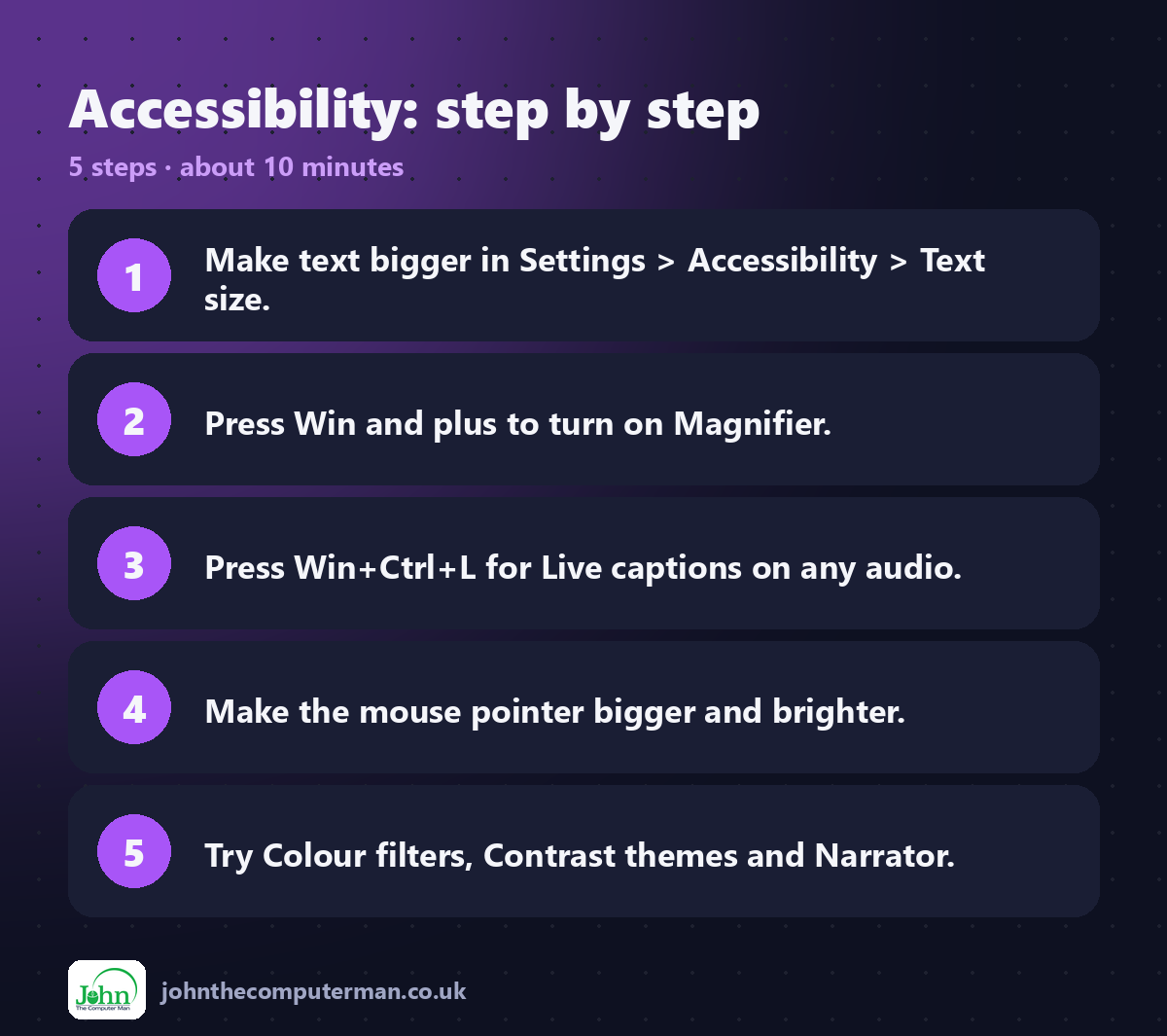
1. Go to Settings → Accessibility → Text size.
2. Drag the slider until the preview is comfortable to read.
3. Click Apply.
2. Drag the slider until the preview is comfortable to read.
3. Click Apply.
To make everything bigger (text, icons and apps), go to Settings → System → Display and increase Scale.
2. Magnifier
Zoom in on any part of the screen:
• Win + Plus (+) turns Magnifier on and zooms in.
• Win + Minus (−) zooms out.
• Win + Esc turns it off.
• Win + Minus (−) zooms out.
• Win + Esc turns it off.
3. Live captions
Live captions turn any audio into on-screen subtitles: videos, calls, podcasts, even sound with no captions of its own.
• Press Win + Ctrl + L to turn them on.
• The first time, Windows downloads the language files.
• Click the ⚙ on the captions bar to move it or change the style.
• The first time, Windows downloads the language files.
• Click the ⚙ on the captions bar to move it or change the style.
Captions are processed on your PC, not online.
4. A bigger, easier-to-see mouse pointer
1. Go to Settings → Accessibility → Mouse pointer and touch.
2. Choose a style, such as black, inverted or a bright custom colour.
3. Drag the Size slider.
2. Choose a style, such as black, inverted or a bright custom colour.
3. Drag the Size slider.
Tip: Turn on Show location of pointer when I press the Ctrl key under Bluetooth & devices → Mouse → Additional mouse settings → Pointer Options.
5. Colour filters
Colour filters help with colour blindness, light sensitivity and reading on screen.
1. Go to Settings → Accessibility → Colour filters.
2. Turn on Colour filters and choose one, such as Red-green (green weak, deuteranopia) or Greyscale.
3. Optionally turn on the keyboard shortcut (Win + Ctrl + C) to switch quickly.
2. Turn on Colour filters and choose one, such as Red-green (green weak, deuteranopia) or Greyscale.
3. Optionally turn on the keyboard shortcut (Win + Ctrl + C) to switch quickly.
6. Contrast themes
High-contrast colours make text and buttons stand out more.
Go to Settings → Accessibility → Contrast themes, choose a theme and click Apply. Press Left Alt + Left Shift + Print Screen to switch it on or off.
7. Narrator (screen reader)
Narrator reads everything on screen out loud.
• Win + Ctrl + Enter turns it on or off.
• It describes buttons, reads text and announces what's happening.
• It describes buttons, reads text and announces what's happening.
There's a full tutorial built in. Open Settings → Accessibility → Narrator → Open complete guide to Narrator.
Quick recap
Frequently asked questions
How do I turn these off quickly? Most have a keyboard shortcut to toggle them. You can also use Win + A → Accessibility in Quick Settings.
Can I set these up on the sign-in screen? Yes. Click the accessibility icon (bottom-right) on the sign-in screen to turn on Magnifier, Narrator and more before you sign in.

John The Computer Man: plain-English computer help. 🌐 johnthecomputerman.co.uk · 📸 Instagram @johnthecomputerman
