Talk to Type: Voice Typing and Voice Access in Windows 11
Most people speak about three times faster than they type. Windows 11 has two free built-in voice features:
• Voice typing turns your speech into text in any app.
• Voice Access lets you control your whole PC by voice: opening apps, clicking buttons and scrolling.
• Voice Access lets you control your whole PC by voice: opening apps, clicking buttons and scrolling.
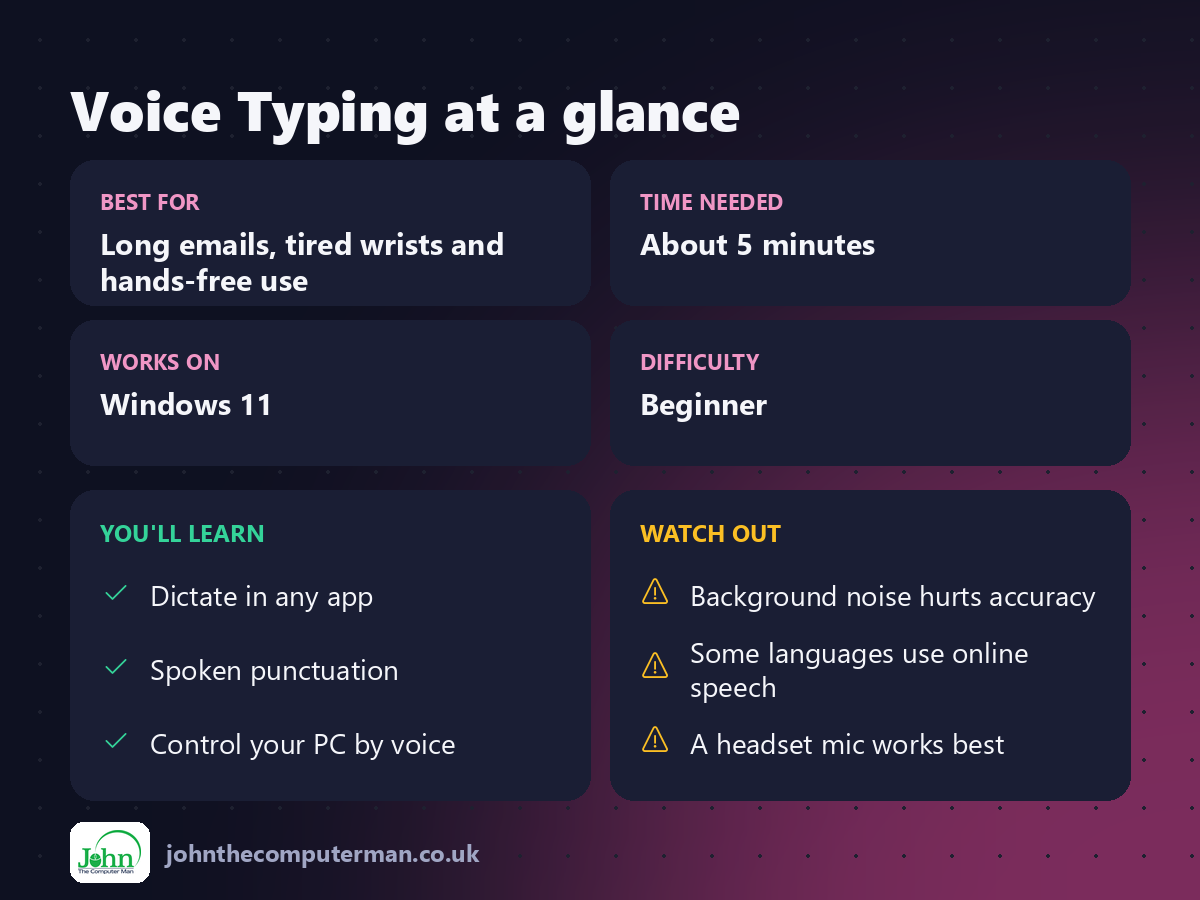
Both are great for long emails, for anyone who finds typing tiring or painful, and for giving your wrists a rest.
Part 1: Voice typing
1. Start voice typing
1. Click where you want to type, such as an email, Word document or search box.
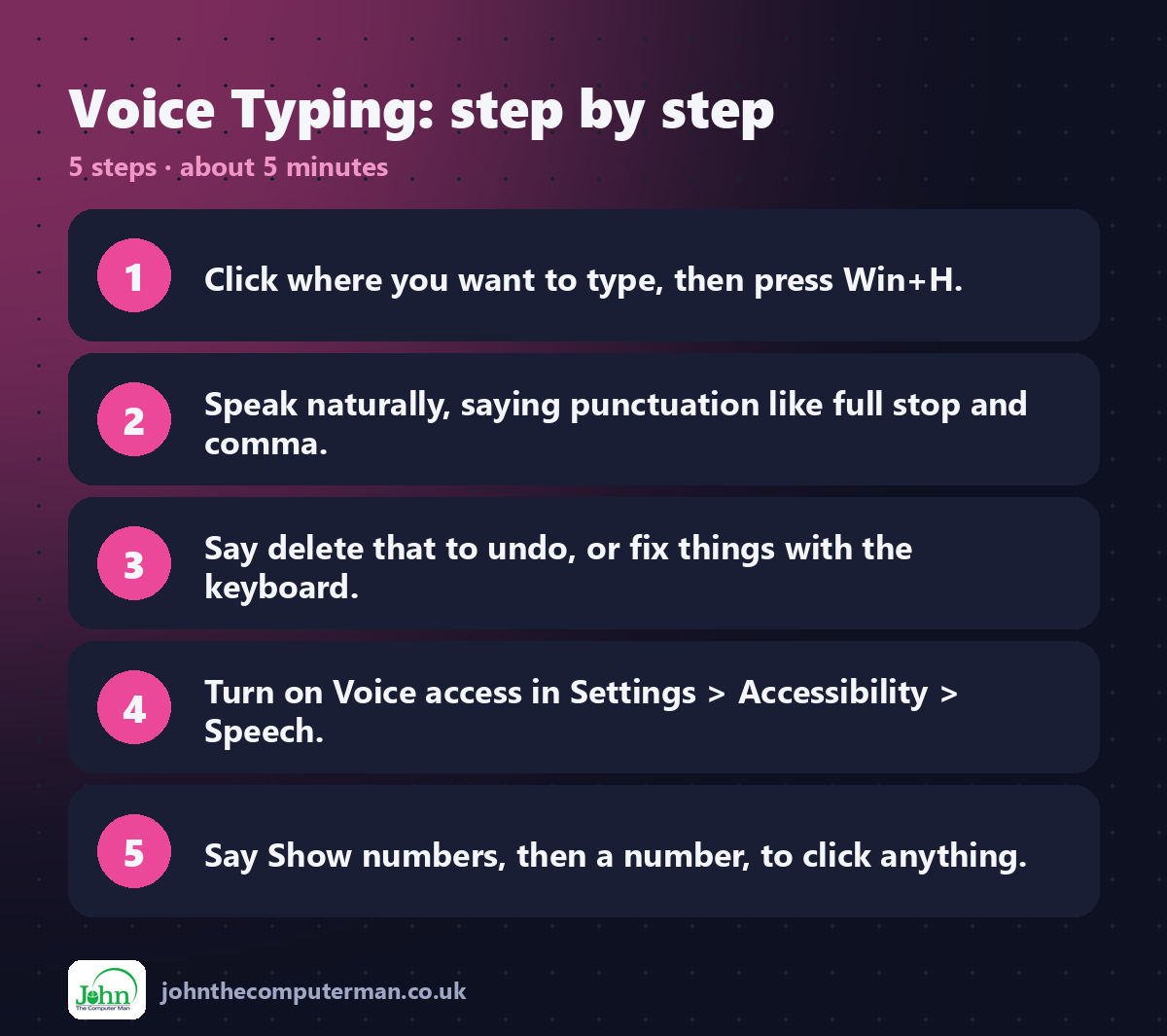
2. Press Win + H.
3. Start talking when the microphone turns blue.
2. Press Win + H.
3. Start talking when the microphone turns blue.
Press Win + H again, or click the microphone, to stop.
2. Add punctuation
Say punctuation out loud:
Say | You get
"full stop" or "period" | .
"comma" | ,
"question mark" | ?
"new line" | line break
"new paragraph" | blank line
"full stop" or "period" | .
"comma" | ,
"question mark" | ?
"new line" | line break
"new paragraph" | blank line
Or click the ⚙ settings button on the voice typing bar and turn on Auto punctuation.
3. Fix mistakes
• Say "delete that" to remove the last thing you said.
• Or simply fix it with your keyboard. You can switch between talking and typing at any time.
• Or simply fix it with your keyboard. You can switch between talking and typing at any time.
Tips for better results
• Use a headset or speak close to your laptop's microphone.
• Speak in full sentences at a normal pace. Don't speak slowly, word by word.
• Cut down on background noise where you can.
• Speak in full sentences at a normal pace. Don't speak slowly, word by word.
• Cut down on background noise where you can.
Part 2: Voice Access (control your PC by voice)
4. Turn on Voice Access
1. Go to Settings → Accessibility → Speech.
2. Turn on Voice access.
3. The first time, Windows downloads a speech model so it can work offline.
2. Turn on Voice access.
3. The first time, Windows downloads a speech model so it can work offline.
A bar appears at the top of the screen.
5. Try these commands
Say "Voice access wake up", then try:
• "Open Edge" or "Open Word"
• "Click Start" or "Click Send"
• "Scroll down", "Scroll up"
• "Show numbers": numbers appear on everything you can click; say the number to click it
• "Show grid": click anywhere on the screen using a grid
• "Type hello world": dictates text
• "Voice access sleep": pauses listening
• "Click Start" or "Click Send"
• "Scroll down", "Scroll up"
• "Show numbers": numbers appear on everything you can click; say the number to click it
• "Show grid": click anywhere on the screen using a grid
• "Type hello world": dictates text
• "Voice access sleep": pauses listening
Say "What can I say?" to see the full list of commands.
Quick recap
Frequently asked questions
Does voice typing send my voice to the internet? Voice typing uses online speech recognition for some languages. Voice Access works on your PC once its speech model has downloaded. Check Settings → Privacy & security → Speech for your options.
Which languages are supported? Voice typing supports many languages. Voice Access supports English (including UK English) plus a growing list of other languages.

John The Computer Man: plain-English computer help. 🌐 johnthecomputerman.co.uk · 📸 Instagram @johnthecomputerman
