How to Add a Printer in Windows 11 (and Save Anything as a PDF)
Setting up a printer used to mean hunting for a driver CD. In Windows 11, most printers set themselves up in a minute or two. This guide covers adding a printer, choosing your default, and a handy trick: "printing" to a PDF when you don't need paper at all.
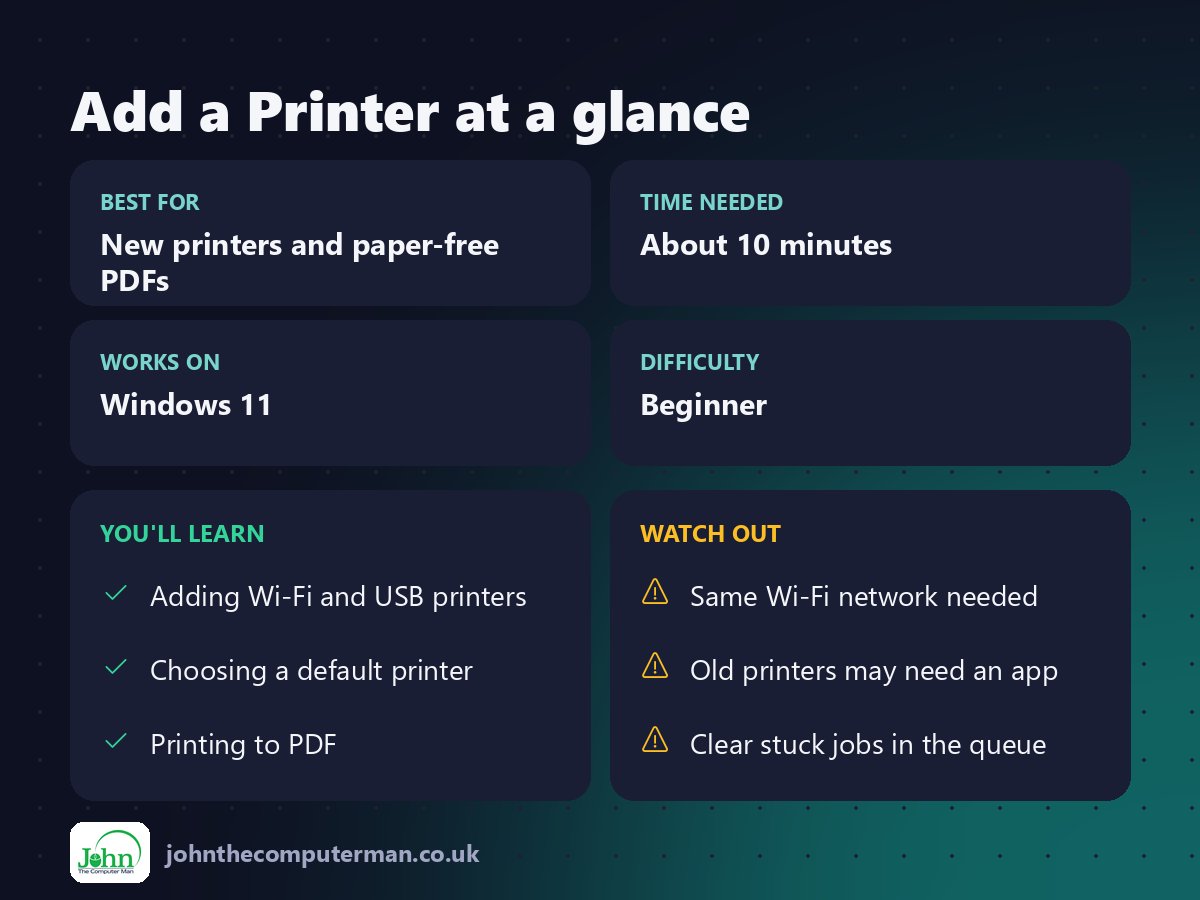
1. Get the printer ready
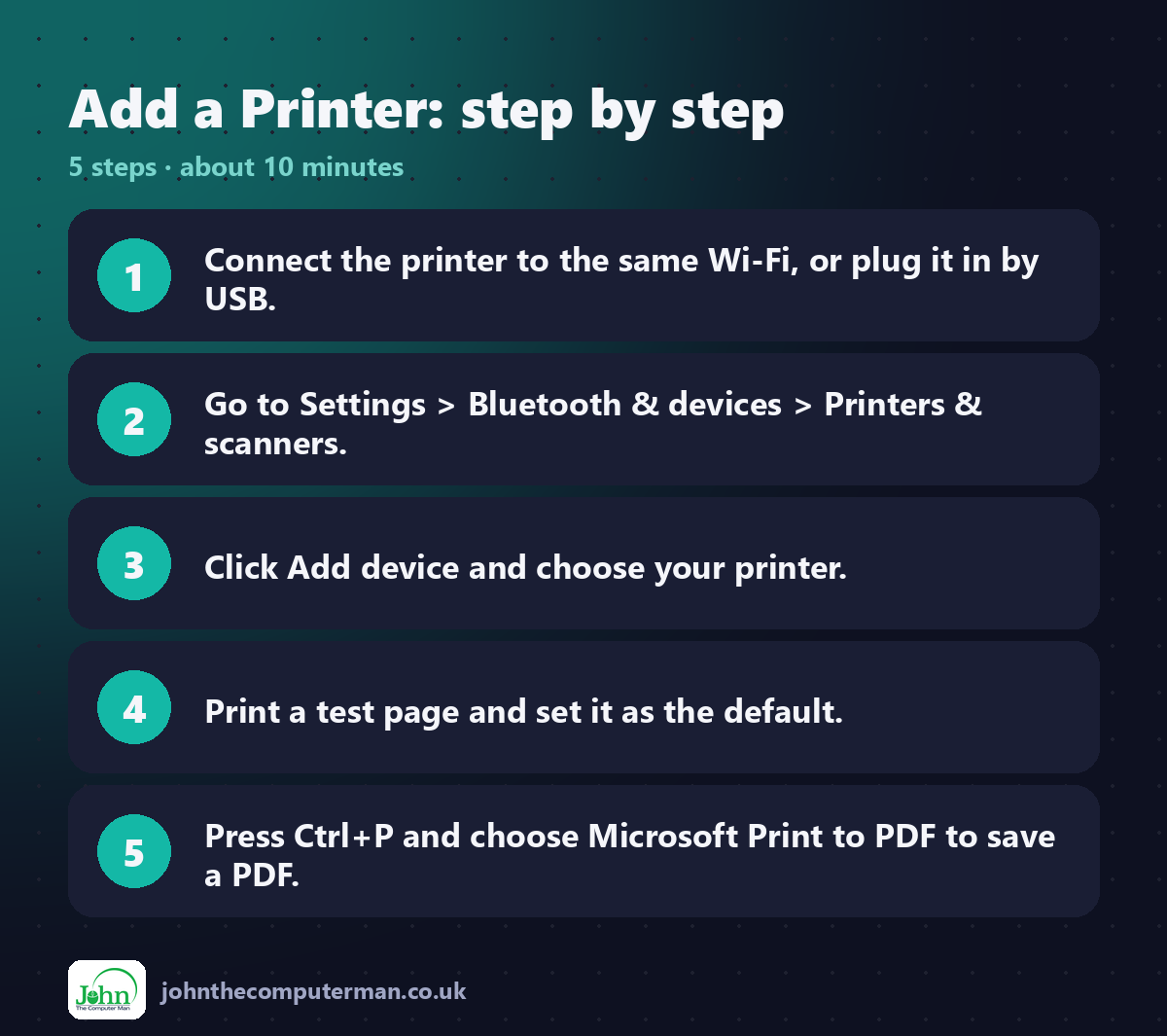
• Wi-Fi printer: connect it to the same Wi-Fi network as your PC, using the printer's own screen or its setup app.
• USB printer: plug it in and switch it on. Windows usually installs it automatically.
• USB printer: plug it in and switch it on. Windows usually installs it automatically.
2. Add the printer
1. Go to Settings → Bluetooth & devices → Printers & scanners.
2. Click Add device.
3. Wait for your printer to appear, then click Add device next to it.
2. Click Add device.
3. Wait for your printer to appear, then click Add device next to it.
Windows downloads the driver and the printer appears in your list.
3. If your printer isn't found
1. Wait for The printer that I want isn't listed to appear and click Add manually.
2. Choose Add a printer using an IP address or hostname and enter the printer's IP address. You'll find it in the printer's network settings or on a network status page printed from the printer.
2. Choose Add a printer using an IP address or hostname and enter the printer's IP address. You'll find it in the printer's network settings or on a network status page printed from the printer.
Alternatively, install the manufacturer's app (HP Smart, Epson Smart Panel, Canon PRINT and so on) from the Microsoft Store. It will find and add the printer for you.
4. Print a test page
1. In Printers & scanners, click your printer.
2. Click Print test page.
2. Click Print test page.
If the page prints, you're all set.
5. Choose your default printer
By default, Windows uses whichever printer you used last. To pick one yourself:
1. In Printers & scanners, turn off the option Let Windows manage my default printer.
2. Click your printer and choose Set as default.
2. Click your printer and choose Set as default.
6. Save anything as a PDF
You can turn any document, web page, email or photo into a PDF, with no extra software.
1. Press Ctrl + P in almost any app.
2. Choose Microsoft Print to PDF as the printer.
3. Click Print, then choose a name and a place to save it.
2. Choose Microsoft Print to PDF as the printer.
3. Click Print, then choose a name and a place to save it.
This is ideal for saving receipts, tickets and booking confirmations.
7. Clear a stuck print job
If nothing prints and jobs are piling up:
1. In Printers & scanners, click your printer.
2. Click Open print queue.
3. Right-click the stuck job and choose Cancel.
2. Click Open print queue.
3. Right-click the stuck job and choose Cancel.
Still stuck? Turn the printer off and on, then restart your PC.
Quick recap
Frequently asked questions
My printer says "Offline". What should I check? Make sure it's switched on and on the same Wi-Fi network as your PC. Then restart the printer, your router and your PC, in that order.
Do I need the manufacturer's software? Not for basic printing. You may want it for scanning, ink levels and maintenance.
How do I print double-sided? Press Ctrl + P, click More settings or Printer properties and look for Print on both sides (duplex).
Related: Connect Bluetooth Devices · Fix Wi-Fi Problems

John The Computer Man: plain-English computer help. 🌐 johnthecomputerman.co.uk · 📸 Instagram @johnthecomputerman
