How to Connect Bluetooth Headphones, Mice and Speakers to Windows 11
Wireless headphones, mice, keyboards and speakers all connect to your PC the same way: over Bluetooth. Once you've paired a device, it reconnects automatically every time you turn it on.
This guide shows you how to pair a device, switch your sound to it, and what to try if it won't connect.
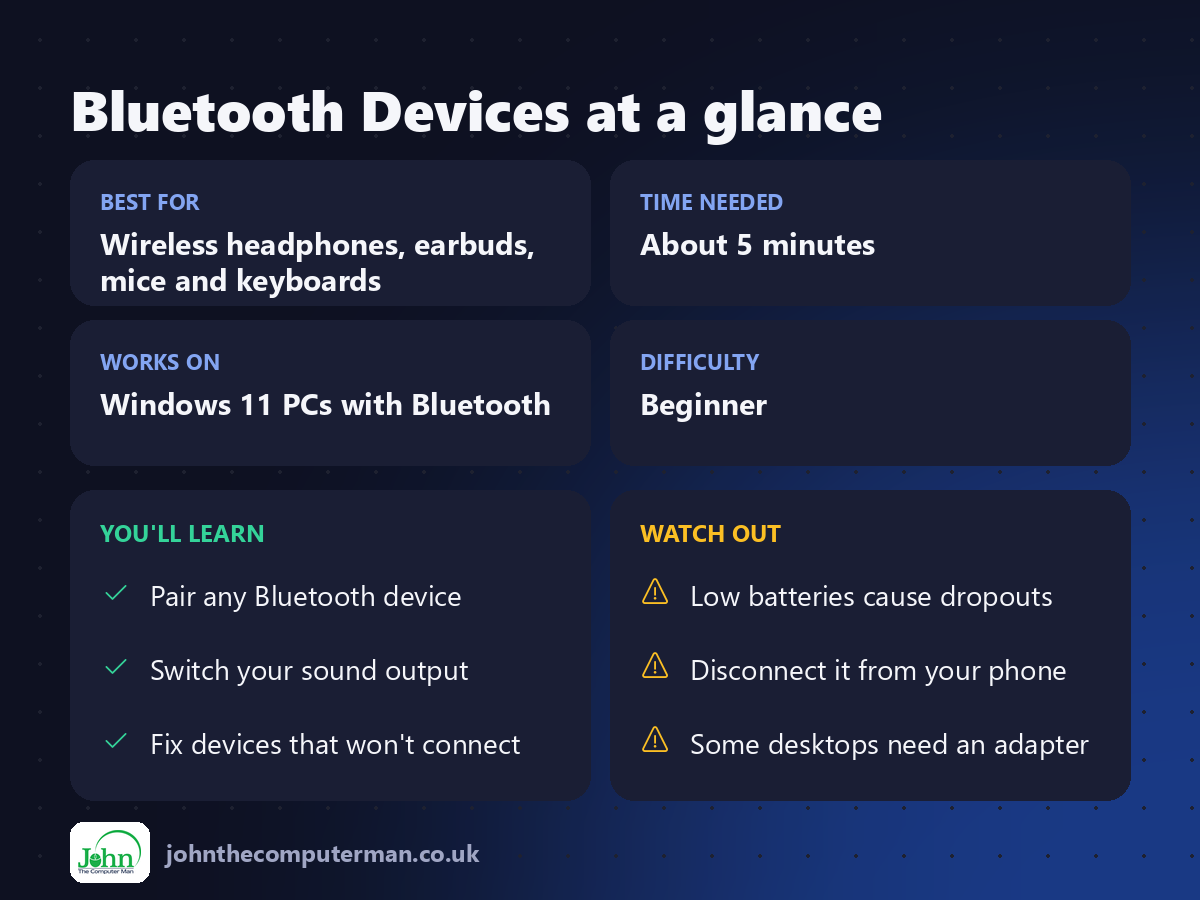
1. Turn on Bluetooth
1. Press Win + A to open Quick Settings.
2. Click the Bluetooth button so it's highlighted. If you don't see it, click the pencil icon and add it.
2. Click the Bluetooth button so it's highlighted. If you don't see it, click the pencil icon and add it.
Or go to Settings → Bluetooth & devices and switch Bluetooth on.
2. Put your device in pairing mode
Your device must be discoverable before your PC can find it. How you do this depends on the device:
• Earbuds: put them in the case, open the lid and hold the button on the case until the light flashes.
• Headphones: hold the power or Bluetooth button for 5–7 seconds until the light flashes.
• Mice and keyboards: press the pairing or connect button, often on the underside.
• Headphones: hold the power or Bluetooth button for 5–7 seconds until the light flashes.
• Mice and keyboards: press the pairing or connect button, often on the underside.
If in doubt, check the manual, or search online for the device name plus "pairing mode".
3. Pair it with your PC
1. Go to Settings → Bluetooth & devices.
2. Click Add device.
3. Choose Bluetooth.
4. Click your device when it appears in the list.
5. If asked, check the PIN matches on both screens and click Connect.
2. Click Add device.
3. Choose Bluetooth.
4. Click your device when it appears in the list.
5. If asked, check the PIN matches on both screens and click Connect.
Swift Pair: Many newer devices show a pop-up notification as soon as you put them in pairing mode. Click Connect and you're done.
4. Send your sound to the right device
If you can't hear anything through your headphones after pairing:
1. Press Win + A.
2. Click the > arrow next to the volume slider.
3. Choose your headphones or speaker from the list.
2. Click the > arrow next to the volume slider.
3. Choose your headphones or speaker from the list.
5. Reconnect or disconnect quickly
• Reconnect: turn the device on and it should connect automatically. If not, press Win + A, click the > next to Bluetooth and click the device.
• Disconnect (without unpairing): use the same list and click Disconnect.
• Disconnect (without unpairing): use the same list and click Disconnect.
6. Fix a device that won't connect
Try these in order:
1. Turn Bluetooth off and on again in Quick Settings.
2. Charge the device. Low batteries cause dropouts and pairing failures.
3. Remove and re-pair: go to Settings → Bluetooth & devices → Devices, click ⋯ next to the device, choose Remove device, then pair it again.
4. Check it isn't connected to your phone. Many devices only connect to one thing at a time.
5. Run the troubleshooter: go to Settings → System → Troubleshoot → Other troubleshooters → Bluetooth → Run.
6. Update the driver: press Win + X, choose Device Manager, expand Bluetooth, then right-click your adapter and choose Update driver.
2. Charge the device. Low batteries cause dropouts and pairing failures.
3. Remove and re-pair: go to Settings → Bluetooth & devices → Devices, click ⋯ next to the device, choose Remove device, then pair it again.
4. Check it isn't connected to your phone. Many devices only connect to one thing at a time.
5. Run the troubleshooter: go to Settings → System → Troubleshoot → Other troubleshooters → Bluetooth → Run.
6. Update the driver: press Win + X, choose Device Manager, expand Bluetooth, then right-click your adapter and choose Update driver.
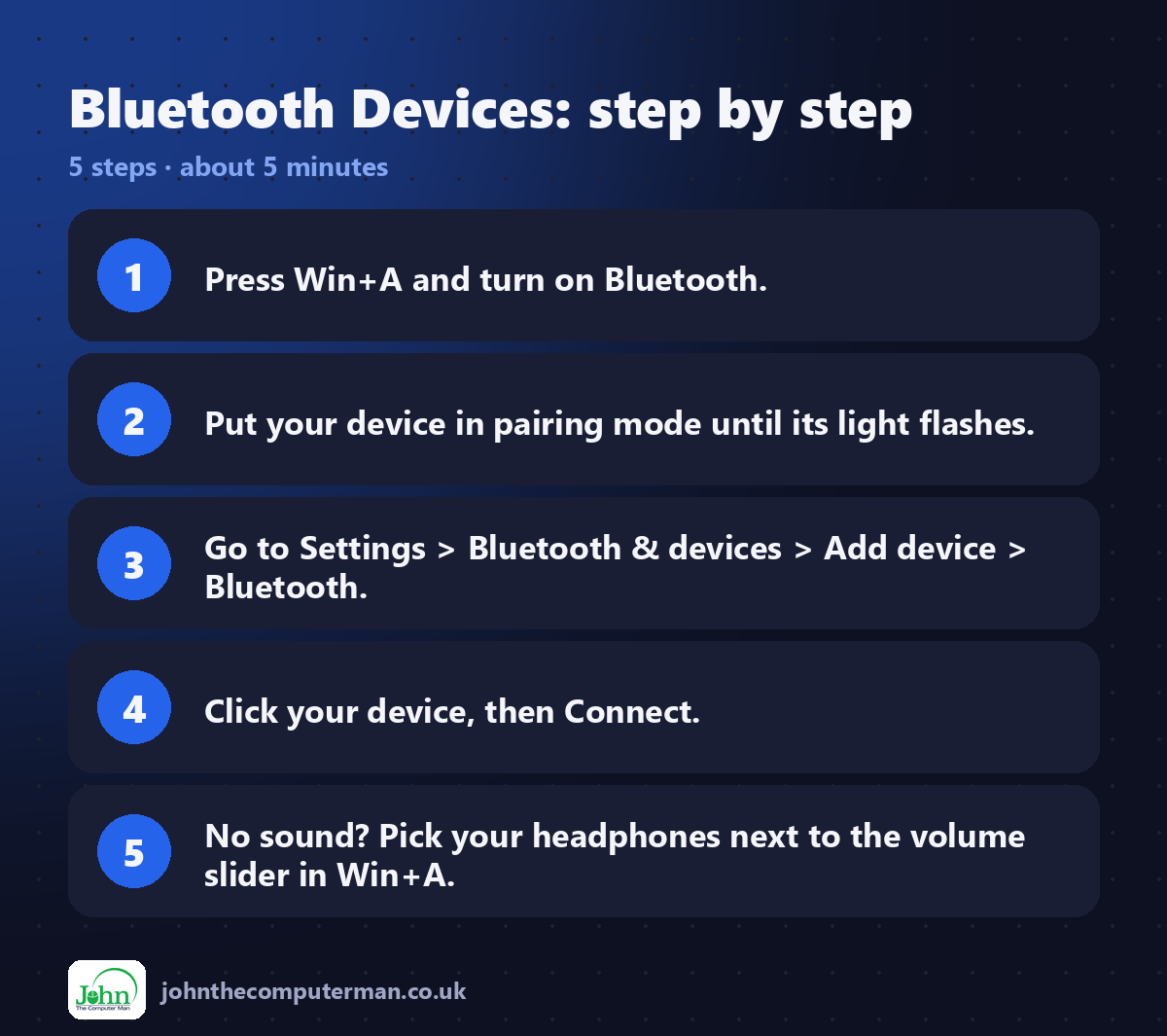
Quick recap
Frequently asked questions
My PC doesn't have a Bluetooth option. Why? Some desktop PCs don't have Bluetooth built in. A small USB Bluetooth adapter costs a few pounds and adds it.
Why does my headset's microphone sound terrible? When you use the mic on Bluetooth headphones, many switch to a lower-quality "hands-free" mode. For calls, a wired headset or a USB microphone sounds much better.

John The Computer Man: plain-English computer help. 🌐 johnthecomputerman.co.uk · 📸 Instagram @johnthecomputerman
