How to Reset Windows 11 Without Losing Your Files
When Windows is crashing, painfully slow or just broken, a reset is often the fastest fix. Many people avoid it because they're worried about losing their photos and documents, but Windows 11 has several recovery options that keep your files.
This guide goes from the gentlest option to the most thorough. Try them in order.
Step 1: Back up first (seriously)
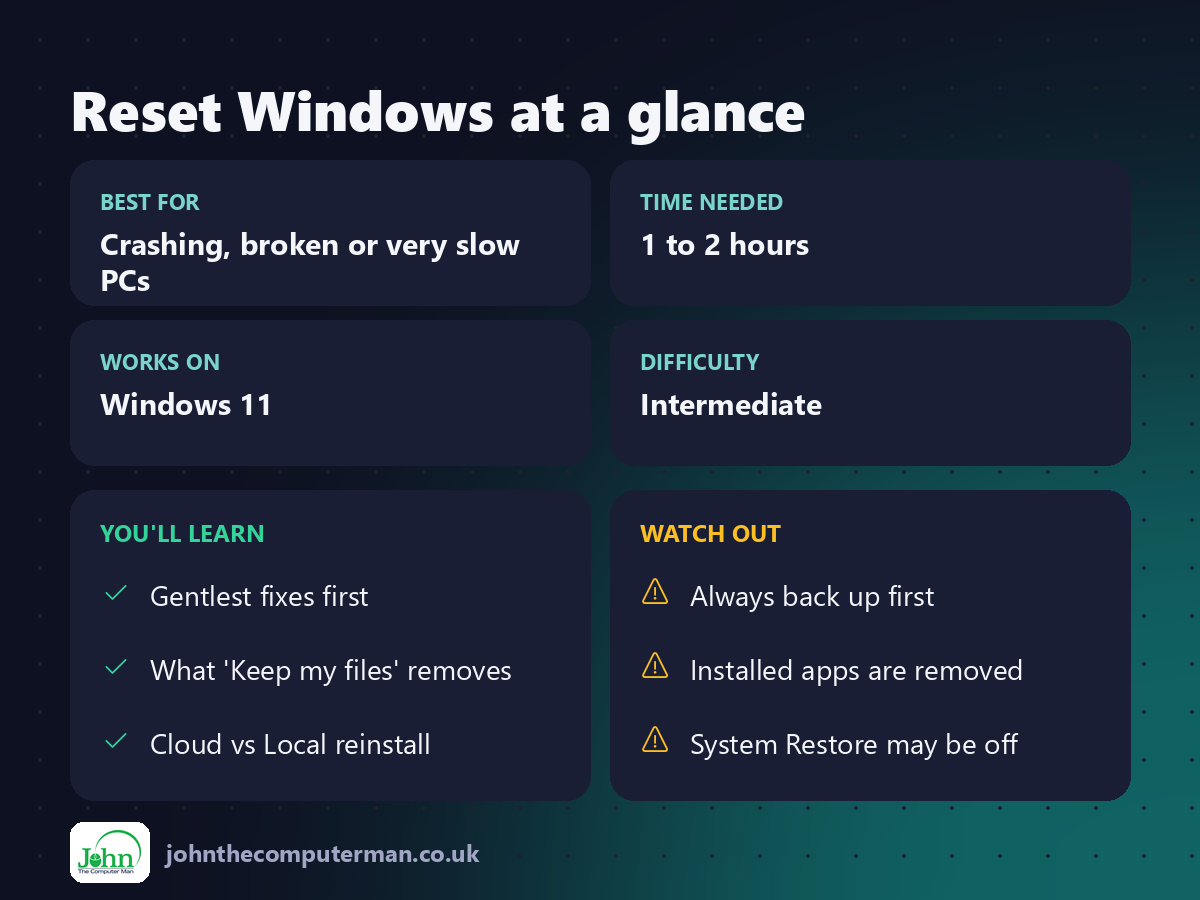
Even the "keep my files" options are designed to keep your files, but if something goes wrong halfway through, you'll be glad you have a backup.
• Copy important files to OneDrive or an external drive (see our backup guide).
• Make a list of the apps you've installed.
• Find any licence keys for paid software (e.g. older versions of Office or Photoshop).
• Make sure you know your Microsoft account password.
• Make a list of the apps you've installed.
• Find any licence keys for paid software (e.g. older versions of Office or Photoshop).
• Make sure you know your Microsoft account password.
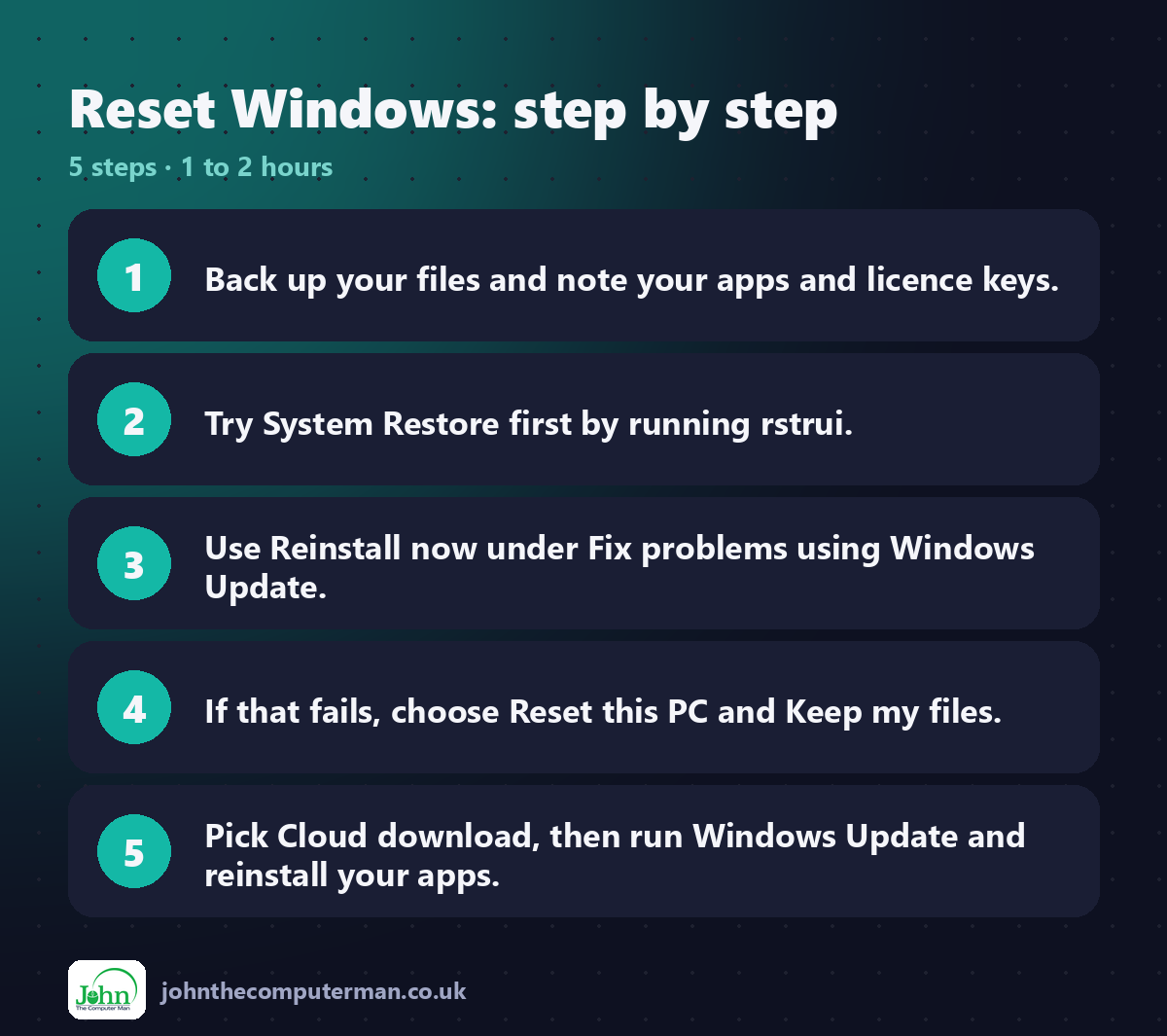
Step 2: Try System Restore
System Restore rolls Windows system files, drivers and settings back to an earlier point in time. It doesn't touch your personal files.
1. Press Win + R, type rstrui and press Enter.
2. Click Next and choose a restore point from before the problem started.
3. Click Scan for affected programs to see which apps will be removed.
4. Click Next → Finish.
2. Click Next and choose a restore point from before the problem started.
3. Click Scan for affected programs to see which apps will be removed.
4. Click Next → Finish.
Note: System Restore is turned off by default on many PCs, so there may be no restore points. If so, move on to Step 3, and consider turning it on afterwards: search for Create a restore point, select your C: drive and choose Configure → Turn on system protection.
Step 3: Reinstall Windows using Windows Update
This newer option reinstalls your current version of Windows while keeping your files, apps and settings. It fixes many problems caused by damaged system files.
1. Go to Settings → System → Recovery.
2. Next to Fix problems using Windows Update, click Reinstall now.
3. Click OK and let it download and install. This can take an hour or more.
2. Next to Fix problems using Windows Update, click Reinstall now.
3. Click OK and let it download and install. This can take an hour or more.
Try this before Reset this PC, because you won't need to reinstall your apps.
Step 4: Reset this PC (Keep my files)
If the problems continue, a full reset gives you a fresh copy of Windows.
1. Go to Settings → System → Recovery.
2. Next to Reset this PC, click Reset PC.
3. Choose Keep my files.
4. Choose how to reinstall Windows (see below).
5. Review the summary and click Reset.
2. Next to Reset this PC, click Reset PC.
3. Choose Keep my files.
4. Choose how to reinstall Windows (see below).
5. Review the summary and click Reset.
What "Keep my files" keeps and removes:
✅ Kept | ❌ Removed
Documents, Pictures, Desktop, Downloads, etc. | Apps you installed yourself
Your user accounts | Drivers you installed yourself
| Changes you made to settings
Documents, Pictures, Desktop, Downloads, etc. | Apps you installed yourself
Your user accounts | Drivers you installed yourself
| Changes you made to settings
Cloud download or Local reinstall?
• Cloud download: Windows downloads a fresh copy from Microsoft (about 4 GB or more). It's often more reliable if system files are damaged.
• Local reinstall: rebuilds Windows from files already on your PC. There's no big download, but it can fail if those files are damaged.
• Local reinstall: rebuilds Windows from files already on your PC. There's no big download, but it can fail if those files are damaged.
If in doubt, choose Cloud download.
Step 5: After the reset
1. Run Windows Update until there's nothing left to install, including Optional updates for drivers.
2. Open Removed Apps on your desktop. Windows creates this list of the apps it removed.
3. Reinstall your apps from the Microsoft Store or the developers' official websites.
4. Check that all your files are where you expect.
2. Open Removed Apps on your desktop. Windows creates this list of the apps it removed.
3. Reinstall your apps from the Microsoft Store or the developers' official websites.
4. Check that all your files are where you expect.
Quick recap
Frequently asked questions
Will I lose Microsoft Office? Microsoft 365 is removed, but you can reinstall it by signing in at office.com with the same account. Older, one-off-purchase versions need their product key.
My PC won't start at all. Can I still reset it? Yes. If Windows fails to start several times in a row, it opens the Windows Recovery Environment. Go to Troubleshoot → Reset this PC. You'll also find System Restore under Advanced options.
What's "Remove everything" for? Use it when you're selling or giving away your PC. It wipes all files and apps. Tick Clean data to make recovery much harder.

John The Computer Man: plain-English computer help. 🌐 johnthecomputerman.co.uk · 📸 Instagram @johnthecomputerman
