How to Connect Your Phone to Windows 11 With Phone Link
Phone Link connects your phone to your PC, so you can read and reply to texts, take calls and see notifications without picking up your phone. With Android, you can also browse your phone's photos on your PC.
It's built into Windows 11 and it's free.
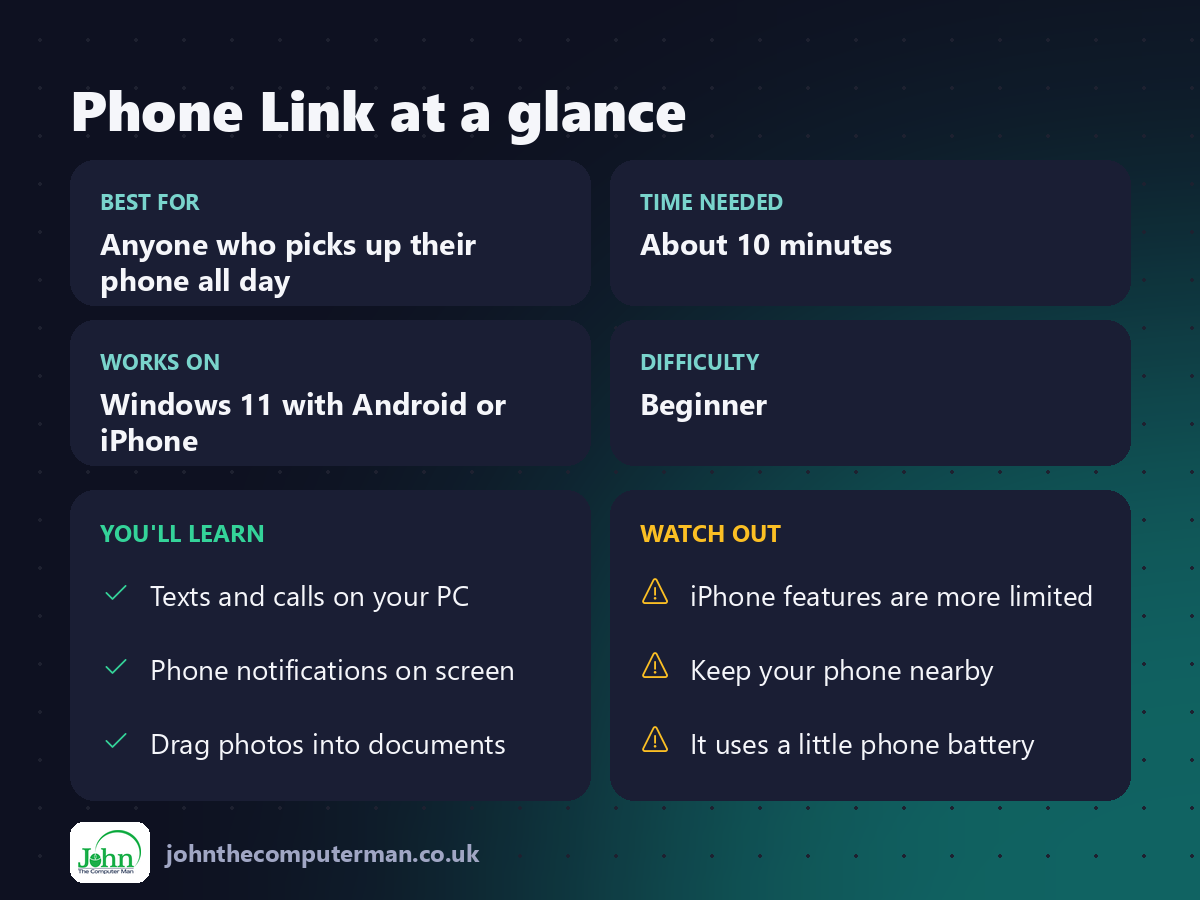
What works with each phone
Feature | Android | iPhone
Text messages | ✅ | ✅ (basic)
Calls | ✅ | ✅
Notifications | ✅ | ✅
Photos | ✅ | ❌
Phone apps on your PC | Some phones | ❌
Text messages | ✅ | ✅ (basic)
Calls | ✅ | ✅
Notifications | ✅ | ✅
Photos | ✅ | ❌
Phone apps on your PC | Some phones | ❌
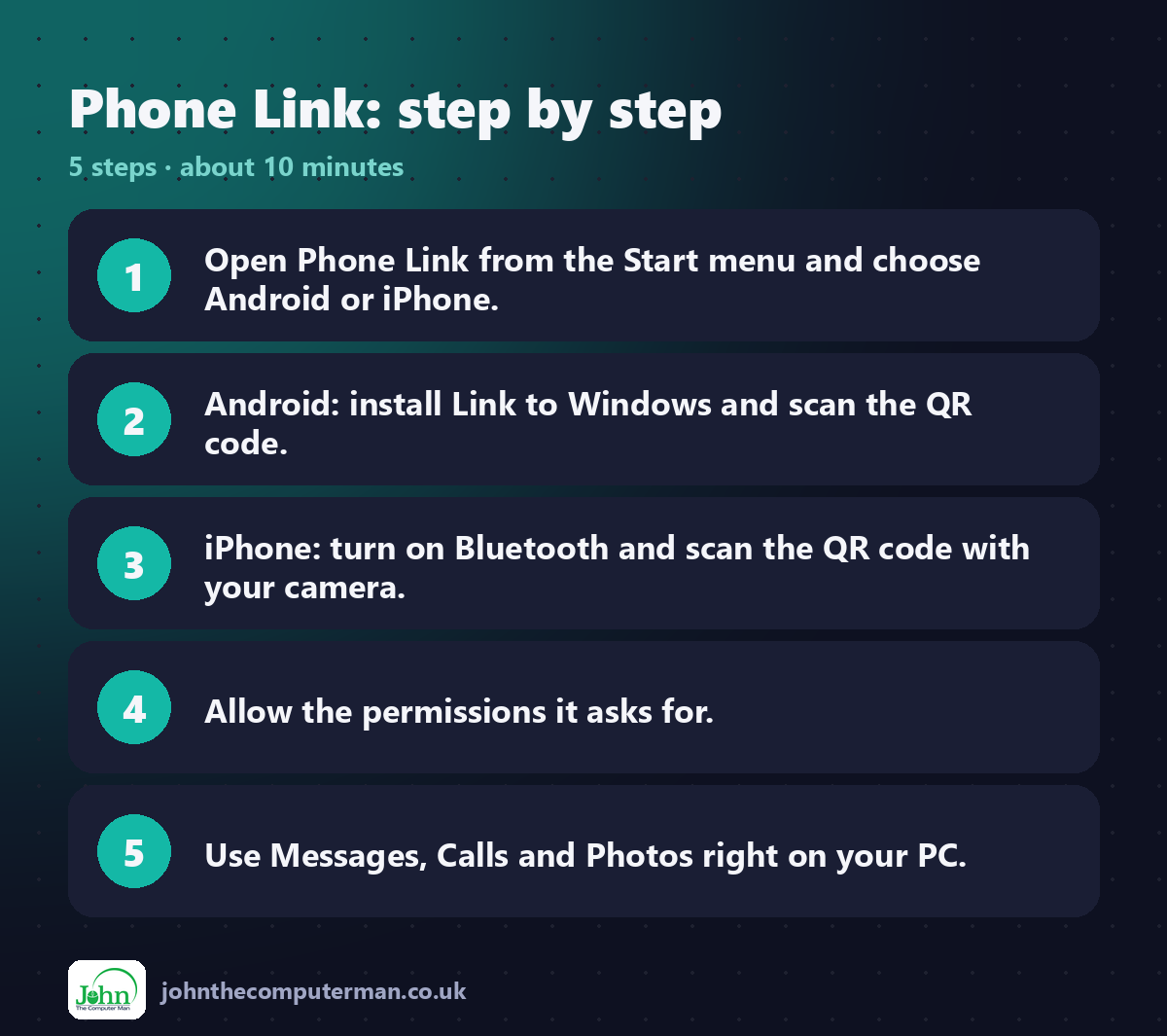
1. Open Phone Link on your PC
Click Start, type Phone Link and open it. Choose Android or iPhone.
2a. Android: install Link to Windows
1. On your phone, install Link to Windows from the Google Play Store. Many Samsung phones already have it under Settings → Connected devices.
2. Open it and choose to link your phone and PC.
3. Scan the QR code shown in Phone Link on your PC.
4. Allow the permissions it asks for (messages, contacts, notifications, photos).
2. Open it and choose to link your phone and PC.
3. Scan the QR code shown in Phone Link on your PC.
4. Allow the permissions it asks for (messages, contacts, notifications, photos).
2b. iPhone: pair over Bluetooth
1. Make sure Bluetooth is on, on both your PC and your iPhone.
2. In Phone Link, choose iPhone and scan the QR code with your iPhone's camera.
3. Follow the steps to pair over Bluetooth.
4. On your iPhone, go to Settings → Bluetooth, tap ⓘ next to your PC and turn on Show Notifications and Sync Contacts.
2. In Phone Link, choose iPhone and scan the QR code with your iPhone's camera.
3. Follow the steps to pair over Bluetooth.
4. On your iPhone, go to Settings → Bluetooth, tap ⓘ next to your PC and turn on Show Notifications and Sync Contacts.
3. Read and reply to messages
Click Messages in Phone Link. Your recent conversations appear, and you can type replies with your full keyboard.
4. Make and take calls
Click Calls. You can dial a number or answer incoming calls on your PC, using your PC's speakers and microphone (or a headset).
5. See your photos (Android)
Click Photos to see your phone's recent photos. Drag one straight into an email or document, or right-click and choose Save as.
6. Control your notifications
In Phone Link, click Settings (⚙) → Features to choose which features you use. To stop a noisy app, right-click its notification and turn notifications off for that app.
Quick recap
Frequently asked questions
Does my phone need to be nearby? Yes. Calls and iPhone features use Bluetooth, so keep your phone within a few metres. Android also needs both devices online.
Does it drain my phone's battery? A little. If you notice a big drop, turn off features you don't use, such as Photos.
How do I disconnect my phone? In Phone Link, go to Settings → My devices and remove the phone. On Android, also remove the PC in the Link to Windows app.
Related: Connect Bluetooth Devices

John The Computer Man: plain-English computer help. 🌐 johnthecomputerman.co.uk · 📸 Instagram @johnthecomputerman
