How to Recover Deleted Files in Windows 11 (5 Things to Try)
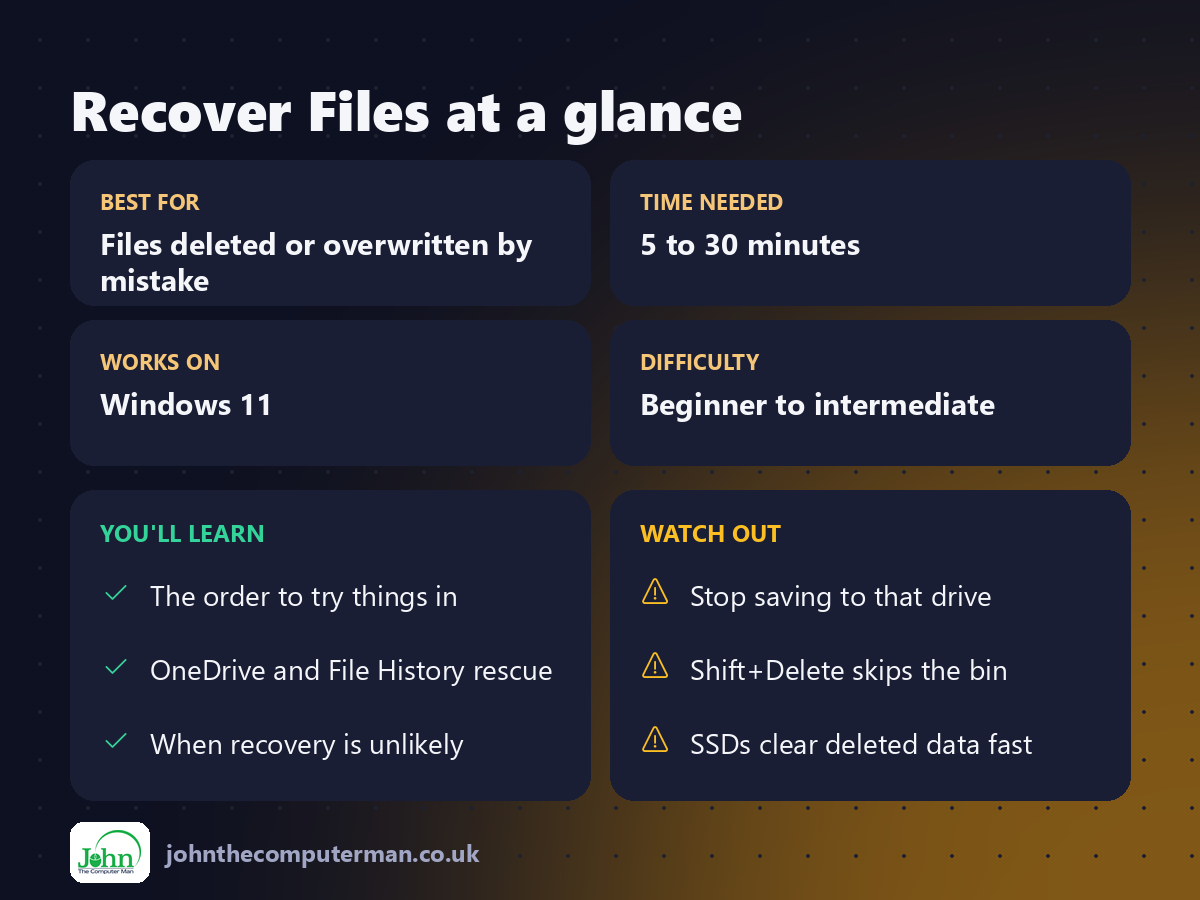
That sinking feeling when you realise you've deleted the wrong file is horrible. In most cases, though, the file isn't gone yet. Work through these five steps in order, starting with the quickest.
Golden rule: the moment you realise a file is missing, stop saving new files to that drive. New files can overwrite the space the deleted one was using.
1. Press Ctrl + Z
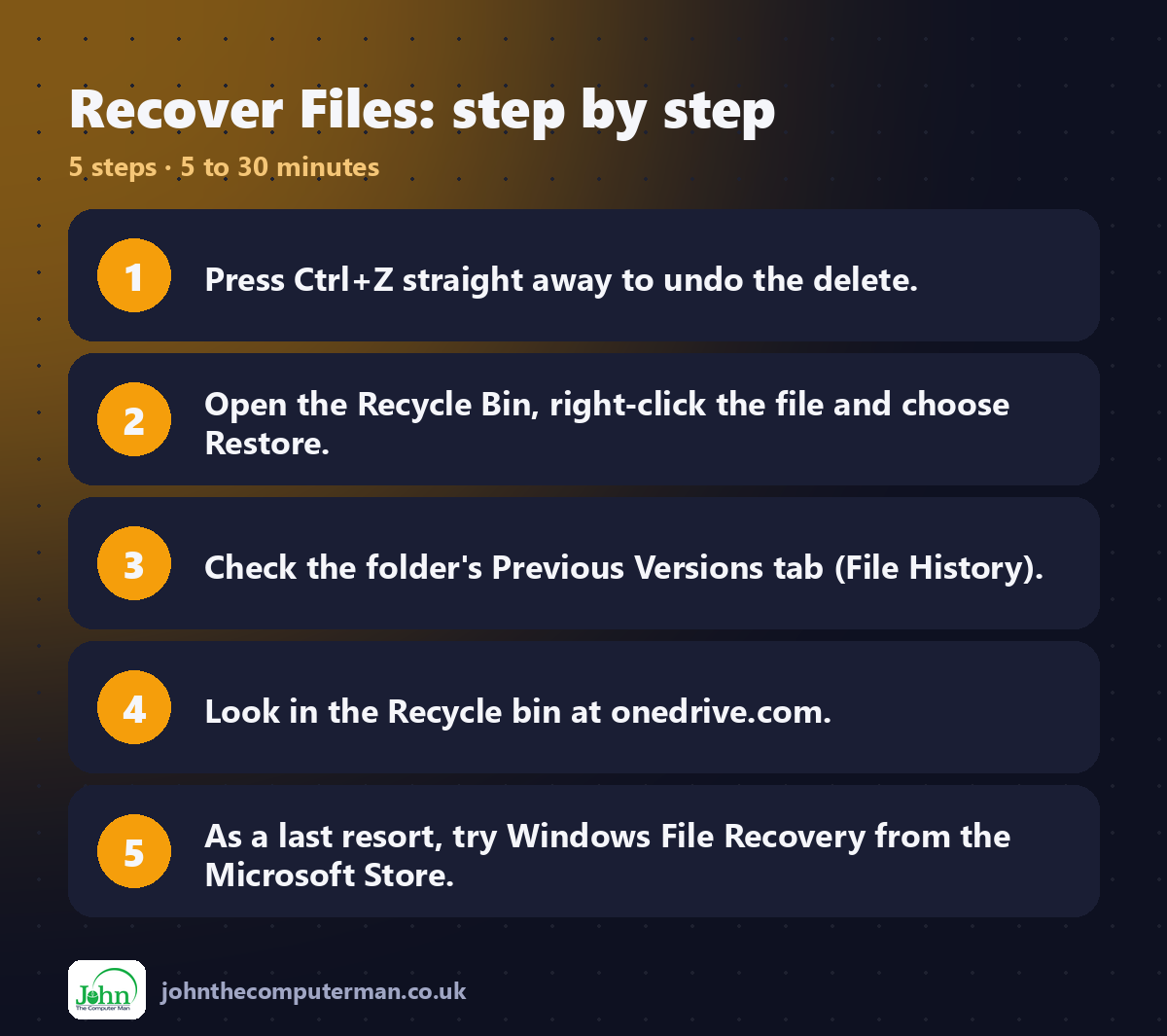
If you've only just deleted the file, click in the folder it was in and press Ctrl + Z. File Explorer undoes the last action, and the file reappears.
2. Check the Recycle Bin
1. Double-click the Recycle Bin on your desktop.
2. Find the file. Use the search box, or sort by Date deleted.
3. Right-click it and choose Restore.
2. Find the file. Use the search box, or sort by Date deleted.
3. Right-click it and choose Restore.
The file goes back to exactly where it was.
Not there? Files deleted with Shift + Delete, from USB sticks, or from network drives skip the Recycle Bin.
3. Restore an earlier version (File History)
If you had File History turned on before the file was deleted:
1. Open the folder the file used to be in.
2. Right-click an empty space, choose Show more options, then Properties.
3. Open the Previous Versions tab.
4. Pick a version from before the file was deleted, click Open to check it, then Restore.
2. Right-click an empty space, choose Show more options, then Properties.
3. Open the Previous Versions tab.
4. Pick a version from before the file was deleted, click Open to check it, then Restore.
You can also search Start for Restore your files with File History and browse back in time.
4. Check OneDrive's recycle bin
If the file was in your Desktop, Documents or Pictures folder and OneDrive backup is on, OneDrive keeps its own copy.
1. Go to onedrive.com and sign in.
2. Click Recycle bin on the left.
3. Select the file and click Restore.
2. Click Recycle bin on the left.
3. Select the file and click Restore.
OneDrive keeps deleted files for 30 days on personal accounts.
Changed a file by mistake? Right-click it in OneDrive and choose Version history to go back to an earlier version.
5. Try Windows File Recovery (advanced)
Microsoft has a free recovery tool for files that have truly been deleted.
1. Install Windows File Recovery from the Microsoft Store.
2. It runs in a command window. To search drive C: for Word documents and save what it finds to drive D:, type:
2. It runs in a command window. To search drive C: for Word documents and save what it finds to drive D:, type:
winfr C: D: /regular /n *.docx
You must recover to a different drive, such as a USB stick.
Be realistic: this works best on traditional hard drives, soon after deletion. On modern SSDs, deleted data is cleared quickly and often can't be recovered.
Stop it happening again
• Turn on OneDrive folder backup or File History today. See: How to Back Up Your PC.
• Avoid Shift + Delete unless you're certain.
• Make the Recycle Bin ask first: right-click Recycle Bin, choose Properties and tick Display delete confirmation dialog.
• Avoid Shift + Delete unless you're certain.
• Make the Recycle Bin ask first: right-click Recycle Bin, choose Properties and tick Display delete confirmation dialog.
Quick recap
Frequently asked questions
I emptied the Recycle Bin. Is the file gone? Not always. Try File History, OneDrive and then Windows File Recovery, and stop using the drive in the meantime.
Are paid recovery programs worth it? Sometimes, for hard drives. Be wary of any that demand payment before showing you what they've found.
Related: Back Up Your PC · File Explorer Tips

John The Computer Man: plain-English computer help. 🌐 johnthecomputerman.co.uk · 📸 Instagram @johnthecomputerman
