How to Stop Notifications in Windows 11 With Do Not Disturb and Focus
Pop-ups from email, chat apps, news and "tips" can interrupt you dozens of times a day. Windows 11 has two tools to quieten things down:
• Do not disturb silences notification pop-ups and sounds.
• Focus starts a timed session that turns on Do not disturb and hides taskbar distractions.
• Focus starts a timed session that turns on Do not disturb and hides taskbar distractions.
1. Turn on Do not disturb
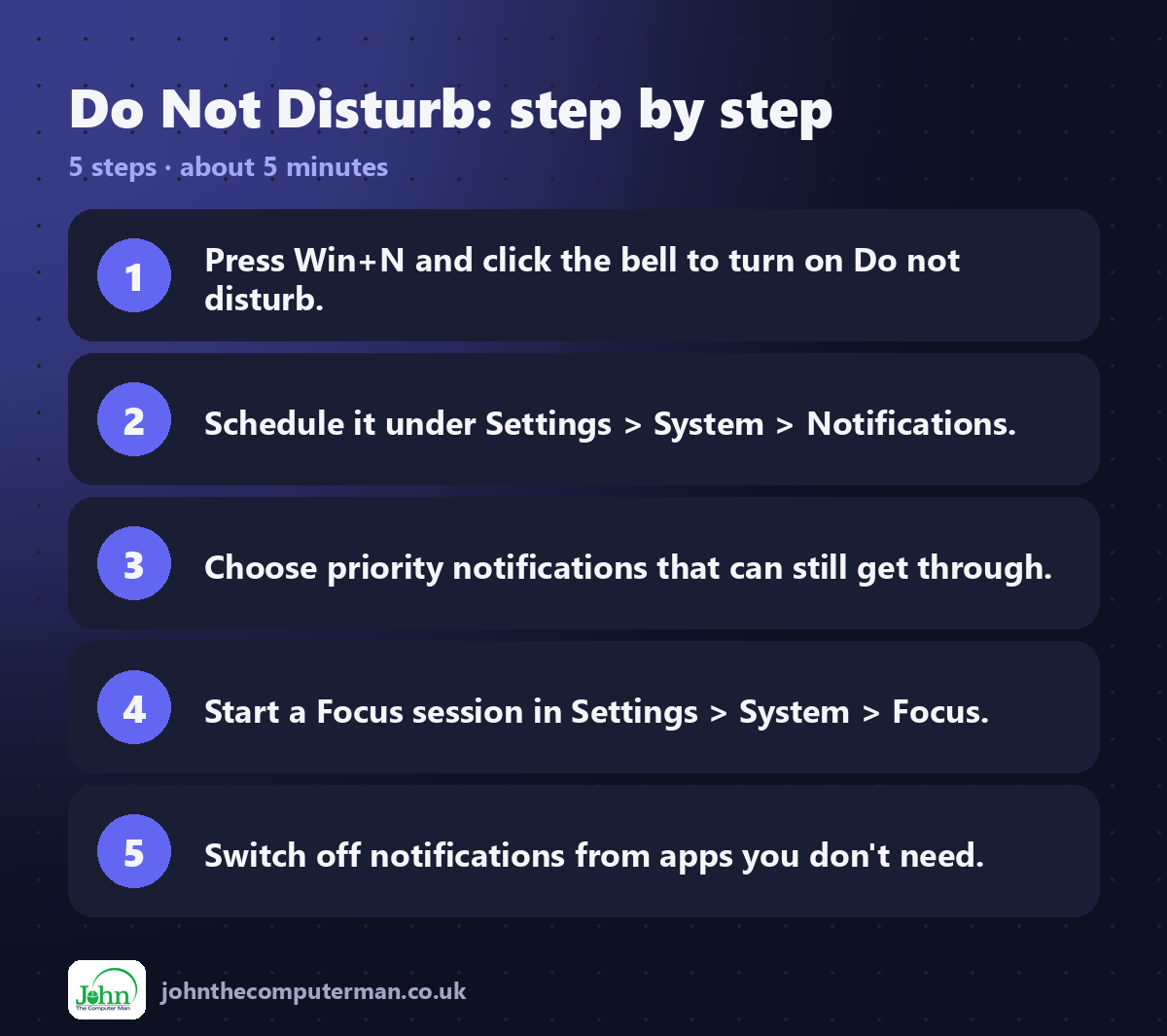
1. Press Win + N to open the notification centre.
2. Click the bell icon at the top.
2. Click the bell icon at the top.
Notifications now go quietly into the notification centre, with no pop-ups or sounds. Click the bell again to turn it off.
2. Schedule it automatically
1. Go to Settings → System → Notifications.
2. Expand Turn on do not disturb automatically.
3. Tick During these times and set your hours, such as 22:00 to 07:00.
2. Expand Turn on do not disturb automatically.
3. Tick During these times and set your hours, such as 22:00 to 07:00.
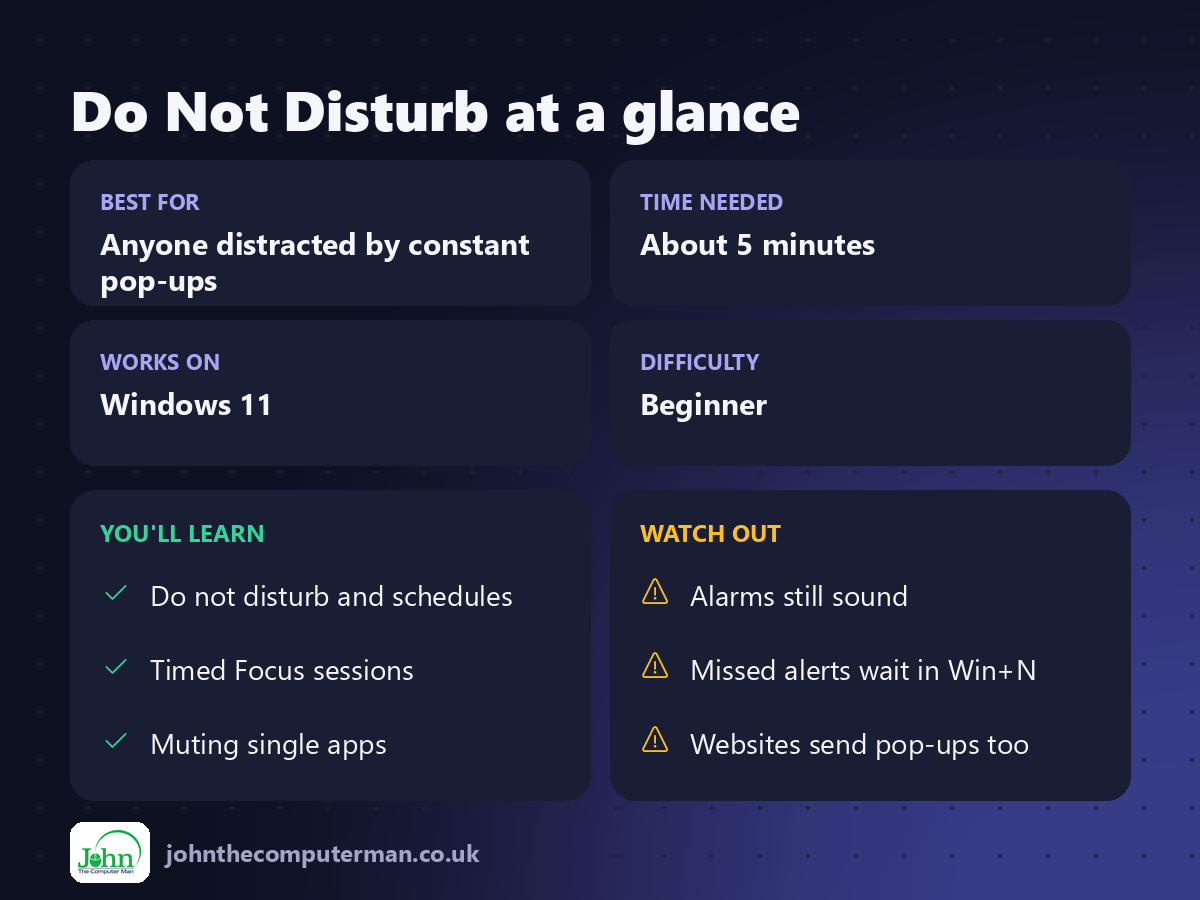
You can also turn it on automatically when you're duplicating your display (presenting), playing a game or using an app in full screen.
3. Let the important things through
1. In Settings → System → Notifications, click Set priority notifications.
2. Choose whether to allow calls and reminders.
3. Under Apps, click Add apps for anything that should always get through.
2. Choose whether to allow calls and reminders.
3. Under Apps, click Add apps for anything that should always get through.
4. Start a Focus session
1. Go to Settings → System → Focus.
2. Choose a session duration, such as 30 minutes.
3. Click Start focus session.
2. Choose a session duration, such as 30 minutes.
3. Click Start focus session.
During a session, Windows turns on Do not disturb, hides badges on taskbar apps and stops apps flashing for attention. A timer appears on screen.
Quick start: press Win + N and use the Focus timer at the bottom of the calendar.
5. Turn off notifications from one app
If only one app is the problem:
1. Go to Settings → System → Notifications.
2. Scroll to Notifications from apps and other senders.
3. Switch off any app you don't want to hear from.
2. Scroll to Notifications from apps and other senders.
3. Switch off any app you don't want to hear from.
Even quicker: when a pop-up appears, click its ⋯ and choose Turn off all notifications for that app.
6. Switch off Windows tips and suggestions
At the bottom of Settings → System → Notifications, expand Additional settings and untick:
• Show the Windows welcome experience…
• Suggest ways to get the most out of Windows…
• Get tips and suggestions when using Windows
• Suggest ways to get the most out of Windows…
• Get tips and suggestions when using Windows
7. Stop website notifications
Many pop-ups come from websites you once clicked Allow on. In Microsoft Edge, go to Settings → Cookies and site permissions → Notifications and remove sites you don't want. Chrome has the same option under Privacy and security → Site settings → Notifications.
Quick recap
Frequently asked questions
Will I miss my alarms? No. Alarms from the Clock app still sound when Do not disturb is on.
Where do silenced notifications go? They wait in the notification centre. Press Win + N to read them when you're ready.

John The Computer Man: plain-English computer help. 🌐 johnthecomputerman.co.uk · 📸 Instagram @johnthecomputerman
