How to Use Virtual Desktops in Windows 11
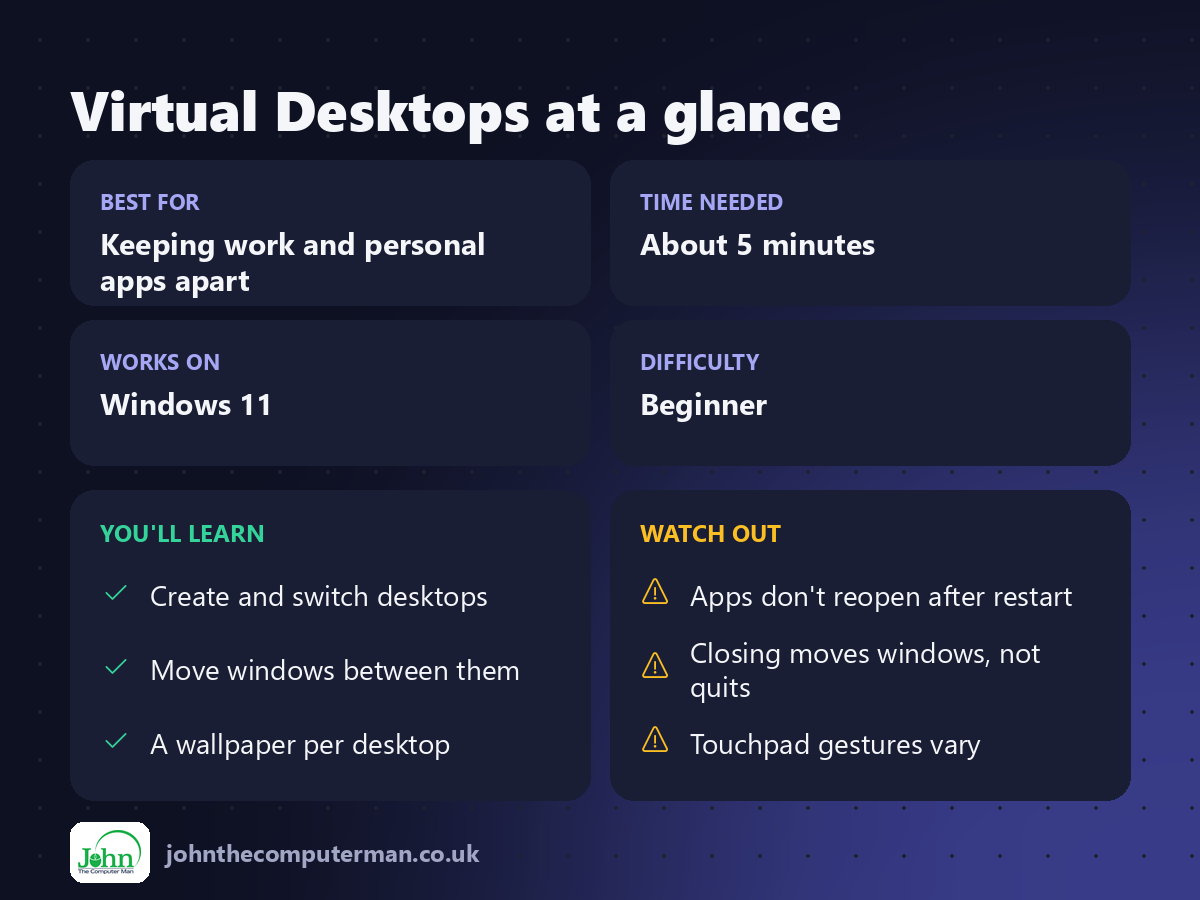
Virtual desktops give you several separate workspaces on one PC. You could have one for work, one for personal stuff and one for a hobby project, each with its own set of open windows. Switching between them is instant, and it's a great way to cut down on clutter and distraction.
1. Open Task View
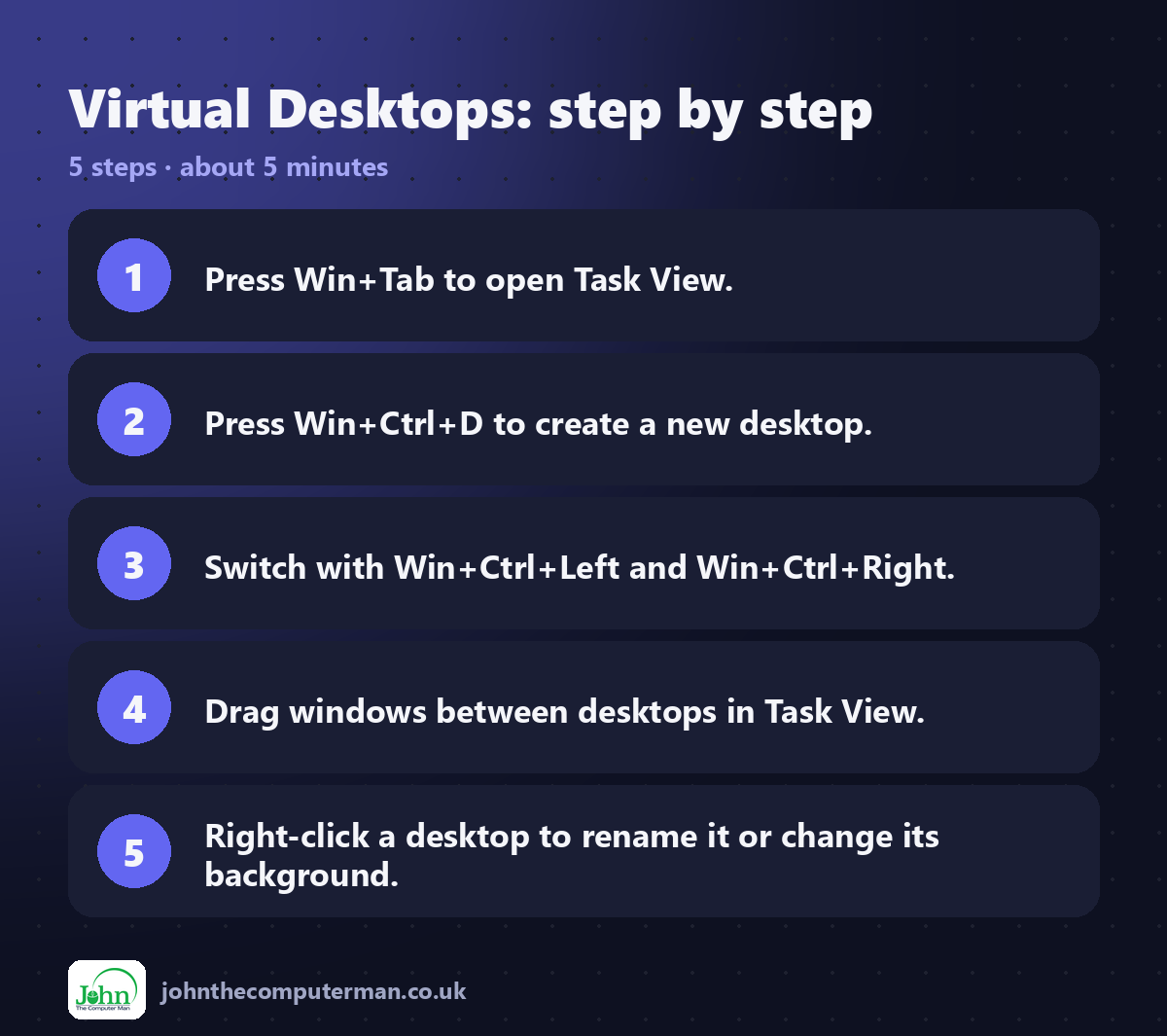
Press Win + Tab, or click the Task View icon on the taskbar.
You'll see all the windows open on your current desktop, and a row of desktops along the bottom of the screen.
2. Create a new desktop
• Press Win + Ctrl + D, or
• Click + New desktop in Task View.
• Click + New desktop in Task View.
You'll be taken straight to a clean, empty desktop. Your apps on the other desktop are still running. They just aren't shown here.
3. Switch between desktops
Method | How
Keyboard | Win + Ctrl + → / Win + Ctrl + ←
Task View | Win + Tab, then click a desktop
Touchpad | Four-finger swipe left or right
Taskbar | Hover over the Task View icon and click a desktop
Keyboard | Win + Ctrl + → / Win + Ctrl + ←
Task View | Win + Tab, then click a desktop
Touchpad | Four-finger swipe left or right
Taskbar | Hover over the Task View icon and click a desktop
4. Move a window to another desktop
1. Open Task View (Win + Tab).
2. Drag a window thumbnail onto another desktop at the bottom.
2. Drag a window thumbnail onto another desktop at the bottom.
Or right-click the window thumbnail, choose Move to and pick a desktop.
Tip: Right-click a window in Task View and choose Show this window on all desktops for apps you always want to see, such as a music player or a chat app.
5. Rename and personalise each desktop
In Task View, right-click a desktop and choose:
• Rename: call it Work, Home, Study, Games or whatever you like.
• Choose background: give each desktop its own wallpaper, so you can tell instantly which one you're on.
• Choose background: give each desktop its own wallpaper, so you can tell instantly which one you're on.
You can also drag desktops to reorder them.
6. Close a desktop
• Press Win + Ctrl + F4 to close the current desktop, or
• Hover over a desktop in Task View and click the X.
• Hover over a desktop in Task View and click the X.
Don't worry: nothing gets closed. Any open windows move to the neighbouring desktop.
Ideas for using virtual desktops
• Work / Home: keep work apps out of sight at the weekend.
• Presentation: a clean desktop with only the apps you're showing on screen.
• Research: a browser and notes on one desktop, email and chat on another.
• Kids: a simple desktop with just their apps.
• Presentation: a clean desktop with only the apps you're showing on screen.
• Research: a browser and notes on one desktop, email and chat on another.
• Kids: a simple desktop with just their apps.
Quick recap
Frequently asked questions
Do virtual desktops slow my PC down? Not by themselves. The apps you have open use resources, not the desktops.
Do my desktops survive a restart? Yes. Windows 11 remembers your desktops, names and backgrounds, but you'll need to reopen your apps.

John The Computer Man: plain-English computer help. 🌐 johnthecomputerman.co.uk · 📸 Instagram @johnthecomputerman
