How to Use Snap Layouts in Windows 11 (Split Your Screen Like a Pro)
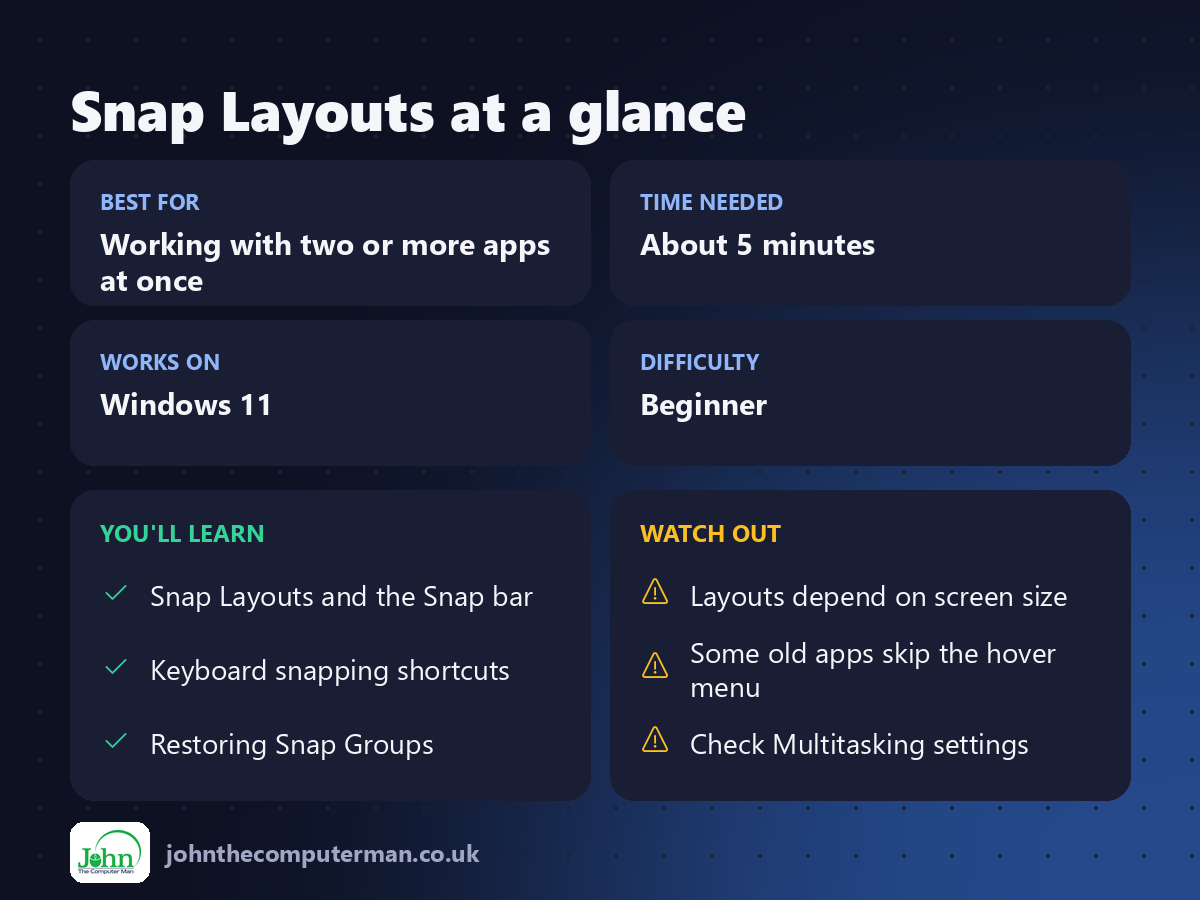
If you spend your day dragging and resizing windows so you can see two things at once, Snap Layouts will change how you use your PC. It's built into Windows 11 and lets you arrange windows into neat halves, thirds or quarters in a couple of clicks.
1. Open Snap Layouts
There are two ways to open it:
• Hover your mouse over the maximise button (the square in the top-right corner of any window).
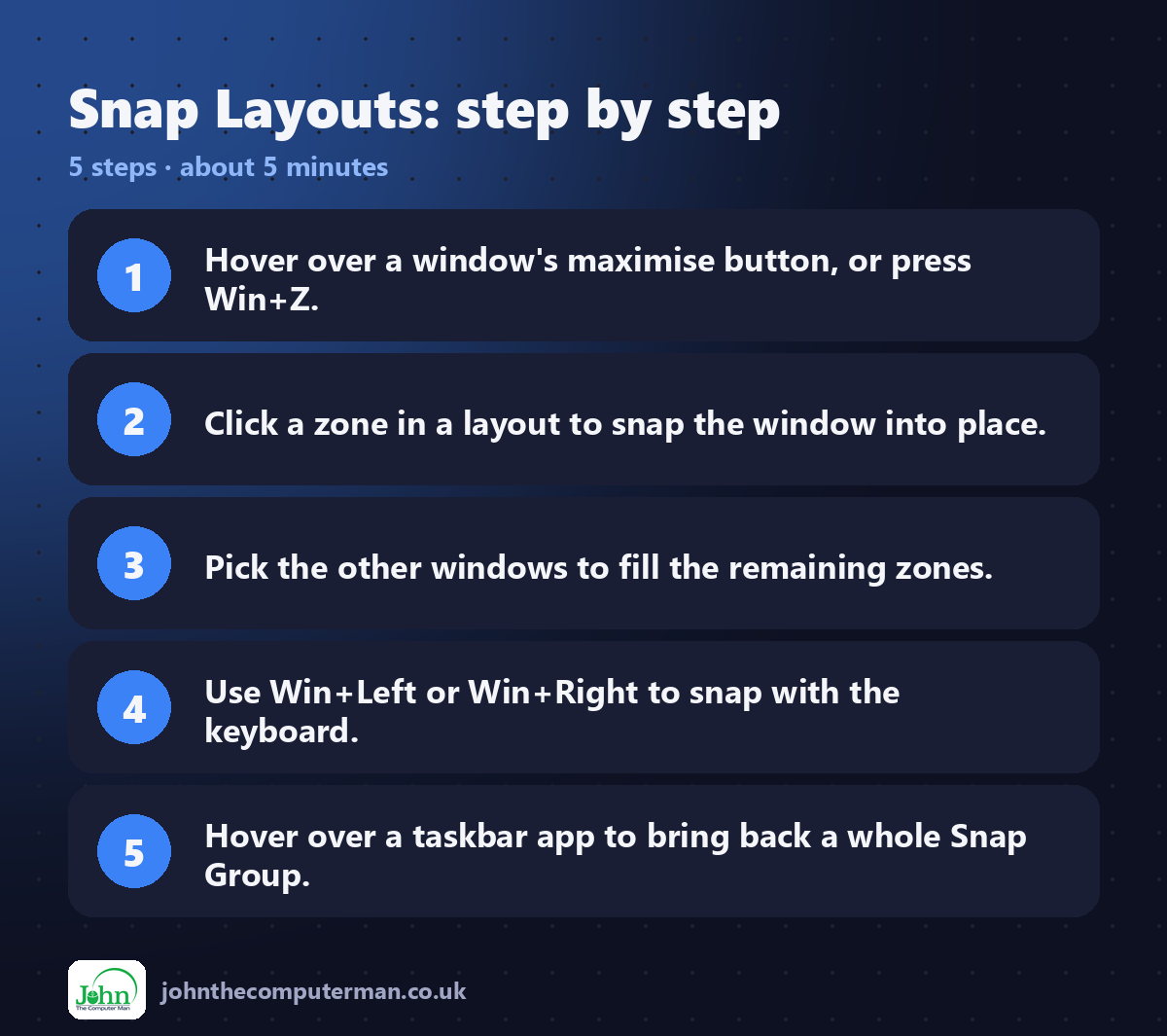
• Or press Win + Z while the window is selected.
• Or press Win + Z while the window is selected.
A small panel appears showing several layouts. Click a zone in a layout and the window snaps into that position.
Windows then shows your other open windows as thumbnails so you can fill the remaining zones. Click one to place it.
2. Drag a window to the top of the screen
On recent versions of Windows 11, you can also:
1. Click and hold a window's title bar.
2. Drag it to the top edge of the screen.
3. The Snap bar drops down with the same layouts. Drop the window onto the zone you want.
2. Drag it to the top edge of the screen.
3. The Snap bar drops down with the same layouts. Drop the window onto the zone you want.
3. Snap with the keyboard
Keyboard snapping is often the quickest method:
Shortcut | What it does
Win + ← | Snap to the left half
Win + → | Snap to the right half
Win + ↑ | Maximise (or snap to the top quarter if already snapped)
Win + ↓ | Restore, then minimise (or snap to the bottom quarter)
Win + ← | Snap to the left half
Win + → | Snap to the right half
Win + ↑ | Maximise (or snap to the top quarter if already snapped)
Win + ↓ | Restore, then minimise (or snap to the bottom quarter)
Tip: To put a window in a corner, press Win + ← and then Win + ↑.
4. Use Snap Groups to get your layout back
When you snap windows together, Windows remembers them as a Snap Group.
1. Hover over one of the snapped apps on the taskbar.
2. As well as the app's own thumbnail, you'll see the group you snapped it in.
3. Click the group and the whole layout comes back at once.
2. As well as the app's own thumbnail, you'll see the group you snapped it in.
3. Click the group and the whole layout comes back at once.
This is handy if you switch away to check email and want to return to your two-document setup.
5. Change the Snap settings
1. Press Win + I to open Settings.
2. Go to System → Multitasking.
3. Expand Snap windows.
2. Go to System → Multitasking.
3. Expand Snap windows.
Here you can turn Snap on or off and choose whether to show layouts when hovering over the maximise button or dragging to the top of the screen. You can also choose whether snapped windows appear in Snap Groups.
Which layouts will I see?
The layouts depend on your screen size and resolution. Laptops usually show halves, thirds and quarters. Large and ultrawide monitors offer extra three-column layouts.
Quick recap
Frequently asked questions
Snap Layouts doesn't appear when I hover. Why? Check that Snap windows is on in Settings → System → Multitasking. Some older apps with custom title bars don't support the hover menu, but Win + Z and Win + arrow keys still work.
Can I resize snapped windows? Yes. Drag the divider between two snapped windows and both resize together.

John The Computer Man: plain-English computer help. 🌐 johnthecomputerman.co.uk · 📸 Instagram @johnthecomputerman
