How to Use Task Manager in Windows 11: A Beginner's Guide
Task Manager shows you everything that's running on your PC and how hard your PC is working. It's the first place to look when an app freezes, the fan won't stop spinning, or everything slows to a crawl.
It looks technical, but you only need to know a handful of things to get a lot out of it.
1. Open Task Manager
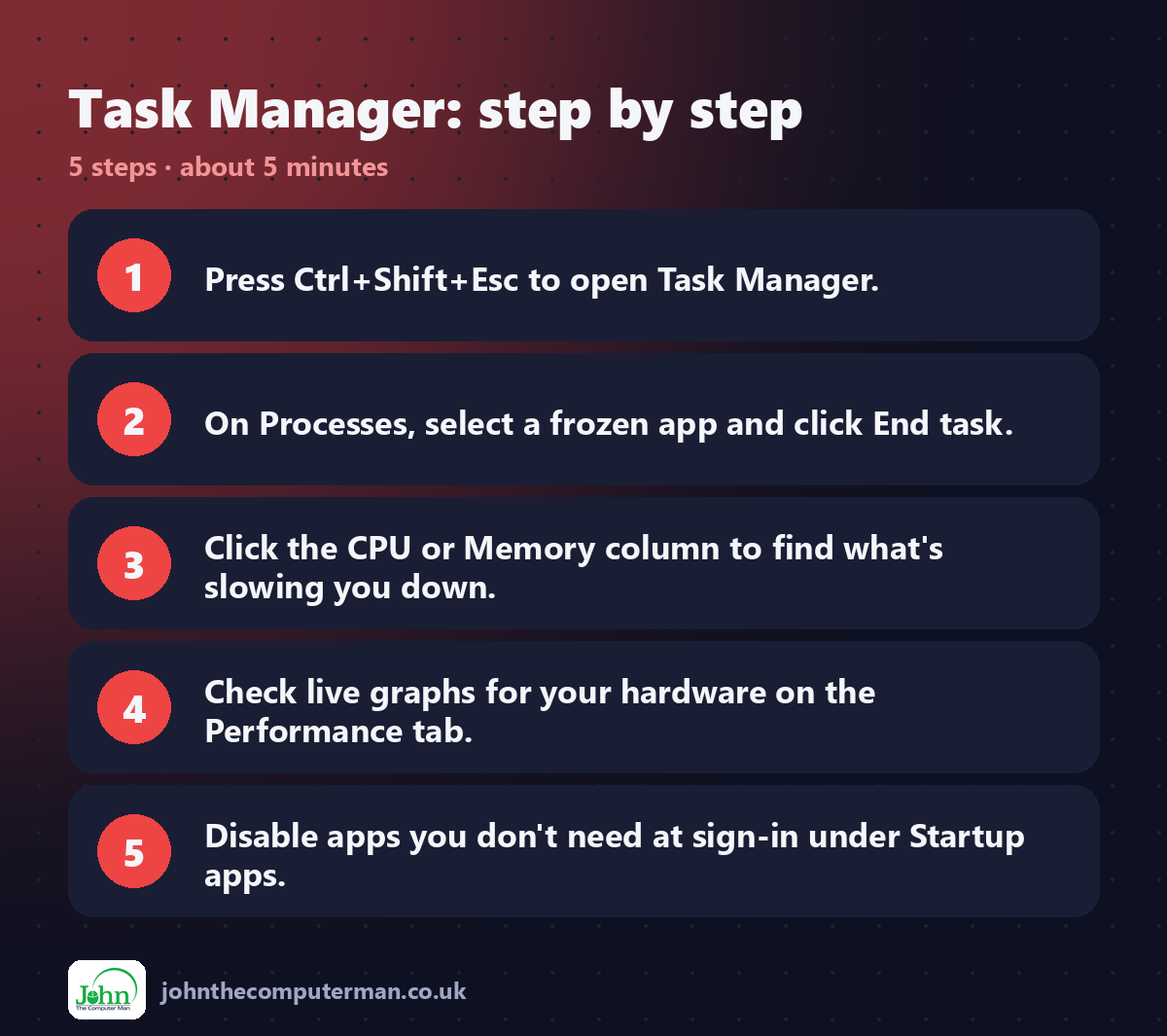
The fastest way is Ctrl + Shift + Esc.
You can also right-click the taskbar and choose Task Manager, or press Ctrl + Alt + Delete and pick it from the list.
2. Close a frozen app (Processes)
The Processes tab lists every app and background process.
1. Find the app that's stuck. It may say Not responding.
2. Select it and click End task at the top.
2. Select it and click End task at the top.
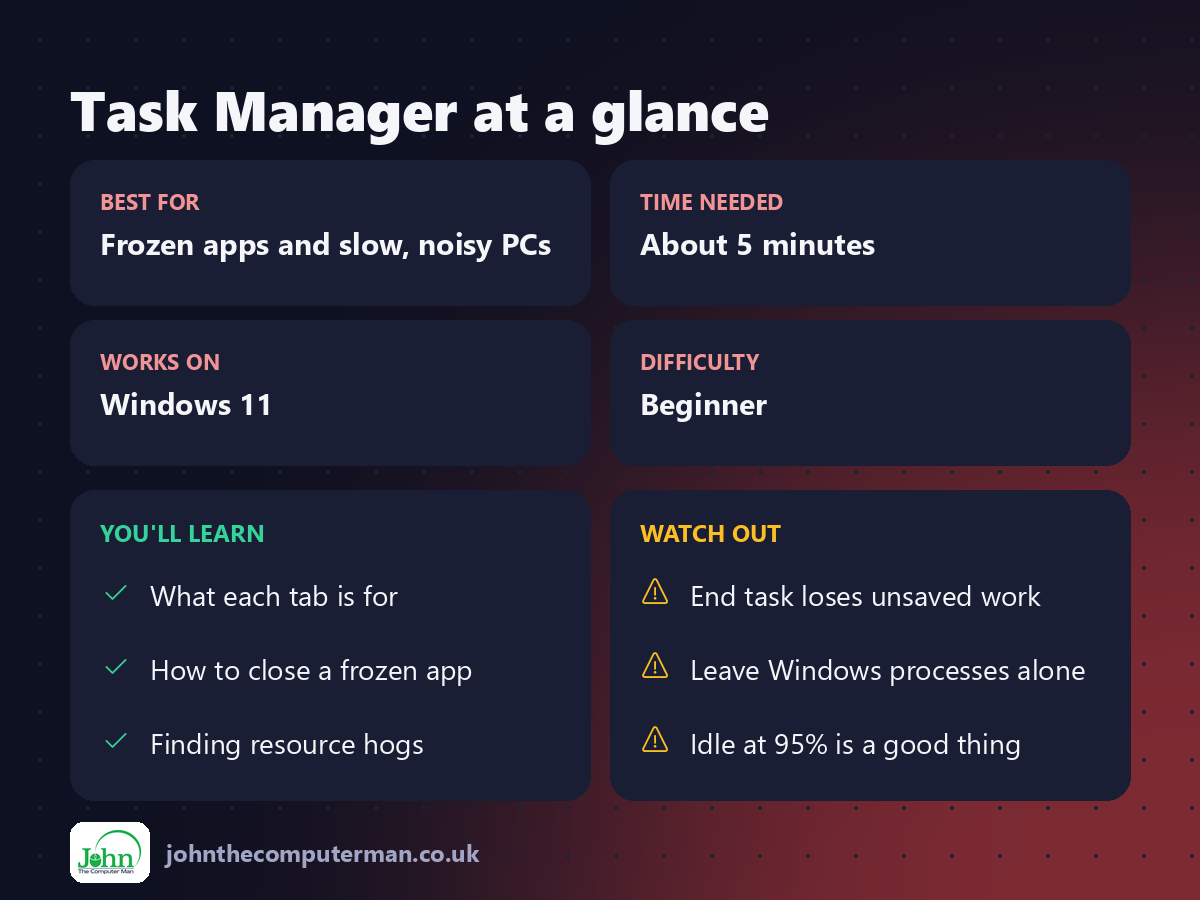
You'll lose any unsaved work in that app, so only do this when it's properly frozen.
Tip: Use the search box at the top of Task Manager to find an app by name.
3. See what's slowing you down
Still on Processes, click a column heading to sort by it:
• CPU: what's making the fan spin
• Memory: what's using your RAM (often web browsers with lots of tabs)
• Disk: what's reading and writing to your drive
• Network: what's using your internet connection
• Memory: what's using your RAM (often web browsers with lots of tabs)
• Disk: what's reading and writing to your drive
• Network: what's using your internet connection
A percentage near 100% for a long time usually explains a slow PC.
4. Check your hardware (Performance)
The Performance tab shows live graphs for your CPU, Memory, Disk, Wi-Fi and GPU. It's also a quick way to see what's inside your PC, such as how much RAM you have and whether your drive is an SSD or HDD.
5. Stop apps starting with Windows (Startup apps)
1. Click Startup apps.
2. Look at the Startup impact column.
3. Right-click anything you don't need straight away and choose Disable.
2. Look at the Startup impact column.
3. Right-click anything you don't need straight away and choose Disable.
The app still works. It just won't launch by itself every time you sign in.
6. Tame a hungry app with Efficiency mode
If an app is hogging the CPU but you don't want to close it:
1. Right-click it on the Processes tab.
2. Choose Efficiency mode.
2. Choose Efficiency mode.
Windows gives it a lower priority, so the rest of your PC feels faster. A green leaf icon shows it's on.
7. The other tabs, in one line each
• App history: how much CPU time and data each app has used.
• Users: who is signed in and what they're running.
• Details and Services: advanced views. You can safely ignore them.
• Users: who is signed in and what they're running.
• Details and Services: advanced views. You can safely ignore them.
What not to end
Avoid ending anything under Windows processes, or anything you don't recognise without looking it up first. Ending a system process can crash Windows or sign you out. If in doubt, restart your PC instead.
Quick recap
Frequently asked questions
Is something called "System Idle Process" using 95% of my CPU? That's good news. It means 95% of your CPU is free.
Why are there so many copies of my browser? Browsers run each tab and extension as a separate process. That's normal.
Related: Speed Up a Slow PC · Find Your PC's Specs

John The Computer Man: plain-English computer help. 🌐 johnthecomputerman.co.uk · 📸 Instagram @johnthecomputerman
