
Somebody sends you a .rar or .7z file, or you need to password-protect a folder before emailing it. That’s when you discover Windows’ built-in zip support only goes so far.
7-Zip has been the free answer for over twenty years. It opens almost any archive format, makes smaller archives than standard ZIP, and adds strong AES-256 encryption, without the ‘your trial has expired’ pop-ups.
What is 7-Zip?
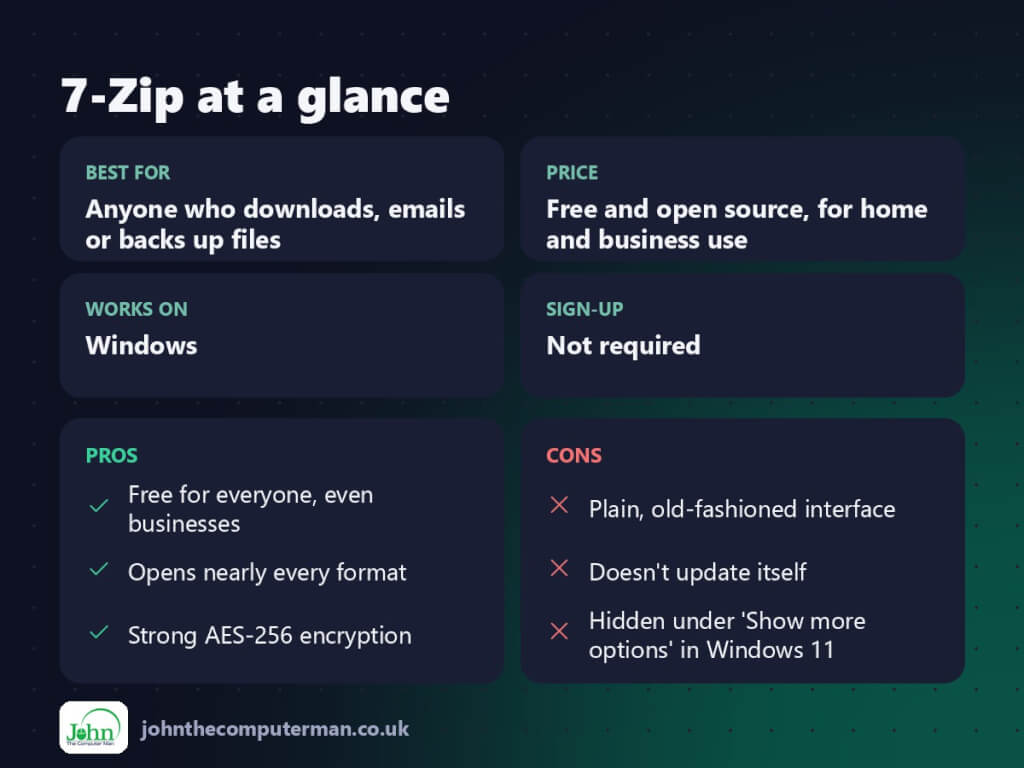
7-Zip is a free, open-source file archiver created by Igor Pavlov. Its own 7z format usually compresses better than ZIP, and it can create ZIP, TAR, GZIP and more. It can open a long list of formats including RAR, ISO, CAB, DMG and WIM. It adds commands to File Explorer’s right-click menu and supports AES-256 password encryption.
Key features
Opens almost anything
ZIP, RAR, 7z, ISO, TAR, GZ, CAB, DMG and many more. If someone sends you an archive, 7-Zip can open it.
Strong encryption
Protect archives with AES-256 encryption, and tick ‘Encrypt file names’ so nobody can even see what’s inside.
Smaller files, split volumes
The 7z format often beats ZIP on size, and you can split huge archives into chunks to fit upload limits.
How to get started with 7-Zip
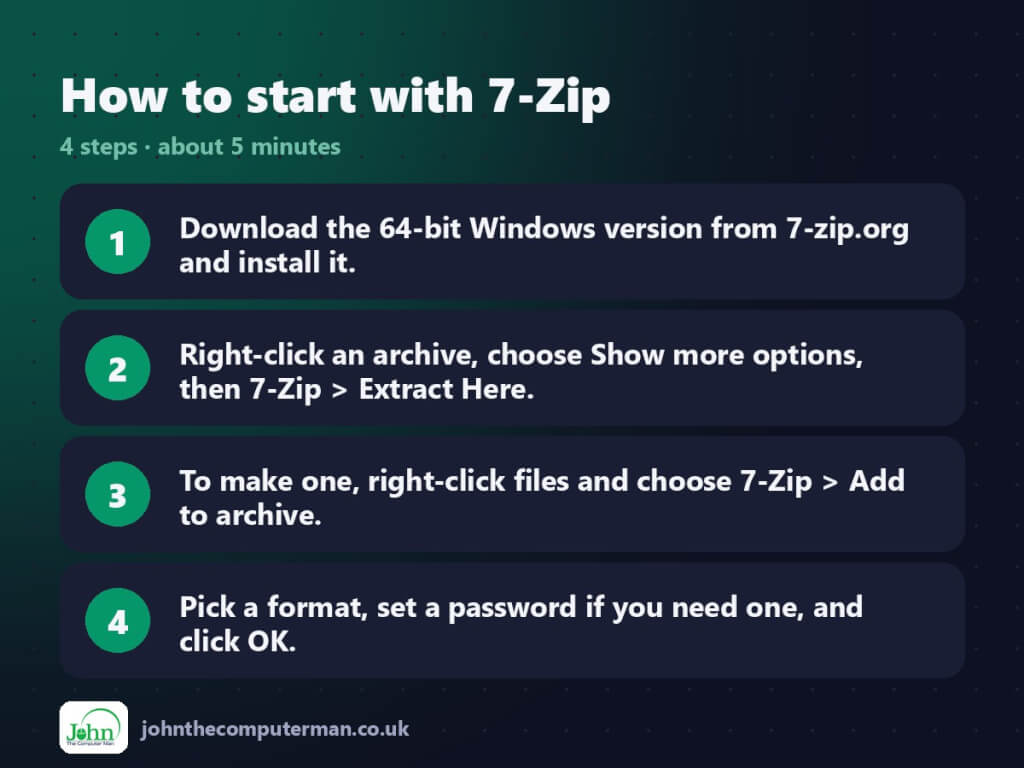
- Download the 64-bit Windows version from 7-zip.org and install it.
- Right-click an archive, choose Show more options, then 7-Zip > Extract Here.
- To make one, right-click files and choose 7-Zip > Add to archive.
- Pick a format, set a password if you need one, and click OK.
Prefer the command line? Install it with winget, which is built into Windows 10 and 11:
winget install --id 7zip.7zip -e
Tips to get more out of it
- 7-Zip doesn’t update itself. Check 7-zip.org every few months, or let UniGetUI handle it, because older versions have had security fixes.
- When emailing, choose ZIP format so recipients without 7-Zip can still open it. Use 7z when size matters more.
- Use ‘Split to volumes’ in the Add to archive window to break a huge file into smaller parts.
- In Windows 11, press Shift+F10 on a file to jump straight to the classic right-click menu with 7-Zip in it.
Is it really free?
Free and open source, for home and business use. No ads, no nag screens.
Pros and cons
| 👍 Pros | 👎 Cons |
|---|---|
| Free for everyone, even businesses | Plain, old-fashioned interface |
| Opens nearly every format | Doesn’t update itself |
| Strong AES-256 encryption | Hidden under ‘Show more options’ in Windows 11 |
Who is it for?
Best for: Anyone who downloads, emails or backs up files. Works on: Windows. Sign-up: Not required.
7-Zip alternatives
- NanaZip: a modern fork of 7-Zip with Windows 11 right-click menu support.
- PeaZip: free and open source with a friendlier interface.
- Windows File Explorer: Windows 11 now opens RAR and 7z files, but can’t create encrypted archives.
FAQ
Is 7-Zip safe?
Yes, when downloaded from 7-zip.org and kept up to date. Like any software it has had security fixes, so don’t stay on an old version.
Do I still need 7-Zip on Windows 11?
Windows 11 can now open RAR and 7z files, but 7-Zip is faster, handles more formats, and can create encrypted and split archives.
The verdict
7-Zip is a must-have. It’s small, fast and free for everyone, and it opens whatever lands in your downloads folder. Just remember to keep it updated.
👉 Try it: www.7-zip.org
Part of the best free windows tools series on johnthecomputerman.co.uk/. Follow @johnthecomputerman on Instagram for a new free tool every Monday, Wednesday and Friday. Pricing and features were checked in September 2026 and can change, so check the tool’s own site for the latest.
