
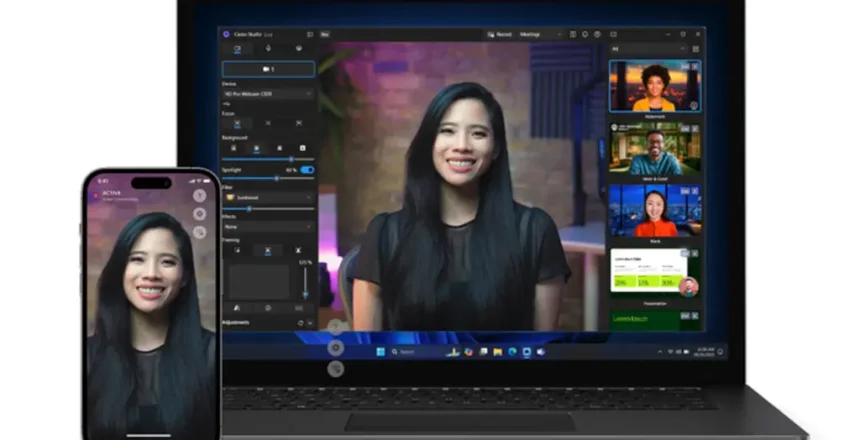
Would you like to use your smartphone as a webcam instead of the crappy one built into your computer? Or your computer doesn’t have a webcam and you need one? Camo may be the solution for you. You install the Camo App to your smartphone and Camo Studio to your computer.
How does this work?
Firstly, install the free Camo Camera app to your smartphone. There is a version for Android phones and a version for iOS devices.
You will need to give Camo Camera access to your camera and microphone.
You will find the smartphone works better over a USB cable than over WiFi.
Next, install Camo Studio on your computer. There is a version for Windows and Mac.
Using Camo Studio with your smartphone
Camo Studio creates a virtual camera on your computer. You need to give Camo Studio access to your camera.
Click on the wireless button on the app to make it available to Camo Studio.
You need to add the smartphone as a device, so under Device click on the dropdown and choose Pair a device.
Use your smartphone to scan the QR code to pair the Camo Camera app to the Camo Studio.
Click on Lens to choose the camera lens you wish to use. You can switch from the rear camera(s) to the selfie camera from this dropdown.
Additional camera options:
Focus – You can opt for autofocus or manual focus settings.
Background – You can enable virtual backgrounds.
Filter – Apply colour filters to the camera.
Effects – Apply affects to the camera including some novelty ones.
Auto Framing – The camera can pan out to show more of what you are filming and return to the portrait view automatically.
Audio options:
You can choose where the audio source is on your phone as some have more than one microphone source.
Layers:
You can use different layer effects such as watermark a logo, or add custom text and images to the video feed.
Scene Gallery:
The Scene Gallery makes it easy to toggle between the different scenes using the Ctrl key combination. If you wish to toggle between the off camera scene to your on camera or YouTube video scene, this makes that easy.
The Pro version
The free version has two profiles available: Meetings which is 720p with 16:9 aspect ratio at 30fps and Vertical which is 1280p with 9:16 aspect ratio at 30fps.
The pro version extends this with:
- Meetings HD – 1080p 16:9 at 30fps
- Streaming – 1080p 16:9 at 60fps
- 4K – 2160p 16:9 at 30fps
- Vertical HD 1920p 9:16 at 30fps
The pro version is available as a monthly subscription (£7.98 per month), annual subscription (£39.98 per year) or one-off payment for two computers (£79.98).
Using Camo Studio with other devices
You can use Camo Studio with built-in webcams, DSLR cameras and capture cards along with HDMI capture devices to turn them into a camera input that you can apply the same filters as the smartphone option as above.
