I use Google Workspace for Business, and the email is handled exactly the same as a gmail account. Microsoft Outlook Classic threw a serious error and wouldn’t allow me to get my email. After removing the email and attempted to re-add, I discovered how to fix the problem. The solution is in this post.
New Outlook vs Outlook Classic
New Outlook comes preinstalled with Windows 11 and serves as a replacement for Mail & Calendar in Windows 10.
Outlook Classic was supplied in paid versions of Microsoft Office until 2024, it is still available so if you prefer the Office Classic and you have paid for Office 2024 or Microsoft 365 on subscription, you can install it here.
OAUTH2
Google doesn’t use passwords in the traditional sense anymore, instead it uses something called OAUTH2 (Open Authentication v2) which instead saves a token on your computer which it uses instead of a password.
This means that Outlook opens a web browser with Google’s login page. You enter your email address and Google responds with either asking you for a password, or a challenge you can perform on an app on your phone.
Problem and solution
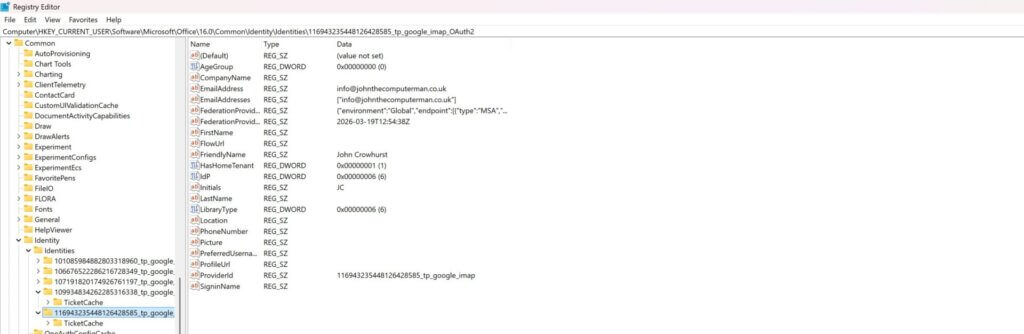
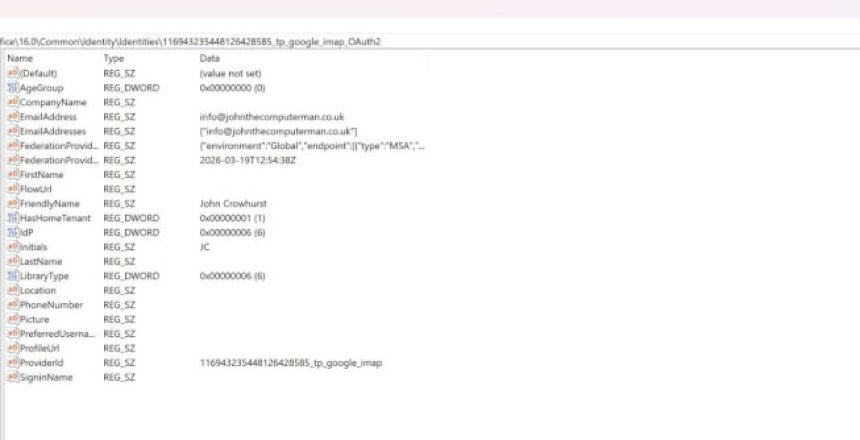
For some reason the stored token was corrupted, and when the account was removed it wasn’t deleted from Windows registry. Trying to add a new version of the account failed because the old token was found.
The solution was to remove the identity in the registry which is where Windows stores the account details and the token. Close Outlook and then you can remove the identity from the registry.
The location of the identity is found in
Computer\HKEY_CURRENT_USER\Software\Microsoft\Office\16.0\Common\Identity\Identities
You will need to click on the identity sub key that contains your email address and then right click and delete it.
Once you have done that, you can add the account again and Outlook will behave properly.
