
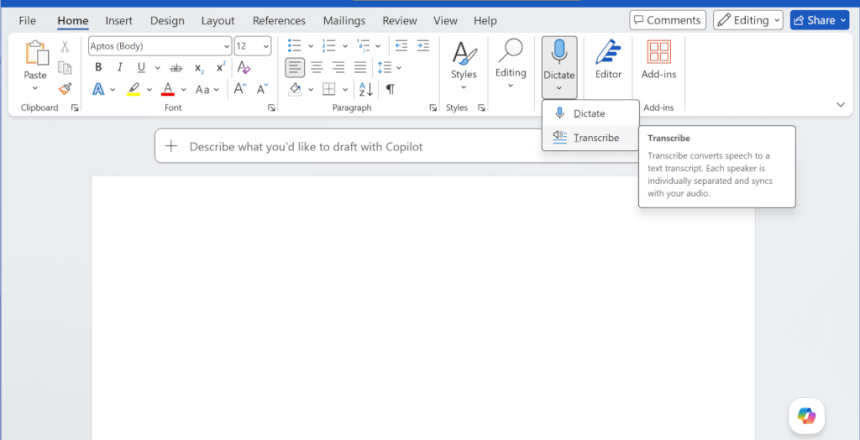
I needed to extract text from a YouTube video to take notes for a project. After discovering that Microsoft Word can do dictation and transcription, I found I can upload an audio file from Word and have it convert that into text that I could edit and turn into notes easily.
Dictate
You can use Microsoft Word as an audio dictation system. You press the button and when you speak, the words are typed on the screen for you. There is a little microphone symbol you can mute the microphone and a settings button to change options like automatically adding punctuation, toggle the profanity filter and to change the language.
Transcribe
Underneath the Dictate button is an arrow that gives you the option for Transcribe. Transcribe is like Dictate, but it can read from an audio file instead of the microphone. Microsoft Word uploads your audio file to your OneDrive and then downloads the words from that audio for you to add to the document.
The steps I took
Unfortunately, Microsoft Word cannot work with video files directly. So I used a tool called 4K YouTube to MP3 to download the YouTube video as an MP3 audio file and then used that audio file as my source for transcription.
Microsoft Word then returned the text I needed to edit to use in my notes easily.
