You know the file is somewhere on your PC. You type its name into the Start menu and wait. And wait. Then Windows shows you web results instead.
Everything, from voidtools, fixes that. It indexes every file and folder name on your drives, usually in seconds, and then shows results as you type. Not after you press Enter. As you type.
What is Everything?
Everything is a free, lightweight file search tool for Windows made by voidtools. Instead of crawling your drives, it reads the NTFS file system’s own index to list every file and folder name, then keeps that list up to date in real time. Searches are near-instant even across millions of files, and it uses very little memory.

Key features
Results as you type
Every keystroke filters the list instantly, across all your drives, with no waiting and no web results.
Powerful search filters
Type ext:pdf, size:>1gb or dm:today to filter by type, size or date. Combine them to find exactly what you want.
Tiny and light
The download is only a few megabytes and it barely touches your memory or CPU while it keeps its index current.
How to get started with Everything
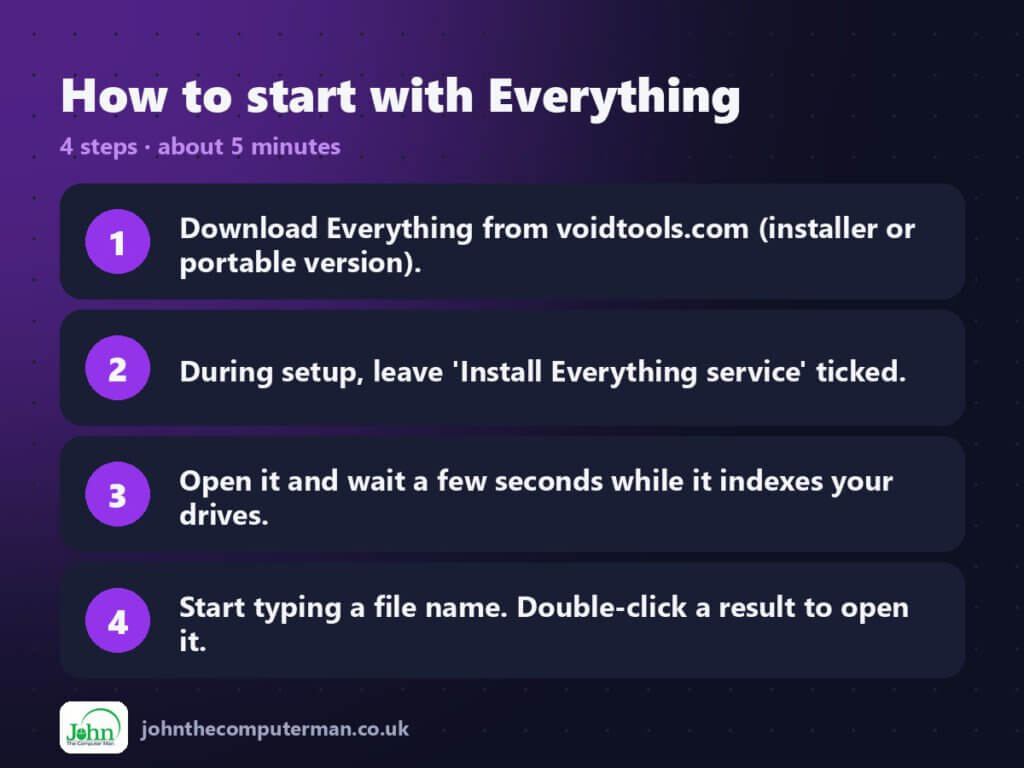
- Download Everything from voidtools.com (installer or portable version).
- During setup, leave ‘Install Everything service’ ticked.
- Open it and wait a few seconds while it indexes your drives.
- Start typing a file name. Double-click a result to open it.
Prefer the command line? Install it with winget, which is built into Windows 10 and 11:
winget install --id voidtools.Everything -e
Tips to get more out of it
- Search for ext:jpg;png;heic to find every photo on your PC in one list.
- Try size:>1gb to spot the huge files eating your disk space.
- dm:thisweek shows everything you’ve changed this week, handy when you can’t remember where you saved something.
- Set a global hotkey in Tools > Options > Keyboard so Everything pops up from anywhere.
Is it really free?
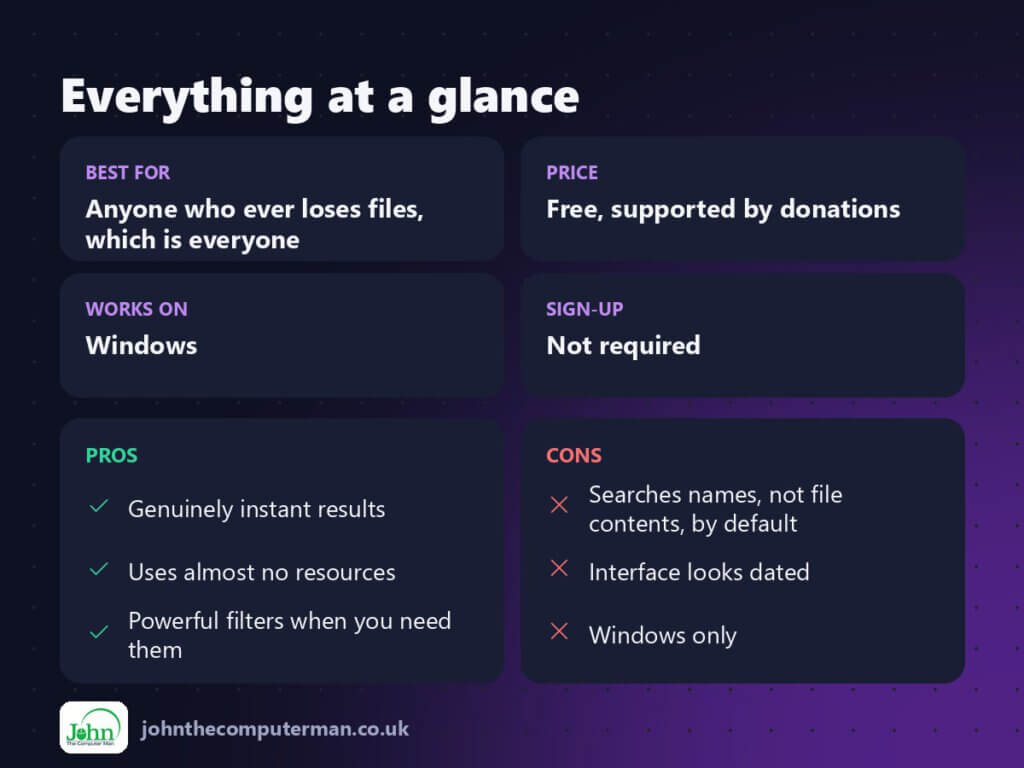
Free, supported by donations. There’s no paid version and no ads.
Pros and cons
| 👍 Pros | 👎 Cons |
|---|---|
| Genuinely instant results | Searches names, not file contents, by default |
| Uses almost no resources | Interface looks dated |
| Powerful filters when you need them | Windows only |
Who is it for?
Best for: Anyone who ever loses files, which is everyone.
Works on: Windows.
Sign-up: Not required.
Everything alternatives
- PowerToys Command Palette: Microsoft’s launcher can search files too, and can use Everything behind the scenes.
- Windows Search: built in and searches inside documents, but much slower.
- Listary: a quick-search bar that jumps straight to folders in Save dialogs.
FAQ
Can Everything search inside files?
Yes, with content: in front of your search, but it’s much slower because file contents aren’t indexed. It’s best for names.
Does it work on external drives?
Yes. NTFS drives are indexed automatically, and you can add other drives and folders in Tools > Options > Indexes.
The verdict
Once you’ve used Everything you’ll never wait for Windows search again. It’s free, tiny and ridiculously fast.
👉 Try it: www.voidtools.com
Part of the best free windows tools series on johnthecomputerman.co.uk. Follow @johnthecomputerman on Instagram for a new free tool every Monday, Wednesday and Friday. Pricing and features were checked in September 2026 and can change, so check the tool’s own site for the latest.