
Phones get dropped, lost, stolen and dunked in water. The phone can be replaced. The photos of your kids, years of messages and every contact you’ve saved often can’t, unless they’re backed up.
Android can back up almost everything automatically to your Google account for free. It just isn’t always switched on. Take ten minutes to check these five things and a lost phone becomes an inconvenience rather than a disaster.
Before you start: Android menus vary a little between phone makers. The steps below use Google Pixel / standard Android names, with Samsung Galaxy differences noted. If you can’t find a setting, tap the search bar at the top of Settings and type its name.
How to back up your phone on Android
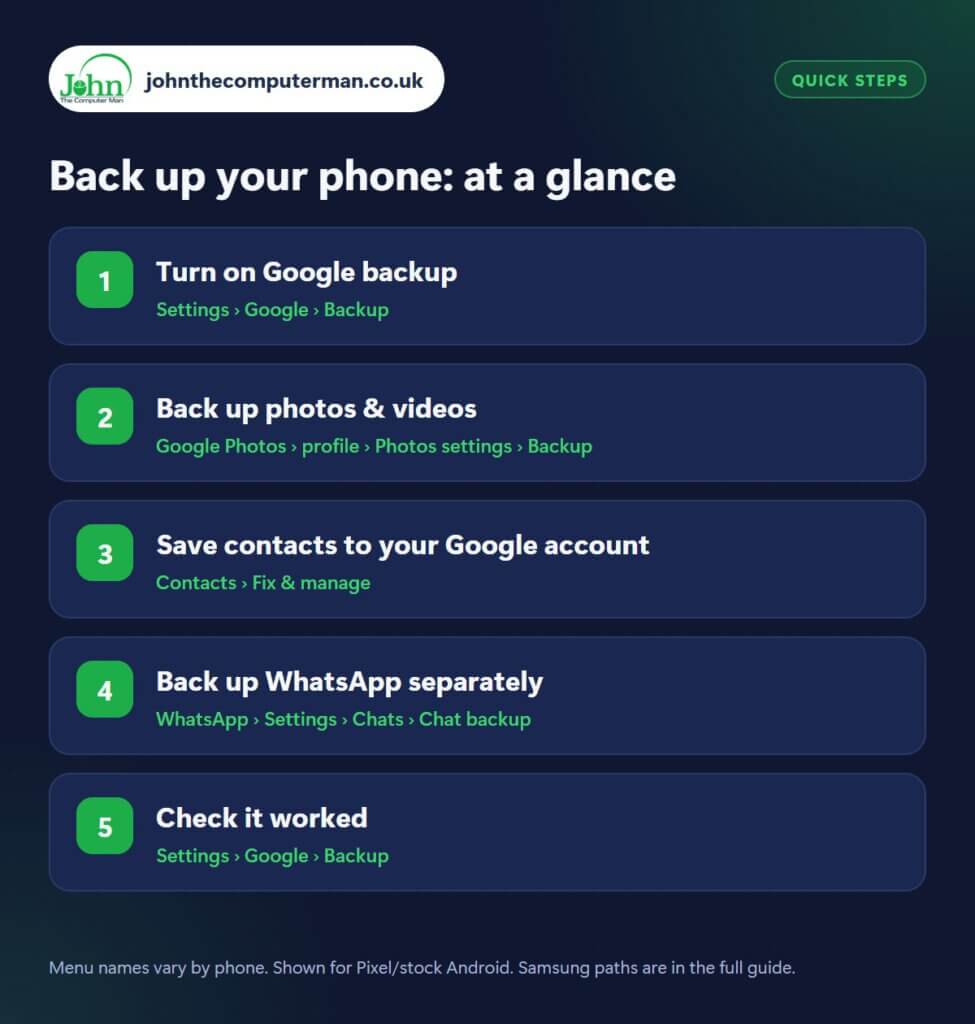
Step 1: Turn on Google backup
Where: Settings › Google › Backup
Open Settings › Google › Backup (on some phones: Settings › System › Backup). Make sure Backup by Google One is switched on, then tap Back up now. This saves your app list and app data, call history, contacts, device settings, and SMS/MMS messages to your Google account. It then runs automatically when your phone is charging and on Wi-Fi.
Step 2: Back up photos & videos
Where: Google Photos › profile › Photos settings › Backup
Your photos are the most precious thing on your phone. Open Google Photos, tap your profile picture › Photos settings › Backup and switch it on. Choose your backup quality: Storage saver squeezes more into your free space and looks great on a phone, while Original quality keeps every detail. You can also choose to back up other folders, such as WhatsApp images or downloads.
Step 3: Save contacts to your Google account
Where: Contacts › Fix & manage
Contacts saved to your Google account sync automatically. Contacts saved to the phone or the SIM card may not. In the Google Contacts app, tap Fix & manage and look for an option to import or move device contacts to your Google account, and check the default account for new contacts. On Samsung, open Contacts › menu › Manage contacts › Default storage location and choose your Google account.
Step 4: Back up WhatsApp separately
Where: WhatsApp › Settings › Chats › Chat backup
WhatsApp doesn’t use your phone’s main backup. Open WhatsApp › Settings › Chats › Chat backup, choose your Google account, tap Back up, then set Frequency to Daily. Decide whether to include videos (they take a lot of space). For extra privacy, turn on End-to-end encrypted backup, but don’t forget the password or key, or the backup can’t be restored.
Step 5: Check it worked
Where: Settings › Google › Backup
A backup you’ve never checked isn’t a backup. Go back to Settings › Google › Backup and check each item shows a recent last backup time. In Google Photos, look for the cloud tick. When you get a new phone, sign in with the same Google account during setup and choose to restore from your backup. Samsung owners can also use Smart Switch to copy everything across by cable or to a PC.
Pro tip
💡 Your free 15 GB of Google storage is shared between Gmail, Drive and Photos. Check what’s using it at one.google.com/storage before it fills up.
FAQ
Is Android backup free?
Yes, up to the 15 GB of free Google storage every account gets. If you have lots of photos you may need a Google One plan for more space.
Does Google backup include my passwords?
Passwords saved in Google Password Manager are stored in your Google account, not the phone, so they come back when you sign in on a new phone.
What about Samsung Cloud?
Samsung Cloud can back up settings and some Samsung app data, but Google backup plus Google Photos covers most people. Using both doesn’t hurt.
The bottom line
Ten minutes today can save years of memories. Turn on Google backup and Google Photos backup, set WhatsApp to daily, and check the ‘last backup’ date every now and then.
Part of the android phone tutorials series on johnthecomputerman.co.uk. Follow @johnthecomputerman on Instagram for more Android tips. Steps were checked on current Android and Samsung One UI versions in September 2026; menu names can change with updates.
