
Your phone holds your email, banking apps, photos and the codes that protect every other account you have. If someone gets into it, they can get into everything.
Android has excellent security built in, but some of the best protection isn’t switched on by default. These five checks take about ten minutes and cover the things that actually matter.
Before you start: Android menus vary a little between phone makers. The steps below use Google Pixel / standard Android names, with Samsung Galaxy differences noted. If you can’t find a setting, tap the search bar at the top of Settings and type its name.
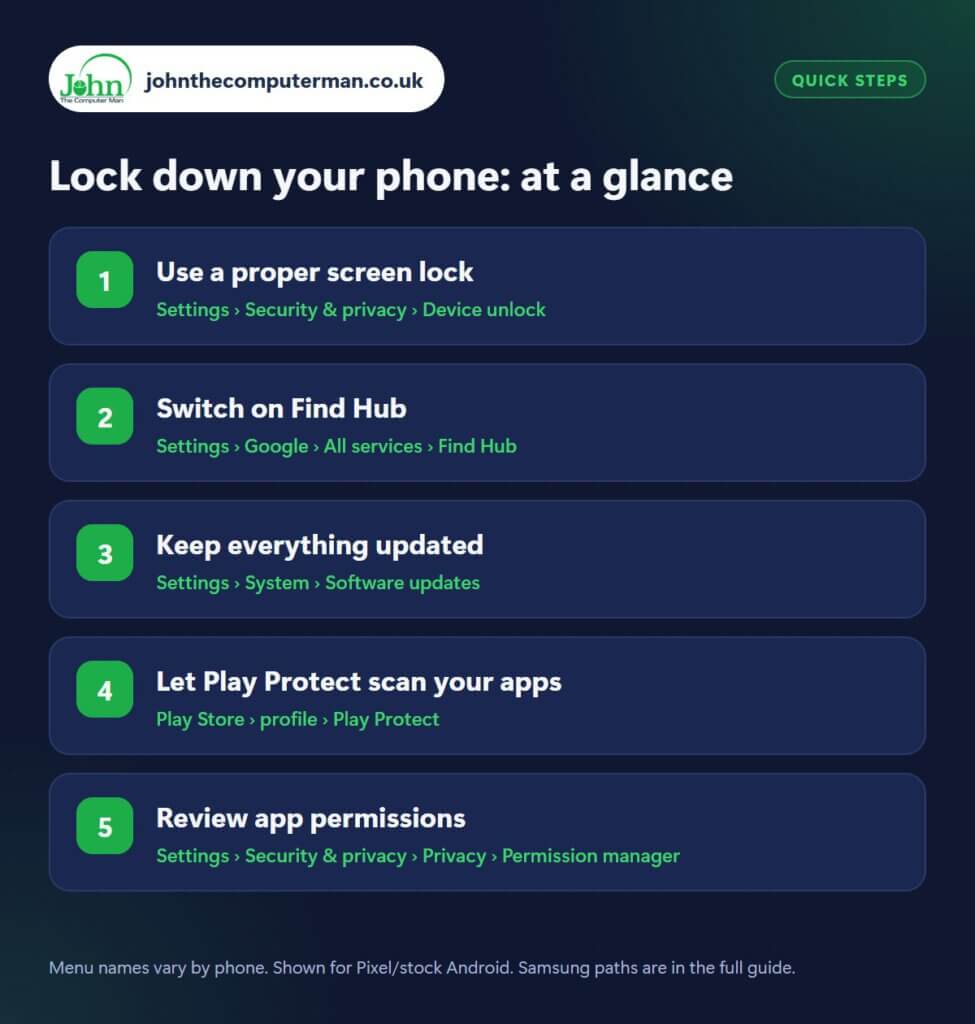
How to lock down your phone on Android
Step 1: Use a proper screen lock
Where: Settings › Security & privacy › Device unlock
Samsung: Settings › Lock screen and AOD › Screen lock type
Your screen lock protects everything else. Go to Settings › Security & privacy › Device unlock › Screen lock (Samsung: Settings › Lock screen and AOD › Screen lock type). Choose a PIN of at least 6 digits or a password, not a swipe or a pattern that can be spotted over your shoulder. Then add fingerprint or face unlock so it’s still quick to open. Avoid obvious PINs like birthdays or 123456.
Step 2: Switch on Find Hub
Where: Settings › Google › All services › Find Hub
Find Hub (formerly Find My Device) lets you locate, ring, lock or erase a lost phone from any browser at google.com/android/find. Check it’s on in Settings › Google › All services › Find Hub (called Find My Device on some phones, or search Settings for ‘Find’). Make sure Location is on too. Test it now from a computer so you know how it works before you need it in a panic. Samsung phones also offer SmartThings Find.
Step 3: Keep everything updated
Where: Settings › System › Software updates
Samsung: Settings › Software update
Updates fix security holes that criminals actively use. Check Settings › System › Software updates (Samsung: Settings › Software update) and install anything waiting. On many phones there’s also a separate Google Play system update under Settings › Security & privacy › System & updates. Keep apps updated in the Play Store › profile › Manage apps & device. If your phone no longer gets security updates, it’s time to think about replacing it.
Step 4: Let Play Protect scan your apps
Where: Play Store › profile › Play Protect
Google Play Protect checks your apps for harmful behaviour, even ones you installed from outside the Play Store. Open the Play Store, tap your profile picture › Play Protect, make sure scanning is switched on and tap Scan. The biggest risk is installing apps from links in texts or emails (‘your parcel is waiting, install our app’). Stick to the Play Store and be wary of anything that asks for accessibility access.
Step 5: Review app permissions
Where: Settings › Security & privacy › Privacy › Permission manager
Open Settings › Security & privacy › Privacy › Permission manager (or search Settings for ‘Permission manager’). Tap Location, Camera, Microphone and Contacts in turn to see which apps have access. Does a torch app need your contacts? Does a game need your location? Change anything suspicious to Don’t allow or Ask every time. Android also removes permissions from apps you haven’t used in months.
Pro tip
💡 Search Settings for ‘Theft protection’. On newer phones it can auto-lock your screen if someone snatches the phone from your hand.
FAQ
Do I need an antivirus app on Android?
For most people, no. Google Play Protect is built in, and sticking to the Play Store avoids most threats. Many ‘cleaner’ and ‘antivirus’ apps are full of ads.
Is face unlock secure?
It varies by phone. Some are secure enough for banking apps, while others use just the camera and are easier to fool. Your phone will tell you if face unlock can’t be used for payments.
What should I do if my phone is stolen?
Go to google.com/android/find, lock the phone and show a message, then erase it if you won’t get it back. Also change your Google password and contact your mobile network.
The bottom line
A strong screen lock and Find Hub are the two that matter most. Do those today, then work through updates, Play Protect and permissions when you have ten minutes.
Part of the android phone tutorials series on johnthecomputerman.co.uk. Follow @johnthecomputerman on Instagram for more Android tips. Steps were checked on current Android and Samsung One UI versions in September 2026; menu names can change with updates.
