
Trying to put the cursor in the middle of a word on an iPhone can feel like threading a needle with oven gloves on.
There’s a much easier way that’s been hiding in plain sight: the space bar. Hold it down and the whole keyboard becomes a trackpad.
What does Keyboard trackpad do?
When you touch and hold the space bar, the letters on the keyboard disappear and it turns into a trackpad. Slide your finger around and the cursor follows, so you can drop it precisely between any two letters. With a second finger, you can select text too.
Takes: 30 seconds · Works on: Any iPhone, iOS 12 or later · Cost: free, built into your iPhone
Where to find it
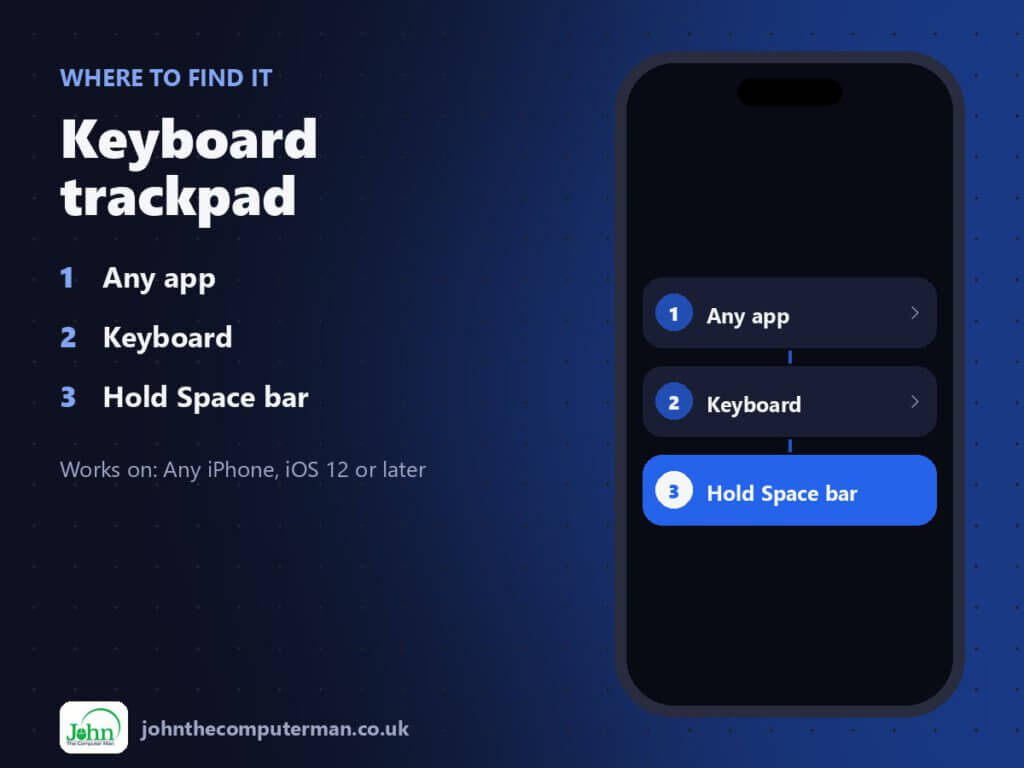
Any app > Keyboard > Hold Space bar
Keyboard trackpad: step by step
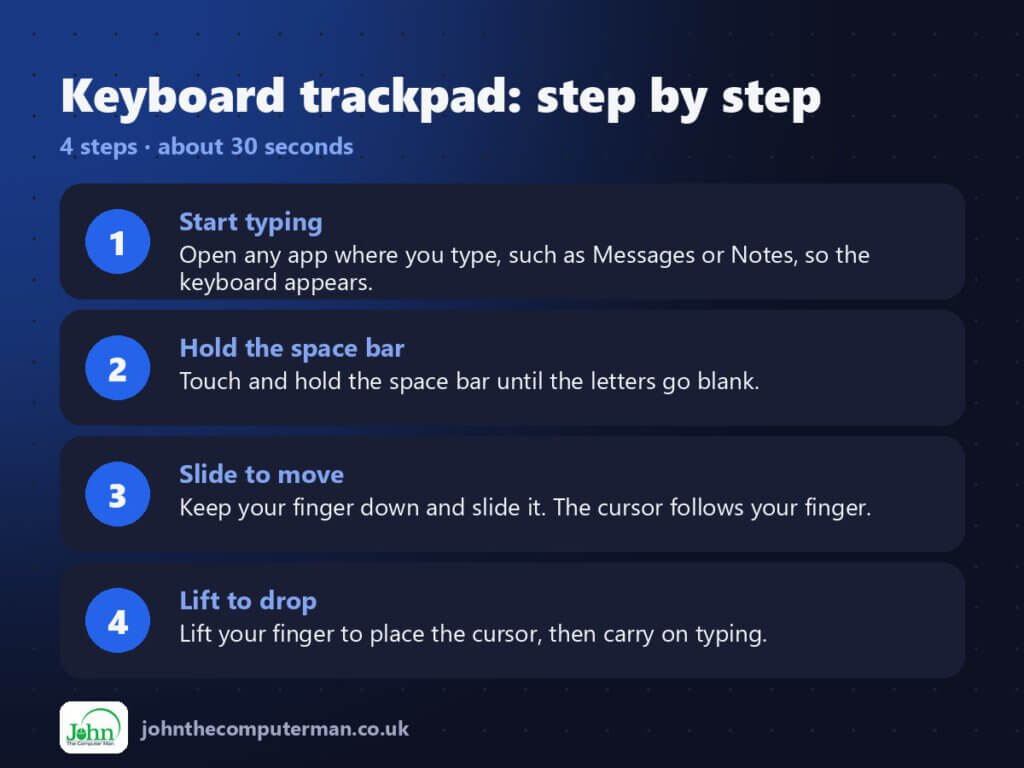
- Start typing. Open any app where you type, such as Messages or Notes, so the keyboard appears.
- Hold the space bar. Touch and hold the space bar until the letters go blank.
- Slide to move. Keep your finger down and slide it. The cursor follows your finger.
- Lift to drop. Lift your finger to place the cursor, then carry on typing.
Pro tip
💡 To select text, hold the space bar, then tap the keyboard with a second finger and slide. Great for fixing a whole word at once.
More tips
- Move slowly for fine control. The cursor moves line by line as well as left and right.
- Tap a word twice to select it, or three times to select the whole paragraph.
- Shake your iPhone, or swipe left with three fingers, to undo a mistake.
- Swipe right with three fingers to redo.
FAQ
Why doesn’t holding the space bar work?
Make sure you’re using Apple’s own keyboard. Some third-party keyboards don’t support the trackpad trick. Also check you’re holding, not tapping.
Does it work on iPad?
Yes. On iPad, you can also touch and hold with two fingers anywhere on the keyboard.
Part of the iPhone tutorials series on johnthecomputerman.co.uk. Follow @johnthecomputerman on Instagram for more iPhone tips. Menu names were checked in September 2026 and can shift slightly between iOS versions.
