

A Wi-Fi code on the back of a router. A phone number on a van. A recipe in a book. Typing it all out by hand is slow and it’s easy to get wrong.
Live Text lets your iPhone read the text in a photo so you can copy it, translate it, or tap a number to call it.
What does Live Text do?
Live Text is built into Photos, Camera, Safari and more. Your iPhone spots text in an image, then lets you select it just like text on a web page. Phone numbers, email addresses, dates and addresses become tappable, so you can call, email or add a calendar event in one tap.
Takes: 30 seconds · Works on: iPhone XS, XR or later, iOS 15 or later · Cost: free, built into your iPhone
Where to find it
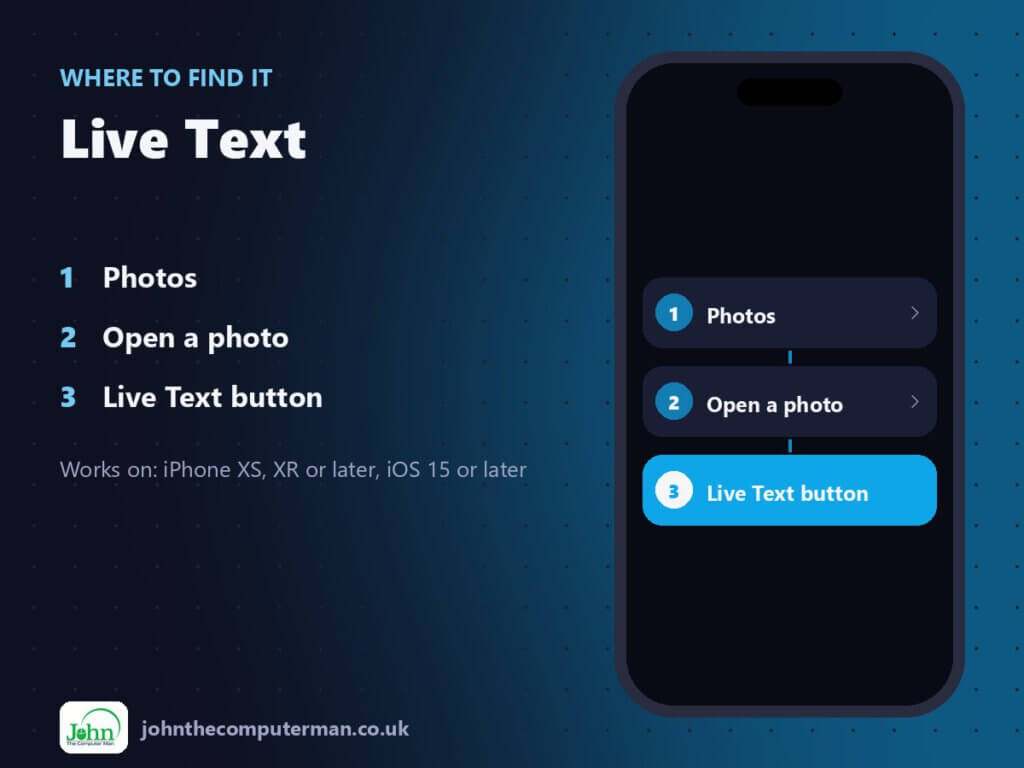
Photos > Open a photo > Live Text button
Add Your Heading Text Here
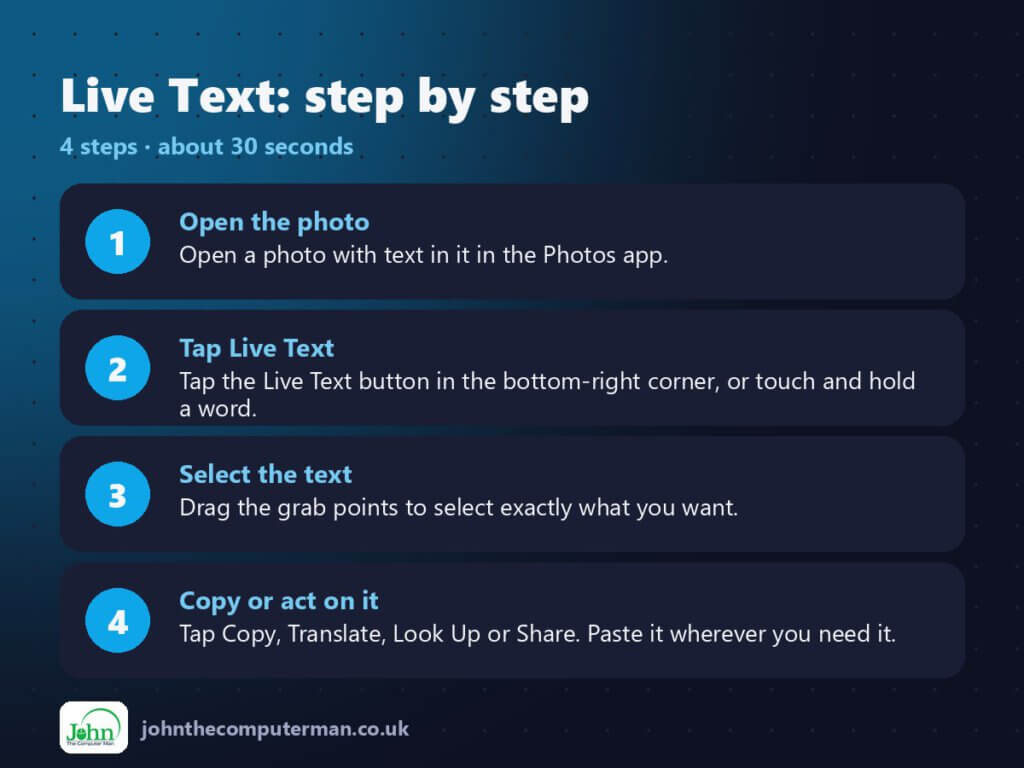
- Open the photo. Open a photo with text in it in the Photos app.
- Tap Live Text. Tap the Live Text button in the bottom-right corner, or touch and hold a word.
- Select the text. Drag the grab points to select exactly what you want.
- Copy or act on it. Tap Copy, Translate, Look Up or Share. Paste it wherever you need it.
Pro tip
💡 No need to take a photo first. Point the Camera at text, tap the Live Text button, and copy it straight from the viewfinder.
More tips
- Tap an underlined phone number to call it, or an address to open it in Maps.
- Choose Translate to translate a menu or a sign into your language.
- It works on screenshots too, so you can copy text from an app that doesn’t let you select it.
- Live Text also works in paused videos. Pause, then touch and hold the text.
FAQ
Why don’t I see the Live Text button?
Check it’s on in Settings > General > Language & Region > Live Text. The button only appears when your iPhone finds text in the image.
Does Live Text work with handwriting?
Yes, as long as the writing is reasonably neat and the photo is in focus.
Part of the iPhone tutorials series on johnthecomputerman.co.uk. Follow @johnthecomputerman on Instagram for more iPhone tips. Menu names were checked in September 2026 and can shift slightly between iOS versions.
