
Windows’ Snipping Tool is fine for a quick grab. But the moment you want to capture a whole scrolling web page, record a GIF, blur out an email address or pull text out of an image, you hit its limits.
ShareX does all of that and more. It’s free, open source, and has been the go-to capture tool for Windows power users for over a decade.
What is ShareX?
ShareX is a free, open-source (GPL) screen capture and recording program for Windows. It can capture a region, window, full screen or scrolling page, record video or animated GIFs, annotate and blur screenshots, read text with OCR, and optionally upload to dozens of services. Everything is driven by customisable hotkeys and ‘after capture’ actions.
Key features
Every kind of capture
Region, window, full screen, and scrolling capture for long web pages and documents, all on hotkeys.
Record video and GIFs
Record part of your screen as MP4 or an animated GIF. Ideal for showing someone how to do something.
Annotate, blur and OCR
Add arrows, text and step numbers, blur private details, or pull the text out of any screenshot.
How to get started with ShareX
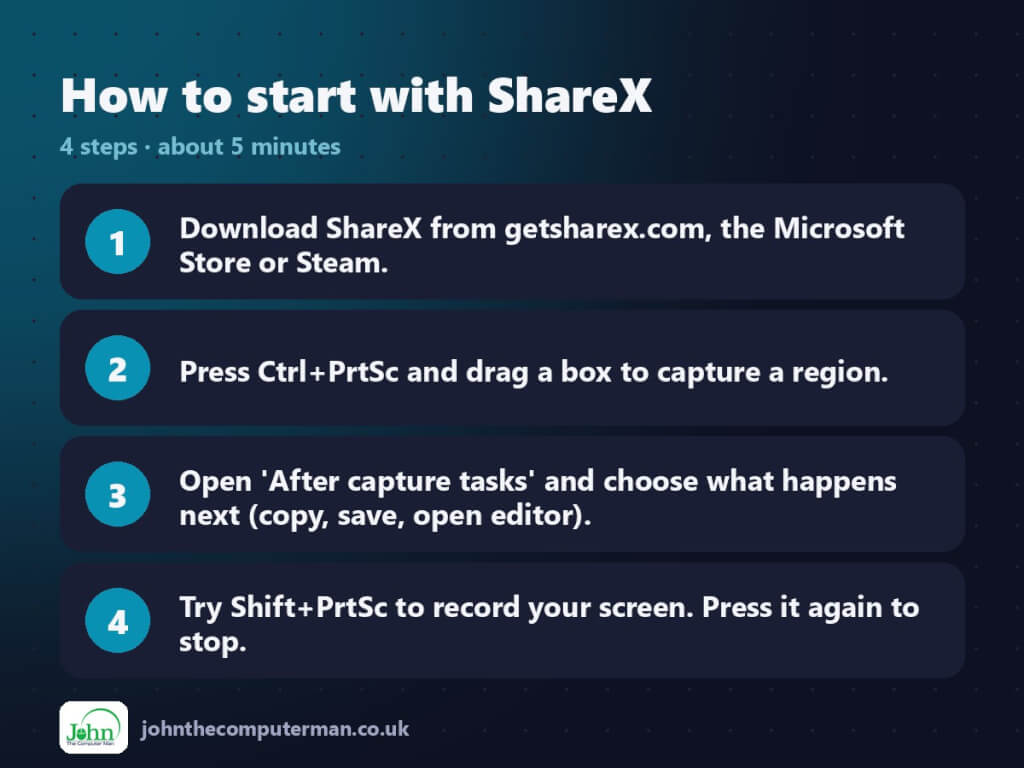
- Download ShareX from getsharex.com, the Microsoft Store or Steam.
- Press Ctrl+PrtSc and drag a box to capture a region.
- Open ‘After capture tasks’ and choose what happens next (copy, save, open editor).
- Try Shift+PrtSc to record your screen. Press it again to stop.
Prefer the command line? Install it with winget, which is built into Windows 10 and 11:
winget install --id ShareX.ShareX -e
Tips to get more out of it
- On Windows 11, PrtSc opens Snipping Tool by default. Turn that off in Settings > Accessibility > Keyboard so ShareX can use the key.
- Check After capture tasks > ‘Upload image to host’. If it’s bold, uploads are on. Older versions turned this on by default.
- Tick ‘Open in image editor’ under After capture tasks to annotate every screenshot straight away.
- Tools > Scrolling capture grabs a whole web page or long document as one tall image.
Is it really free?
Free and open source. No ads, no watermarks, no paid version.
Pros and cons
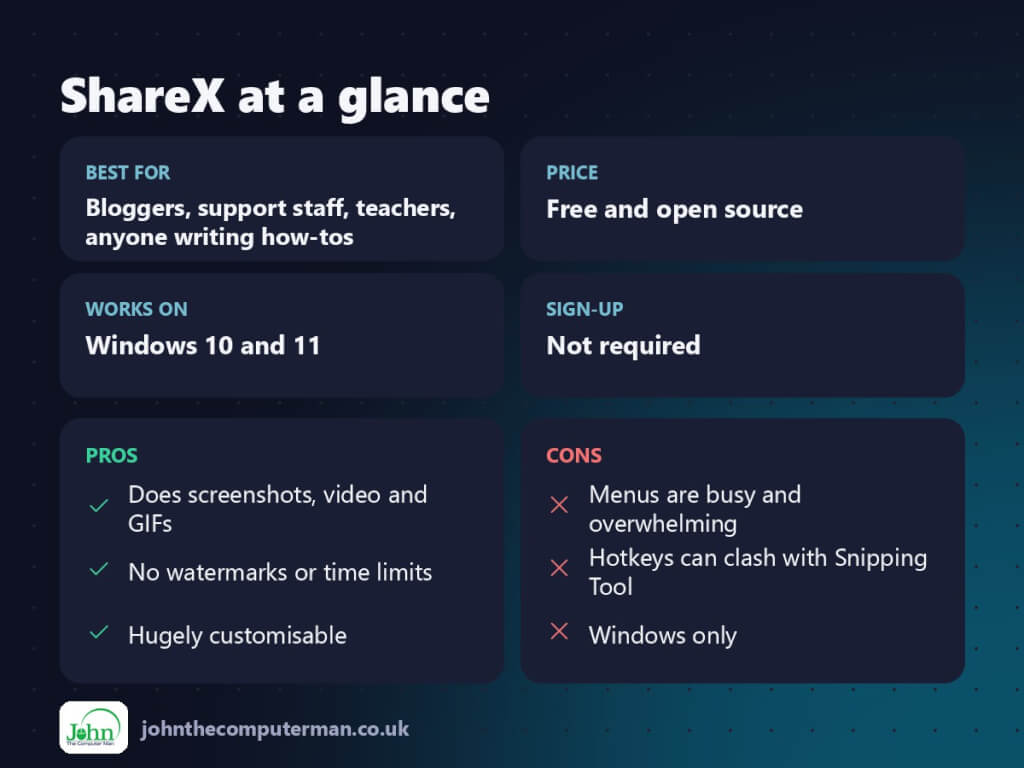
| 👍 Pros | 👎 Cons |
|---|---|
| Does screenshots, video and GIFs | Menus are busy and overwhelming |
| No watermarks or time limits | Hotkeys can clash with Snipping Tool |
| Hugely customisable | Windows only |
Who is it for?
Best for: Bloggers, support staff, teachers, anyone writing how-tos. Works on: Windows 10 and 11. Sign-up: Not required.
ShareX alternatives
- Snipping Tool: built into Windows 11, now with basic recording and text extraction.
- Greenshot: a simpler free screenshot tool with a quick editor.
- OBS Studio: free and far more powerful for long recordings and streaming.
FAQ
Does ShareX upload my screenshots?
Only if ‘Upload image to host’ is switched on under After capture tasks. Current versions leave it off by default, but check if you upgraded from an old version.
Can ShareX record audio?
Yes. In the screen recording options you can choose a microphone or your system audio as the source.
The verdict
If you take more than a handful of screenshots a week, ShareX is worth ten minutes of setup. Nothing free comes close for flexibility.
👉 Try it: getsharex.com
Part of the best free windows tools series on johnthecomputerman.co.uk/. Follow @johnthecomputerman on Instagram for a new free tool every Monday, Wednesday and Friday. Pricing and features were checked in September 2026 and can change, so check the tool’s own site for the latest.
