
An app that keeps closing, freezing or showing ‘App keeps stopping’ is frustrating, especially when it’s one you need, like your banking or messaging app.
The good news is it’s usually easy to fix. Work through these five steps in order. Each one is a little more thorough than the last.
Before you start: Android menus vary a little between phone makers. The steps below use Google Pixel / standard Android names, with Samsung Galaxy differences noted. If you can’t find a setting, tap the search bar at the top of Settings and type its name.
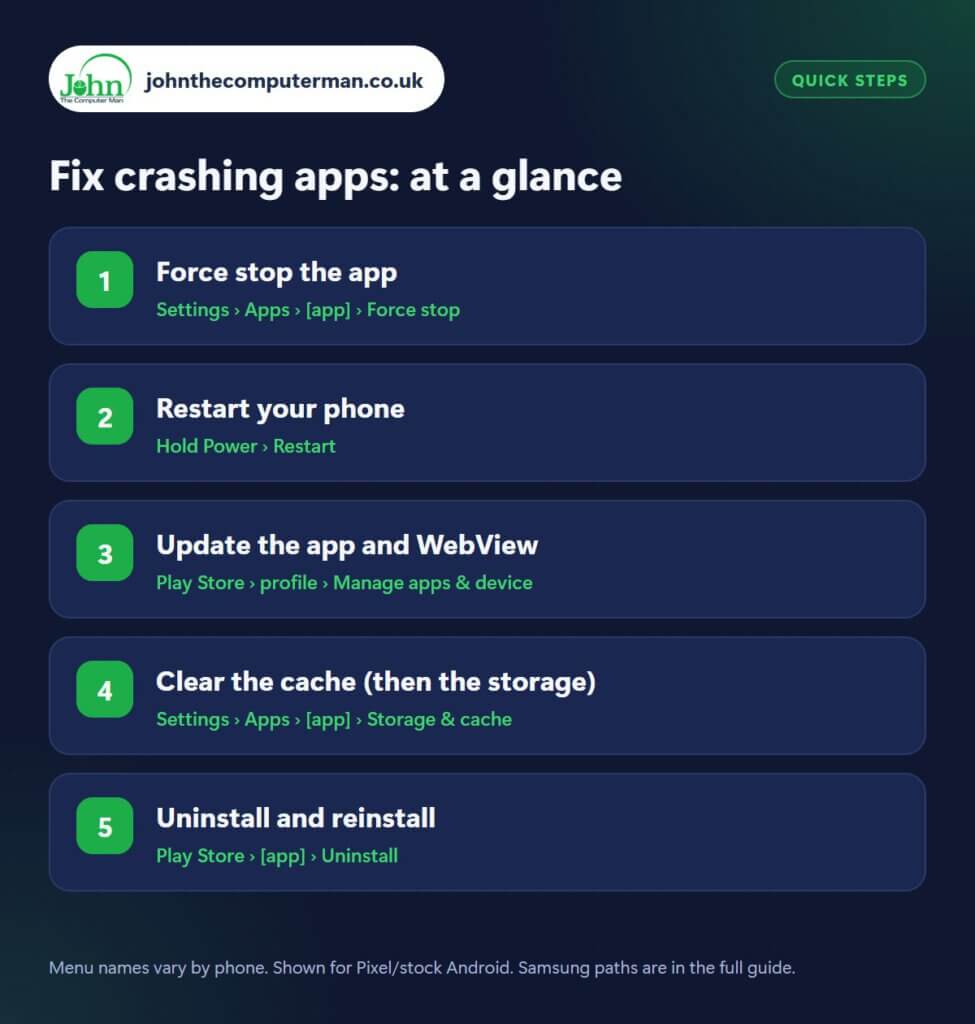
How to fix crashing apps on Android
Step 1: Force stop the app
Where: Settings › Apps › [app] › Force stop
Swiping an app away doesn’t always fully close it. Go to Settings › Apps, find the app (tap See all apps if needed) and tap Force stop, then OK. Now open it again. This clears out whatever got stuck and fixes a lot of freezes and crashes. You can also long-press the app’s icon and tap App info to get there quickly.
Step 2: Restart your phone
Where: Hold Power › Restart
If force stopping doesn’t help, restart your phone. Hold the Power button (or Power + Volume Up on many newer phones, and Side key + Volume Down on Samsung) and tap Restart. This clears the phone’s memory and restarts every background service, which fixes problems that one app alone can’t.
Step 3: Update the app and WebView
Where: Play Store › profile › Manage apps & device
Open the Play Store, tap your profile picture › Manage apps & device and tap Update all. Pay special attention to Android System WebView, Chrome and Google Play services. Many apps depend on them, and a bad or outdated version can make lots of apps crash at once. Check Settings › System › Software updates for a phone update too.
Step 4: Clear the cache (then the storage)
Where: Settings › Apps › [app] › Storage & cache
Go to Settings › Apps › [app] › Storage & cache and tap Clear cache. This removes temporary files that may be corrupted, and it’s completely safe. Still crashing? Tap Clear storage (or Clear data). This resets the app to how it was when first installed, so you’ll need to sign in again and may lose offline downloads or settings. Make sure anything important is backed up first.
Step 5: Uninstall and reinstall
Where: Play Store › [app] › Uninstall
If nothing else works, uninstall the app (in the Play Store, open the app’s page and tap Uninstall), restart your phone, then install it again. This gives you a completely clean copy. For pre-installed apps you can’t uninstall, go to Settings › Apps › [app], tap ⋮ › Uninstall updates, then update it again from the Play Store.
Pro tip
💡 Lots of different apps crashing at the same time? It’s almost always Android System WebView or Google Play services. Update them first.
FAQ
Will clearing cache delete my data?
No. Clearing cache only removes temporary files. ‘Clear storage’ is the one that resets the app and signs you out.
Why does an app crash only on my phone?
It might not support your Android version, or your phone may be low on storage. Check you have at least 10% free space.
What if a banking app still won’t open?
Banking apps can refuse to run on out-of-date Android versions. Update your phone, and contact your bank’s support team if it continues.
The bottom line
Force stop and restart fix most problems. If not, updating the app and Android System WebView usually does. Save clearing storage and reinstalling for last.
Part of the android phone tutorials series on johnthecomputerman.co.uk. Follow @johnthecomputerman on Instagram for more Android tips. Steps were checked on current Android and Samsung One UI versions in September 2026; menu names can change with updates.
