
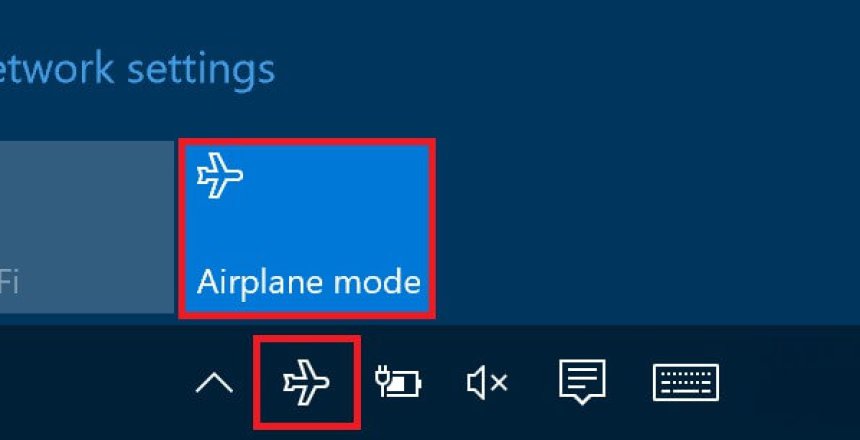
I had a call out to a customer who had accidentally turned on Airplane Mode on his laptop, which stopped his laptop from connecting to the Internet. It’s an easy mistake to make and a slip of the mouse or pressing the wrong key on the keyboard can enable it. I’m going to show you how to disable this feature.
Disable the service
Airplane mode is a service in Windows. You can disable the service and reboot and the Airplane mode appears greyed out.
- Press the Windows key to open Search
- Type cmd
- Hold down Ctrl and Shift and press Enter
- Click Yes
- Now type: SC CONFIG RmSvc START= DISABLED
- Press Enter
- Make sure you have closed down your programs and saved anything you are working on
- Type shutdown /r /f /t 0
- Press Enter
Your computer will restart immediately,
Undo the change
You can undo this change and restore the function of Airplane Mode
- Press the Windows key to open Search
- Type cmd
- Hold down Ctrl and Shift and press Enter
- Click Yes
- Now type: SC CONFIG RmSvc START= AUTO
- Press Enter
- Make sure you have closed down your programs and saved anything you are working on
- Type shutdown /r /f /t 0
- Press Enter
Your computer will restart immediately,
