
Phone batteries don’t just die. They get drained by a bright screen, apps running in the background and features you may not even know are switched on.
You don’t need a battery app (most of them make things worse). Everything you need is already in your phone’s settings. These five changes make the biggest difference, and the last one keeps your battery healthy for years.
Before you start: Android menus vary a little between phone makers. The steps below use Google Pixel / standard Android names, with Samsung Galaxy differences noted. If you can’t find a setting, tap the search bar at the top of Settings and type its name.
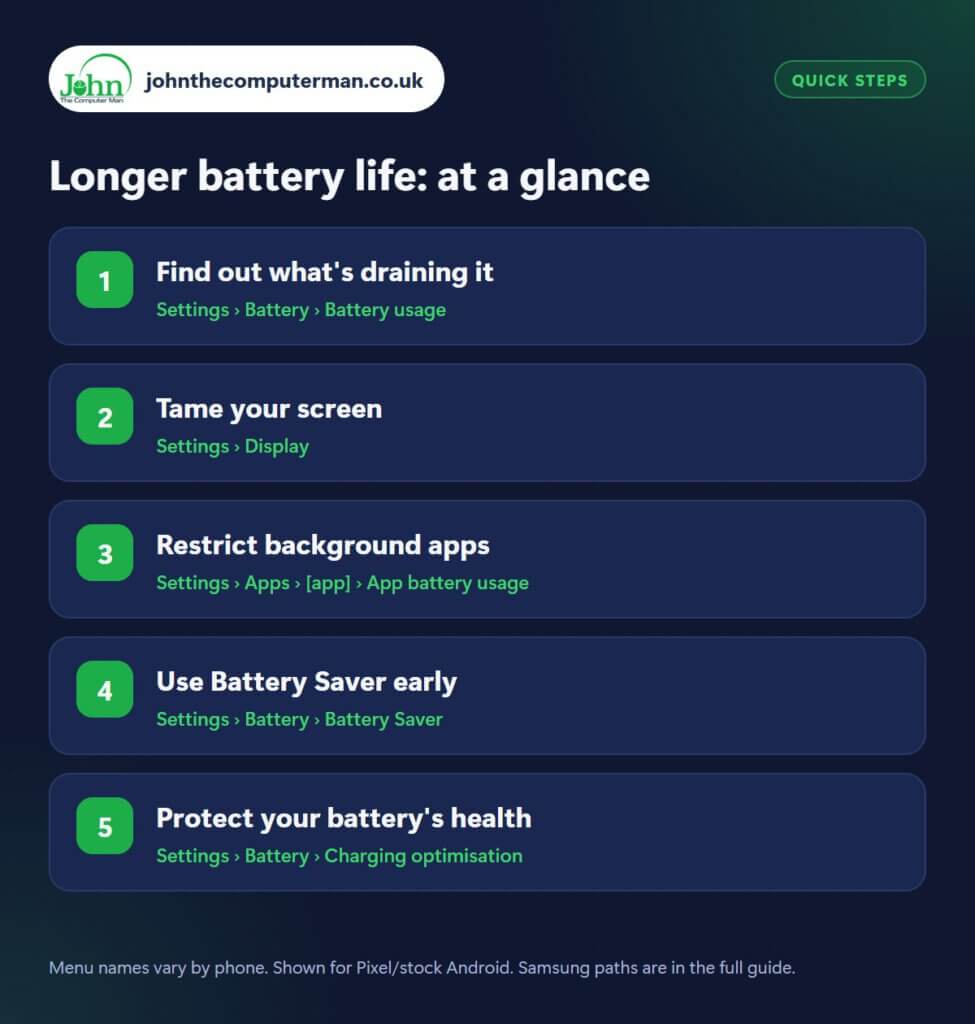
How to longer battery life on Android
Step 1: Find out what’s draining it
Where: Settings › Battery › Battery usage
Open Settings › Battery › Battery usage (on Samsung: Settings › Battery › View details or tap the usage graph). You’ll see which apps and features used the most power since your last full charge. Screen use near the top is normal. An app you barely opened sitting near the top is not, and that’s a sign it’s running in the background. Keep a note of it for step 3.
Step 2: Tame your screen
Where: Settings › Display
The screen is almost always the biggest battery user. In Settings › Display: turn on Adaptive brightness so it isn’t blasting at full power indoors; set Screen timeout to 30 seconds or 1 minute; and turn on Dark theme. Most modern Android phones have OLED screens, where black pixels are switched off completely, so dark mode genuinely saves power. If you rarely look at it, turning off Always On Display helps too.
Step 3: Restrict background apps
Where: Settings › Apps › [app] › App battery usage
Samsung: Settings › Battery › Background usage limits
For the drainers you spotted in step 1, go to Settings › Apps › [app] › App battery usage and choose Restricted. The app still works when you open it but can’t run in the background. On Samsung, go to Settings › Battery › Background usage limits and add apps to Sleeping apps or Deep sleeping apps. Don’t do this to messaging apps you rely on, or you’ll miss messages.
Step 4: Use Battery Saver early
Where: Settings › Battery › Battery Saver
Samsung: Settings › Battery › Power saving
Battery Saver cuts background activity, visual effects and some location use. Rather than switching it on when you’re desperate, go to Settings › Battery › Battery Saver (Samsung: Power saving) and set a schedule to turn it on automatically at around 20–30%. That gives you hours more when you need them. Pixel phones also have Extreme Battery Saver, which pauses all but your chosen essential apps.
Step 5: Protect your battery’s health
Where: Settings › Battery › Charging optimisation
Samsung: Settings › Battery › Battery protection
Lithium-ion batteries wear faster when they sit at 100% for hours. On Pixel phones, open Settings › Battery › Charging optimisation and choose Adaptive charging (finishes charging just before your alarm) or Limit to 80%. On Samsung, open Settings › Battery › Battery protection and pick Adaptive or Maximum (stops at 80%). You’ll get a bit less per charge but a battery that lasts years longer before it needs replacing.
Pro tip
💡 Don’t bother swiping away all your apps. Android manages them, and reopening apps from scratch actually uses more battery than resuming them.
FAQ
Should I close apps to save battery?
No. Android pauses apps you’re not using. Force-closing them means they reload from scratch next time, which uses more power, not less.
Is it bad to charge my phone overnight?
Not with charging protection turned on. Adaptive charging or an 80% limit stops the battery sitting at 100% for hours.
When should I replace my battery?
If your phone shows battery health below around 80%, or it can no longer last a day with the tips above, a battery replacement is far cheaper than a new phone.
The bottom line
Screen settings and background restrictions give you the biggest gains today. Charging protection is the one to switch on now so your battery is still going strong in two years’ time.
Part of the android phone tutorials series on johnthecomputerman.co.uk. Follow @johnthecomputerman on Instagram for more Android tips. Steps were checked on current Android and Samsung One UI versions in September 2026; menu names can change with updates.
