
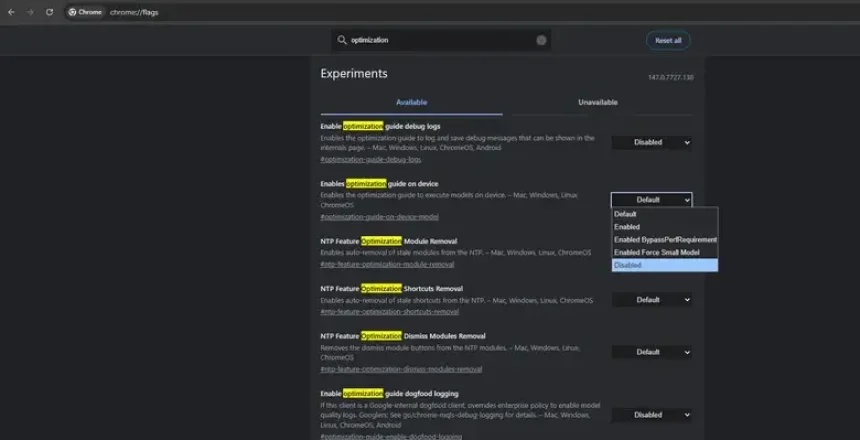
Google has introduced something they call “On Device AI” or Gemini Nano AI which makes use of the hardware of your computer ready for you to make use of future AI services.
What is On Device AI?
AI uses a lot of processing power, and hence cost to Google. By moving that AI processing power to your browser, it saves them money. It also makes AI potentially faster for the end user.
AI uses LLMs or Large Language Models. This is the brain of AI, a set of neural networks that are trained on a vast amount of text. This model can be used to generate, summarise and translate text.
Google stores the LLMs in your cache storage on your computer.
What is wrong with On Device AI?
Google has done this without asking for permission from its users. The basic LLM takes up 4GB of storage.
When different LLMs are used, this increases to 22GB of storage per user.
If your computer lacks a graphics card that supports AI or an AI dedicated processor (sometimes called an APU or NPU) then the AI model will use your CPU, which makes your computer run much slower.
How to Disable On Device AI
Google has hidden this option in their experimental section of the browser. You need to type in (or click on) chrome://flags then search for “Optimization Guide” in the search box and set the dropdown to “Disabled”. You will need to press the Relaunch button and Chrome will delete the AI models from the cache automatically and restart the web browser.
