
Plenty of scanner apps charge a weekly subscription for something your iPhone does for free.
The Notes app has a document scanner built in. It finds the edges of the page, straightens it, cleans it up and saves it as a PDF you can email or sign.
What does Scan documents do?
The built-in scanner in Notes (and in the Files app) uses your camera to capture paper documents. It automatically detects the page, crops and straightens it, and can scan several pages into one PDF. You can then sign it, share it or save it to Files.
Takes: 1 minute · Works on: Any iPhone, iOS 11 or later · Cost: free, built into your iPhone
Where to find it
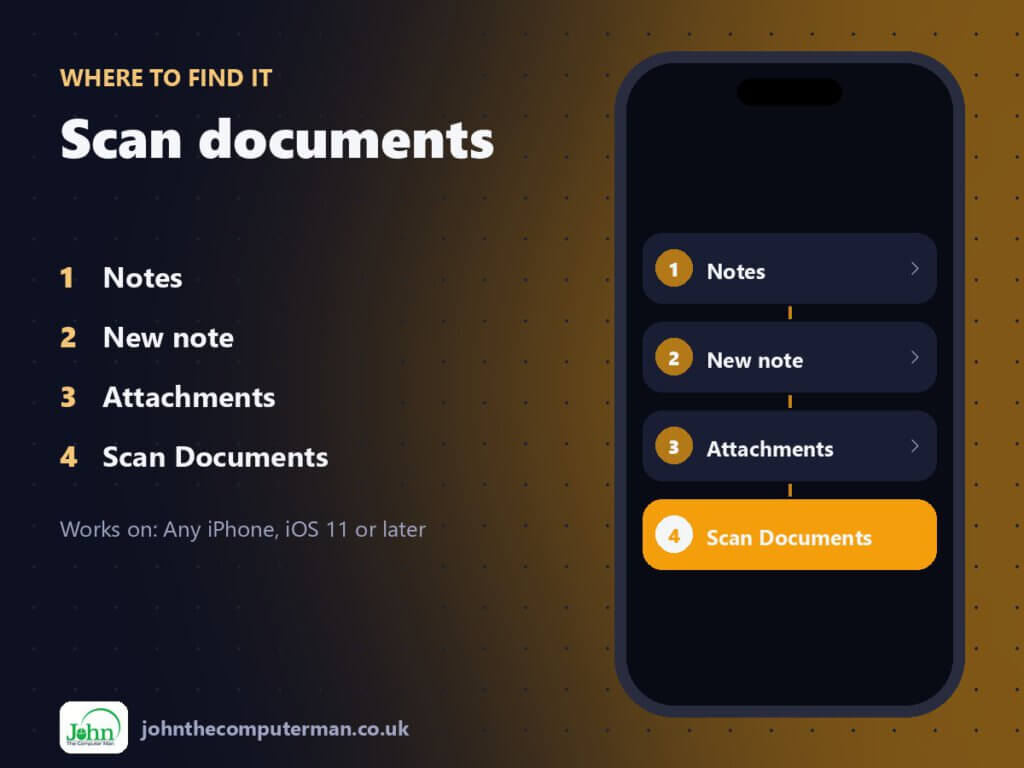
Notes > New note > Attachments > Scan Documents
Scan documents: step by step
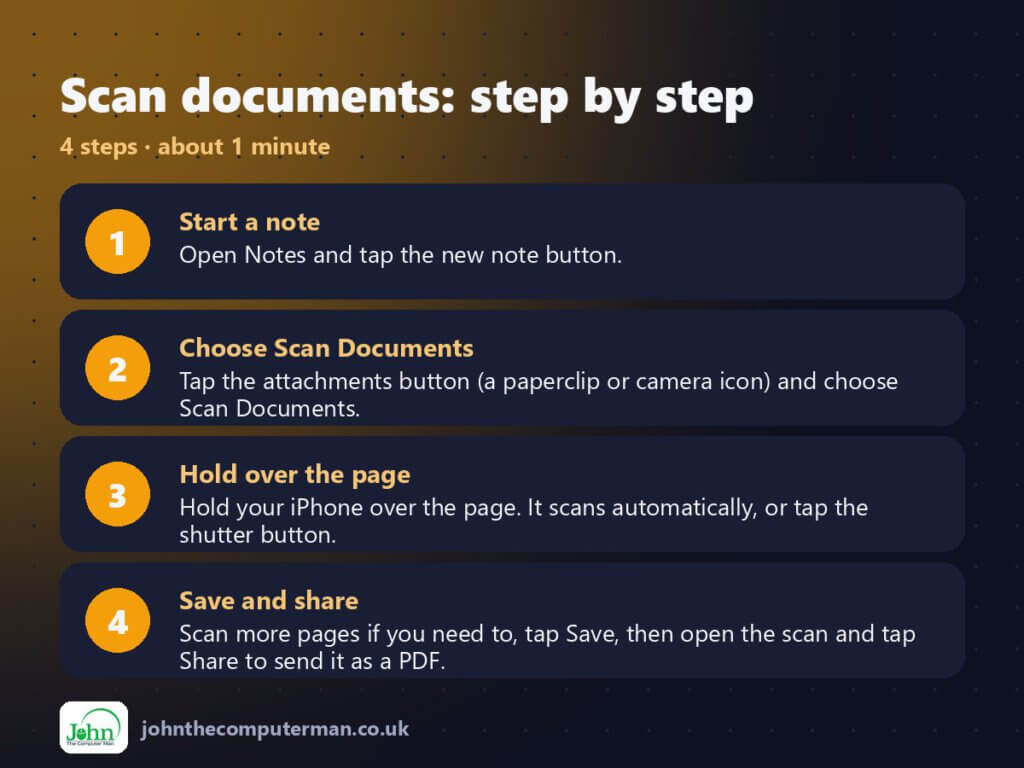
- Start a note. Open Notes and tap the new note button.
- Choose Scan Documents. Tap the attachments button (a paperclip or camera icon) and choose Scan Documents.
- Hold over the page. Hold your iPhone over the page. It scans automatically, or tap the shutter button.
- Save and share. Scan more pages if you need to, tap Save, then open the scan and tap Share to send it as a PDF.
Pro tip
💡 Need to sign it? Open the scan, tap Share, then Markup. Add your signature and send it back without printing anything.
More tips
- Put the page on a dark surface in good light. The edges are much easier to detect.
- Tap a scanned page to change the crop, rotate it, or switch between colour, greyscale and black-and-white.
- In the Files app, tap the three-dot button and choose Scan Documents to save straight to a folder or iCloud Drive.
- Rename the note to something searchable, like ‘Car insurance 2026’, so you can find it later.
FAQ
Is the scan a PDF?
Yes. When you share a scan from Notes or save it from Files, it’s sent as a PDF.
Can I search the text in a scan?
Yes. Notes recognises text in scans, so you can search for words inside them.
Part of the iPhone tutorials series on johnthecomputerman.co.uk. Follow @johnthecomputerman on Instagram for more iPhone tips. Menu names were checked in September 2026 and can shift slightly between iOS versions.
